How Do I Reboot My Bluetooth Speaker And Headphones
Rebooting your Bluetooth speaker or headphones is the quickest fix for most wireless audio problems. Whether your device won’t connect, keeps dropping, or sounds glitchy, a simple restart often solves everything. This guide walks you through easy steps to reboot my Bluetooth devices and get your sound back in minutes.
There’s nothing worse than settling in for your favorite playlist or an important call, and your Bluetooth speaker or headphones just won’t cooperate. The sound cuts out. The connection drops. Or worse, nothing happens at all. Before you panic or spend money on a repair, there’s a simple solution that works more often than you’d think.
Rebooting your Bluetooth device is the single most effective troubleshooting step you can take. It clears temporary glitches, refreshes the wireless connection, and often brings your audio back to life in seconds. Think of it like restarting your phone when it acts up. The same logic applies here.
In this guide, we’ll walk you through exactly how to reboot my Bluetooth speaker and headphones. We’ll cover basic restarts, deeper resets, and tips for car Bluetooth systems too. Whether you use wireless earbuds, a portable speaker, or a headset for work, this article has you covered.
Key Takeaways
- Power Cycle Fixes Most Issues: Turning your Bluetooth device off and back on resolves the majority of connectivity problems.
- Forget and Re-Pair: Removing the device from your phone’s Bluetooth list and pairing again can clear stubborn glitches.
- Check for Firmware Updates: Outdated software is a common cause of Bluetooth troubles and easy to fix.
- Distance Matters: Keeping your Bluetooth device within 30 feet of the source improves signal strength.
- Reset vs. Reboot: A factory reset is different from a reboot and should be your last resort.
- Car Bluetooth Needs Special Care: Vehicles have unique Bluetooth settings that sometimes need extra attention.
📑 Table of Contents
Why Does Bluetooth Need Rebooting?
Bluetooth technology connects your devices using short-range wireless signals. Like any wireless system, it can experience hiccups. Software glitches, memory overload, and signal interference are all common culprits. When these issues pile up, your Bluetooth connection starts acting strange.
Rebooting clears the temporary memory on your device. It resets the Bluetooth module and forces a fresh connection handshake. This is why a simple restart often fixes problems that seem complicated. Your device gets a clean slate to work with.
Think about how often you use Bluetooth daily. You connect to speakers, headphones, car systems, and smart home devices. That constant pairing and unpairing creates small software buildups. A reboot sweeps those away and keeps things running smoothly.
Common Signs Your Bluetooth Needs a Reboot
How do you know it’s time to reboot my Bluetooth device? Watch for these telltale signs:
- The speaker or headphones won’t connect to your phone or computer.
- Audio keeps cutting in and out during playback.
- The device connects but produces no sound.
- You notice a delay between pressing play and hearing audio.
- Your Bluetooth name doesn’t show up in the available devices list.
- The device drains battery faster than usual.
- You hear static, crackling, or distorted audio.
If you notice any of these issues, a reboot should be your first move. It takes less than a minute and costs nothing. Most people skip this step and jump to more complicated fixes. Don’t make that mistake.
How to Reboot My Bluetooth Speaker
Rebooting a Bluetooth speaker is straightforward. The exact steps vary slightly by brand, but the general process is the same across most models. Here’s how to do it right.
Step-by-Step Speaker Reboot
- Turn off the speaker. Press and hold the power button until the indicator light turns off. Wait about five seconds.
- Unplug it if it’s charging. Remove the USB cable or detach the power adapter. This ensures a full power cycle.
- Wait 30 seconds. This gives the internal capacitors time to fully drain. It’s a small step that makes a big difference.
- Plug it back in. Reconnect the power source and wait for the charging light to appear.
- Turn the speaker on. Press the power button and wait for it to enter pairing mode.
- Reconnect to your device. Go to your phone’s Bluetooth settings and select the speaker from the list.
That’s it. In most cases, this simple power cycle resolves the issue. If your speaker still won’t connect, move on to the next section.
When a Power Cycle Isn’t Enough
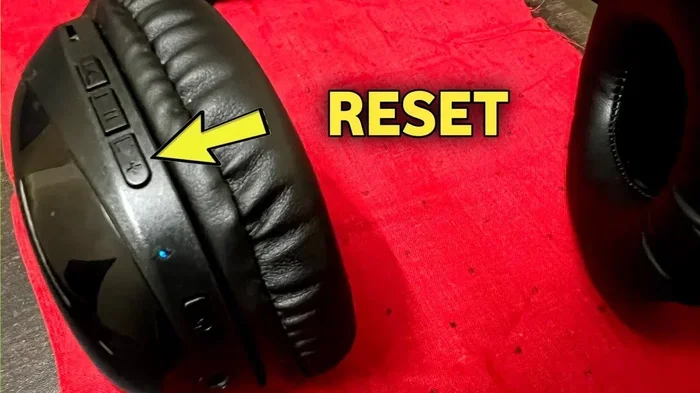
Sometimes a basic reboot doesn’t fix the problem. In that case, you may need to force a deeper reset. Many speakers have a reset button or a key combination that restores factory settings. Check your speaker’s manual for the specific reset method.
For example, some brands require you to hold the power button and the volume down button together for 10 seconds. Others use a combination of the Bluetooth and play buttons. Look for a small pinhole reset button on the bottom of the speaker as well.
Remember, a factory reset erases all your paired devices. You’ll need to pair your speaker again after resetting it. Keep this in mind before you proceed.
How to Reboot My Bluetooth Headphones
Bluetooth headphones come in two main types: over-ear and in-ear (true wireless). The reboot process is slightly different for each. Let’s break it down.
Rebooting Over-Ear Headphones
Over-ear headphones usually have a power button and sometimes a dedicated reset button. Here’s the standard process:
- Press and hold the power button for 10 seconds until the LED light flashes.
- Release the button and wait another 10 seconds.
- Press the power button briefly to turn the headphones back on.
- Open your phone’s Bluetooth settings and re-pair the headphones.
Some models, like Bose or Sony, have specific reset procedures. Always check the manufacturer’s website if the basic method doesn’t work. These brands often hide reset instructions in the user manual or support page.
Rebooting True Wireless Earbuds
True wireless earbuds, like AirPods or Samsung Galaxy Buds, need a slightly different approach. Since both earbuds connect independently, you need to reset the charging case too:
- Place both earbuds inside the charging case.
- Close the lid and wait 30 seconds.
- Open the lid and press and hold the setup button on the back of the case for 15 seconds.
- The LED light will flash amber, then white. This means the reset is complete.
- Re-pair the earbuds with your device through Bluetooth settings.
This process clears the earbuds’ memory and forces a fresh connection. It works for most brands, including Jabra, Soundcore, and Beats. If you’re still having trouble, try cleaning the charging contacts with a dry cloth. Dirty contacts can mimic Bluetooth problems.
Quick Tips for Headphone Reboots
- Always charge your headphones fully before attempting a reboot.
- Keep the earbuds and case at room temperature during the reset.
- Avoid rebooting immediately after a firmware update. Wait at least 10 minutes.
- If one earbud won’t connect, try resetting just that earbud by placing it in the case and holding the button for 5 seconds.
How to Reboot Bluetooth on Your Phone or Computer
Sometimes the problem isn’t the speaker or headphones. It’s the device they connect to. Your phone or computer’s Bluetooth module might need a refresh too. Here’s how to handle that.
Rebooting Bluetooth on iPhone
iPhones don’t let you toggle Bluetooth off and on like some other devices. Instead, you need to use the Control Center or restart the phone entirely:
- Swipe down from the top right corner to open Control Center.
- Tap the Bluetooth icon to turn it off. Wait 15 seconds.
- Tap it again to turn Bluetooth back on.
- If that doesn’t work, restart your iPhone by holding the side button and volume button together.
For persistent issues, go to Settings, find the Bluetooth section, and tap “Forget This Device” next to your speaker or headphones. Then re-pair them. This clears any corrupted pairing data.
Rebooting Bluetooth on Android
Android phones offer more direct control over Bluetooth:
- Go to Settings and tap on Bluetooth.
- Toggle Bluetooth off and wait 20 seconds.
- Toggle it back on.
- If the issue persists, tap the gear icon next to your paired device and select “Unpair.”
- Then put your speaker or headphones back in pairing mode and reconnect.
Android also lets you clear the Bluetooth cache. Go to Settings, then Apps, find the Bluetooth app, and clear its cache and data. This resets the Bluetooth stack without affecting your other apps.
Rebooting Bluetooth on Windows and Mac
On a Windows computer, go to Settings, then Bluetooth and devices, and toggle Bluetooth off and on. You can also remove the device and add it again. On a Mac, hold the Shift and Option keys and click the Bluetooth icon in the menu bar. Select “Reset the Bluetooth module” from the dropdown menu.
For car Bluetooth systems, the process varies by vehicle. Most cars require you to go to the infotainment settings, find the Bluetooth menu, and select “Reset” or “Delete All Devices.” Then re-pair your phone. If you want to learn more about car-related tips and tricks, check out this fun car-themed content for some light reading while you troubleshoot.
When Should You Factory Reset Instead of Reboot?
A reboot refreshes your device temporarily. A factory reset wipes everything and restores the device to its original state. You should only use a factory reset when a simple reboot doesn’t work.
Reboot vs. Factory Reset: What’s the Difference?
Think of a reboot like taking a nap. Your device wakes up refreshed but keeps all its settings. A factory reset is like moving into a new house. Everything gets wiped clean, and you have to set things up again.
Here’s a quick comparison:
- Reboot: Takes 30 seconds. Keeps all settings. Fixes most minor issues. Safe to do anytime.
- Factory Reset: Takes 5 to 10 minutes. Erases all paired devices and settings. Fixes deep software problems. Use only as a last resort.
How to Perform a Factory Reset
If you’ve tried everything and reboot my Bluetooth device still won’t cooperate, a factory reset might be the answer. Here’s how to do it for common devices:
- JBL Speakers: Press and hold the Play and Volume Down buttons together for 10 seconds.
- Sony Headphones: Hold the power button and the volume down button for 7 seconds.
- Apple AirPods: Place them in the case, hold the setup button for 15 seconds until the light flashes amber.
- Samsung Galaxy Buds: Place in case, hold the touchpad for 5 seconds until the light flashes red.
After a factory reset, you’ll need to update the firmware if prompted. This ensures you have the latest bug fixes and improvements installed. Check the manufacturer’s app for any available updates.
Preventing Bluetooth Problems in the Future
The best way to deal with Bluetooth issues is to prevent them from happening in the first place. A few simple habits can keep your wireless devices running smoothly for years.
Daily Habits That Help
- Keep firmware updated. Manufacturers release updates that fix known Bluetooth bugs. Check for updates monthly.
- Don’t overload your Bluetooth list. Keep only the devices you actively use paired. Too many connections slow things down.
- Stay within range. Keep your Bluetooth device within 30 feet of the source. Walls and obstacles weaken the signal.
- Avoid interference. Wi-Fi routers, microwaves, and USB 3.0 ports can all interfere with Bluetooth signals.
- Charge regularly. Low battery can cause Bluetooth dropouts. Keep your devices charged above 20 percent.
These small steps add up. They save you time and frustration in the long run. Think of them as basic maintenance, just like keeping your car clean or checking the tire pressure.
Car Bluetooth Maintenance Tips
If you use Bluetooth in your car, pay extra attention to the connection. Car Bluetooth systems can be finicky, especially in older models. Delete old paired phones regularly and keep your car’s infotainment system updated. If you notice static or delayed audio, try rebooting the car’s infotainment system by holding the power button for 15 seconds.
For more car care tips and fun reads, browse our collection at Veloze Auto Group. We cover everything from maintenance guides to lifestyle content for car enthusiasts. You might even enjoy our 10 Lines On My Favourite Toy Car piece for a quick smile between repairs.
When to Seek Professional Help
Most Bluetooth issues resolve with a reboot or reset. But sometimes the problem points to a hardware issue. Know the signs that it’s time to seek professional help.
If your device still won’t connect after a factory reset, the Bluetooth chip might be damaged. If you notice physical damage like a cracked charging port or water damage, a professional repair is your best bet. Also, if the device is under warranty, contact the manufacturer before attempting any DIY fixes.
For Bluetooth issues in your car, a certified auto electrician can diagnose problems with the infotainment system. They have specialized tools to test Bluetooth modules and replace faulty components. Don’t hesitate to reach out if you’re unsure. It’s always better to be safe than sorry.
Key Takeaways
- Reboot First: Always try a simple power cycle before attempting any other fix. It solves the majority of Bluetooth problems.
- Forget and Re-Pair: Removing the device from your phone’s Bluetooth list and pairing again clears corrupted connection data.
- Factory Reset as a Last Resort: Only use a factory reset when a reboot doesn’t work. It erases all settings and paired devices.
- Keep Software Updated: Firmware updates fix known Bluetooth bugs and improve performance.
- Prevent Future Issues: Simple habits like staying within range and avoiding interference keep Bluetooth running smoothly.
- Know When to Call a Pro: Hardware damage or persistent issues need professional attention.
Frequently Asked Questions
How long does it take to reboot Bluetooth headphones?
A standard reboot takes about one to two minutes. Turn the headphones off, wait 30 seconds, and turn them back on. If you need to factory reset, it may take 5 to 10 minutes depending on the brand and model.
Why won’t my Bluetooth speaker connect after I reboot it?
This usually happens when the speaker is not in pairing mode after the reboot. Make sure you put the speaker back into pairing mode by pressing and holding the Bluetooth button. Also, check that your phone’s Bluetooth is turned on and within range of the speaker.
Is rebooting Bluetooth the same as resetting it?
No. A reboot simply powers the device off and on again. It refreshes the connection without changing any settings. A reset, especially a factory reset, wipes all paired devices and settings and restores the device to its original state.
Can I reboot Bluetooth while it’s connected to another device?
Yes, but the other device will lose the connection temporarily. Once you power the Bluetooth device back on, it should automatically reconnect if it was previously paired. Some devices need to be manually re-paired after a reboot.
How often should I reboot my Bluetooth devices?
You don’t need to reboot regularly. Only reboot when you notice connectivity problems like dropping connections, no sound, or failure to pair. Doing it too often can actually wear out the device’s internal components over time.
Does rebooting Bluetooth save battery?
Yes, indirectly. A reboot can fix software glitches that cause excessive battery drain. If your Bluetooth device is using more power than usual, a reboot may restore normal battery performance by stopping background processes that are stuck running.
=== CONCLUSION ===
Rebooting your Bluetooth speaker or headphones is the simplest and most effective way to fix most wireless audio problems. Whether you’re dealing with a speaker that won’t connect, headphones that keep dropping, or a car Bluetooth system acting up, a quick restart often does the trick. The steps are easy, fast, and free.
Remember to start with a basic power cycle. If that doesn’t work, try forgetting the device and re-pairing it. For stubborn issues, a factory reset can clear deep-seated problems. And always keep your firmware updated to prevent future troubles.
With these tips in hand, you’re ready to handle any Bluetooth hiccup that comes your way. Keep your devices charged, stay within range, and reboot when needed. Your wireless audio experience will stay smooth and enjoyable for years to come.