Does Toyota Have Wireless CarPlay And How To Set It Up
Yes, many Toyota models now come with wireless CarPlay built in, making it easier than ever to stay connected on the road. Setting it up is simple, but the process varies slightly depending on your model and year. This guide covers everything you need to know, from compatibility to troubleshooting, so you can get wireless Apple CarPlay running in your Toyota without any headaches.
Toyota has made big strides in recent years when it comes to technology. One of the most asked-about features today is wireless CarPlay. If you own a Toyota or are thinking about buying one, you probably want to know whether your vehicle supports this handy feature.
The short answer is yes, many Toyota models now come with wireless Apple CarPlay as standard or optional equipment. But the details matter. Not every Toyota has it, and the setup process can differ from one model to the next. This guide walks you through everything from compatibility to troubleshooting.
Whether you drive a brand-new RAV4 or a slightly older Camry, you will find practical tips and clear instructions here. Let us dive into the world of Toyota wireless connectivity and get you connected.
Key Takeaways
- Toyota offers wireless CarPlay on many newer models, including the RAV4, Camry, Highlander, and Tacoma.
- Setting up wireless CarPlay takes just a few minutes and requires no extra hardware in most cases.
- Wired and wireless CarPlay differ in convenience, but both deliver the same Apple features on your Toyota screen.
- Common issues like connection drops can often be fixed with a simple software update or reset.
- Older Toyota models may need an aftermarket adapter to get wireless CarPlay capability.
- Keeping your iPhone and Toyota software updated ensures the smoothest CarPlay experience.
📑 Table of Contents
- What Is Wireless CarPlay And Why Does It Matter?
- Which Toyota Models Support Wireless CarPlay?
- How To Set Up Wireless CarPlay In Your Toyota
- Troubleshooting Common Wireless CarPlay Issues
- Wireless vs Wired CarPlay: Which Is Better For Toyota?
- Getting The Most Out Of CarPlay In Your Toyota
- Final Thoughts On Toyota Wireless CarPlay
What Is Wireless CarPlay And Why Does It Matter?
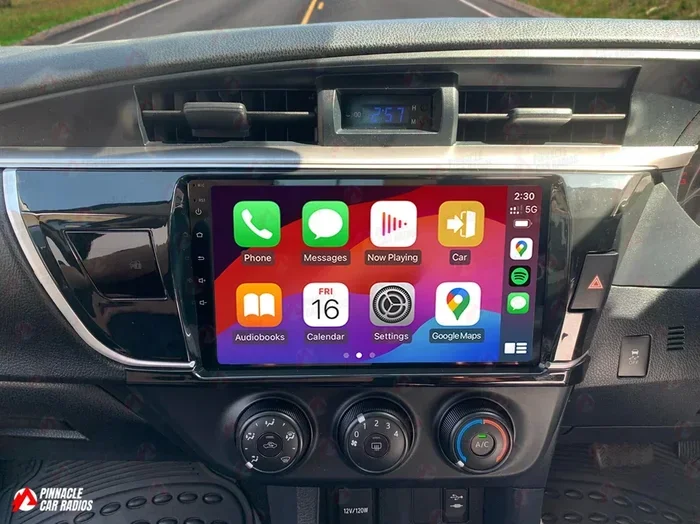
Wireless CarPlay lets you connect your iPhone to your Toyota’s infotainment screen without using a cable. You get access to navigation, music, messages, and phone calls all through a wireless connection. It is one of the most convenient features modern cars offer today.
Before wireless CarPlay, drivers had to plug their phone into a USB cable every time they got in the car. That is still an option, but wireless connectivity removes that hassle entirely. Your phone pairs automatically when you get in, and the connection stays stable while you drive.
For Toyota owners, this means a cleaner dashboard and fewer cables cluttering your center console. It also means you can charge your phone on a wireless charging pad while using CarPlay at the same time. That is a win-win for anyone who relies heavily on their phone throughout the day.
How Wireless CarPlay Works In Toyota Vehicles
Toyota uses its Toyota multimedia system to support CarPlay. When your iPhone and Toyota are paired, the car’s screen mirrors key Apple apps. You can use Siri, access Maps, stream music from Apple Music, and respond to texts using voice commands.
The system uses Bluetooth and Wi-Fi to maintain the connection. This is different from a wired setup, which relies solely on a USB cable for data transfer. Wireless CarPlay generally offers a more seamless experience because you do not have to physically connect anything.
Some Toyota models also support Android Auto, giving drivers more options regardless of their phone type. But for iPhone users, Apple CarPlay remains the gold standard for in-car smartphone integration.
Which Toyota Models Support Wireless CarPlay?
Not every Toyota comes with wireless CarPlay standard. The availability depends on the model, trim level, and model year. Here is a breakdown of what to expect.
Toyota Models With Wireless CarPlay
Several popular Toyota models now include wireless Apple CarPlay as either standard or optional equipment:
- Toyota RAV4 – Most 2019 and newer trims support wireless CarPlay, especially higher trims like XLE and XSE.
- Toyota Camry – The 2018 model year and newer offer wireless CarPlay on many trims.
- Toyota Highlander – Wireless CarPlay is available on 2020 and newer models.
- Toyota Tacoma – Select trims from 2021 onward include wireless CarPlay support.
- Toyota Corolla – Newer generations, especially the 2020+ models, feature wireless connectivity.
- Toyota 4Runner – Some newer trims support wireless CarPlay, but it is often optional.
Models That May Need An Upgrade
Older Toyota models, particularly those from before 2018, may only support wired CarPlay or no CarPlay at all. If your Toyota has the older Entune system, you might need an aftermarket adapter to add wireless functionality.
Toyota also offers different infotainment systems across its lineup. The Toyota Audio Plus and JBL Audio systems often come with better connectivity options. If you are unsure about your specific model, check your owner’s manual or visit a Toyota dealer for confirmation.
How To Set Up Wireless CarPlay In Your Toyota
Setting up wireless CarPlay in a Toyota is straightforward. The exact steps can vary slightly depending on your model year, but the general process is the same. Here is a detailed walkthrough.
Step 1: Make Sure Your Toyota Is Compatible
Before you start, confirm that your Toyota supports wireless Apple CarPlay. Check your owner’s manual or look up your specific model and year online. If your Toyota only has wired CarPlay, you may need an aftermarket wireless adapter to upgrade.
Step 2: Update Your Toyota Software
Software updates can make a big difference. Toyota occasionally releases infotainment updates that improve CarPlay compatibility. Visit your local Toyota dealer or check the Toyota app for available updates. Keeping your system current helps avoid connection issues.
Step 3: Update Your iPhone
Make sure your iPhone is running the latest version of iOS. Go to Settings, then General, then Software Update. An outdated iPhone can cause CarPlay connection problems even if your Toyota is fully compatible.
Step 4: Enable CarPlay On Your iPhone
Open the Settings app on your iPhone. Go to General, then CarPlay. Tap “Add Car” and select your Toyota from the list. Your phone will begin searching for the vehicle’s infotainment system.
Step 5: Pair And Connect
On your Toyota’s screen, you should see a prompt asking you to confirm the CarPlay connection. Follow the on-screen instructions to complete the pairing process. Once connected, your Toyota screen will display CarPlay automatically when you get in the car.
Step 6: Test The Connection
Try opening a compatible app like Maps or Music. If everything works, you are all set. If the connection drops or does not appear, try restarting both your iPhone and your Toyota’s infotainment system.
Quick Tips For A Smooth Setup
- Make sure Bluetooth is turned on in your iPhone settings.
- Turn on Wi-Fi on your iPhone even if you are not connected to a network.
- Restart your Toyota’s infotainment system before pairing.
- Keep your phone within a few feet of the car’s antenna during setup.
Troubleshooting Common Wireless CarPlay Issues
Even with the best setup, wireless CarPlay can sometimes act up. Toyota owners have reported a few common issues. Here is how to fix them.
CarPlay Will Not Connect
If your Toyota screen does not recognize your iPhone, try turning Bluetooth off and back on. You can also try resetting your Toyota’s infotainment system by holding the power button for about 10 seconds. This often clears temporary glitches that prevent connection.
Connection Drops Frequently
Intermittent disconnections are frustrating but common. This usually happens when your iPhone’s Wi-Fi or Bluetooth signal is weak. Make sure nothing is blocking the car’s antenna, and try moving your phone closer to the center console.
Also check that your Toyota software is up to date. Older software versions sometimes have bugs that affect wireless stability. A visit to the dealer for a software flash can resolve this quickly.
CarPlay Screen Freezes Or Lags
A frozen CarPlay display can be caused by too many apps running in the background on your iPhone. Close all open apps before getting in the car. If the problem persists, restart both your phone and the Toyota infotainment system.
Some Apps Do Not Appear In CarPlay
Not all apps are CarPlay compatible. Apple maintains a list of supported apps, and popular ones like Maps, Music, Spotify, and Messages are included. If an app is missing, check the App Store to see if it supports CarPlay.
Wireless vs Wired CarPlay: Which Is Better For Toyota?
Both wireless and wired CarPlay give you the same Apple features on your Toyota screen. But they differ in convenience and reliability. Here is a closer look at each option.
Benefits Of Wireless CarPlay
- No cables needed – Just pair once and connect automatically every time.
- Cleaner dashboard – No cables running across your center console.
- Convenience – Get in and your phone is already connected.
- Charging flexibility – Use a wireless charging pad without cable clutter.
Benefits Of Wired CarPlay
- More stable connection – A cable connection is generally less prone to drops.
- Works on older Toyotas – Many Toyotas that lack wireless CarPlay still support wired.
- Faster data transfer – Some users report slightly faster app loading with a cable.
Which Should You Choose?
If your Toyota supports wireless CarPlay, that is usually the better option for daily driving. The convenience factor is hard to beat. However, if you experience frequent wireless dropouts, a wired connection can be more reliable.
Some Toyota owners keep both options available. They use wireless for everyday driving and switch to wired when they need a rock-solid connection for long road trips.
Getting The Most Out Of CarPlay In Your Toyota
Once you have wireless CarPlay set up, there are a few things you can do to enhance your experience. These tips help you get the most out of the feature every time you drive.
Use Siri For Hands-Free Control
Siri integration is one of the best parts of CarPlay. You can ask Siri to send messages, make calls, or navigate to a destination without taking your hands off the wheel. Press and hold the steering wheel voice command button to activate Siri.
Customize Your CarPlay Layout
Toyota’s infotainment system lets you rearrange your CarPlay apps. Put your most-used apps like Maps and Music front and center. This makes your daily driving routine faster and more intuitive.
Keep Your iPhone Battery Healthy
Using CarPlay can drain your iPhone battery, especially if you use navigation for long trips. Consider using a wireless charging pad in your Toyota to keep your phone powered. Some Toyota models come with built-in wireless charging, which pairs perfectly with CarPlay use.
Explore Third-Party Apps
Beyond Apple’s built-in apps, many third-party apps work with CarPlay. Spotify, Google Maps, Waze, and WhatsApp are all CarPlay-compatible. Download your favorites and organize them in your CarPlay layout for easy access.
Final Thoughts On Toyota Wireless CarPlay
Toyota wireless CarPlay is one of the best features the brand has added to its vehicles in recent years. It brings the convenience of your iPhone directly to your car’s screen, making driving safer and more connected. Whether you have a new RAV4 or a recent Camry, the setup process is simple and the results are impressive.
If your Toyota does not support wireless CarPlay natively, do not worry. Aftermarket adapters and dealer software updates can often bridge the gap. And if you are in the market for a new Toyota, make sure to confirm wireless CarPlay availability before you buy.
For those wondering about other Toyota tech features, you might also want to check out does AC burn gas in a hybrid car if you drive a Toyota hybrid. Understanding how your car’s systems interact helps you get the most out of your vehicle. Also, if you are considering a lease, it is worth reading up on does leasing a car affect your credit before signing any paperwork.
Finally, if you enjoy exploring your Toyota’s performance features, check out does sport mode make a car faster to learn how different driving modes impact your Toyota’s power and responsiveness. These features work together to give you a complete driving experience.
Take some time to explore your Toyota’s infotainment settings. Once you have wireless CarPlay running, you will wonder how you ever drove without it.