Can You Put More Apps on CarPlay and How to Do It Now
Yes, you can put more apps on CarPlay, and the process is simpler than most people think. Apple CarPlay supports a wide range of third-party apps, from navigation and music to messaging and podcasts. In this guide, we walk you through exactly how to add apps, which ones work best, and how to fix common issues that stop your CarPlay apps from showing up.
Key Takeaways
- CarPlay supports many third-party apps: You are not limited to Apple’s default apps. Popular apps like Spotify, Google Maps, and WhatsApp work on CarPlay.
- Adding apps is easy: You can add new apps directly from your iPhone or through the CarPlay settings menu.
- Not all apps are compatible: Apple has guidelines that apps must follow to work on CarPlay, so some apps will not appear.
- Wireless CarPlay makes it even easier: You do not need a cable every time to sync your apps.
- Troubleshooting is straightforward: Most CarPlay app issues can be fixed with simple steps like restarting or updating.
- Customization is key: You can rearrange and prioritize your most-used apps on the CarPlay home screen.
- Safety first: CarPlay apps are designed to minimize distractions while you drive.
📑 Table of Contents
- Can You Put More Apps on CarPlay and How to Do It Now
- What Is Apple CarPlay and How Does It Work
- Can You Put More Apps on CarPlay
- How to Add More Apps to CarPlay
- Best Apps to Add to CarPlay
- Common Issues When Adding Apps to CarPlay
- Expert Tips for Getting the Most Out of CarPlay Apps
- Frequently Asked Questions
- Conclusion
Can You Put More Apps on CarPlay and How to Do It Now
Apple CarPlay has changed the way we use our phones while driving. It brings your favourite apps right onto your car’s screen. But many drivers ask the same question: can you put more apps on CarPlay? The short answer is yes. You can add quite a few apps beyond the default ones that come with CarPlay.
Whether you love streaming music, need a better navigation app, or want to stay connected with messages, CarPlay has you covered. In this guide, we will show you exactly how to add more apps, which ones are worth your time, and how to fix any issues you run into along the way. Let us get started.
CarPlay is not just a fancy mirror of your phone. It is a smart system designed to keep you safe and connected. Apple built it to work smoothly with a curated list of apps. But that list keeps growing. New apps join every few months. So if you have been wondering how to get more out of your CarPlay experience, you are in the right place.
What Is Apple CarPlay and How Does It Work
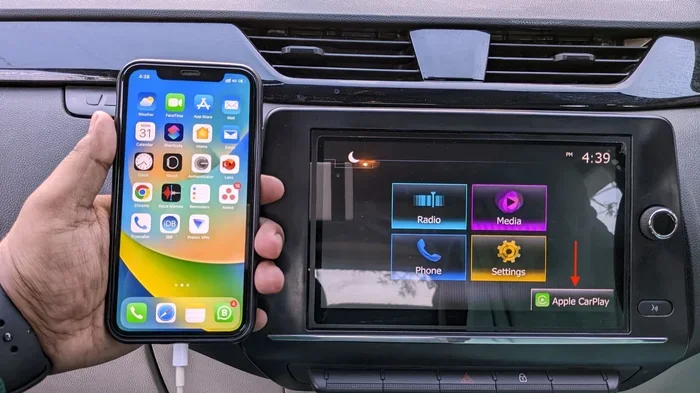
Apple CarPlay is a system that connects your iPhone to your car’s infotainment display. Once connected, you can access phone features, messages, music, and navigation without touching your phone directly. It uses a simplified interface that is easy to read and navigate while driving.
Here is how CarPlay generally works:
- Connection: You plug your iPhone into your car using a Lightning or USB-C cable. Some newer cars support wireless CarPlay, which connects through Bluetooth and Wi-Fi.
- Interface: CarPlay shows a clean, driver-friendly layout. You see your apps in a grid or list format.
- Voice Control: Siri plays a big role. You can use voice commands to send messages, make calls, or pick a song.
- App Compatibility: Only apps that meet Apple’s CarPlay guidelines will work on the system.
CarPlay is available on most modern cars from brands like Ford, Toyota, Honda, BMW, and Mercedes. If your car supports CarPlay, you are already halfway to a better driving experience. And if you are renting a vehicle, like an 8 seater car on rent in Pune, you will likely find CarPlay support as a standard feature in newer models.
Can You Put More Apps on CarPlay
This is the question most CarPlay users want answered. The answer is a resounding yes. You can add more apps to CarPlay beyond the default ones. Apple allows developers to create CarPlay-compatible apps. These apps go through a review process to make sure they are safe and easy to use while driving.
So how many apps can you actually add? There is no strict limit set by Apple. However, the number of apps you see on CarPlay depends on a few factors:
- Your iPhone model: Newer iPhones support more CarPlay apps.
- Your car’s infotainment system: Some systems have more screen space and can display more apps comfortably.
- App availability: Not every iOS app is available for CarPlay. Only apps that developers specifically design for CarPlay will show up.
The good news is that popular apps like Google Maps, Spotify, WhatsApp, Telegram, and Waze all work on CarPlay. You can also find apps for podcasts, audiobooks, and even parking. The CarPlay app ecosystem has grown a lot since it first launched.
How to Check Which Apps Are Already Compatible
Before you add new apps, it helps to know what is already available on your CarPlay. Here is a quick way to check:
- Connect your iPhone to your car.
- Open CarPlay on your car’s display.
- Look at the app grid on the home screen.
- Tap and hold any app icon. You may see options to remove or rearrange apps.
If you do not see the app you want, it might not be installed on your iPhone, or it might not be a CarPlay-compatible app. You can also check the App Store on your iPhone and search for “CarPlay” to find compatible apps.
How to Add More Apps to CarPlay
Adding apps to CarPlay is a straightforward process. You do not need any special tools or technical skills. Here is a step-by-step guide to get you started.
Step 1: Download the App on Your iPhone
First, make sure the app you want is installed on your iPhone. Open the App Store, search for the app, and tap Download. Keep in mind that the app must be CarPlay-compatible. Not all iPhone apps work with CarPlay.
Step 2: Connect Your iPhone to CarPlay
Plug your iPhone into your car’s USB port. If your car supports wireless CarPlay, you can connect without a cable. Once connected, CarPlay should launch automatically on your car’s display.
Step 3: Find the New App on CarPlay
After connecting, look at the CarPlay home screen. Your new app should appear in the app grid. If it does not show up right away, try these steps:
- Go to your iPhone Settings.
- Tap on General.
- Select CarPlay.
- Choose your car.
- Tap Customize.
- Find the new app and add it to your favorites or home screen.
That is it. Your new app should now be visible and ready to use on CarPlay. If you are someone who loves keeping your car organised, you might also enjoy writing about your experiences, even something fun like 10 lines on my favourite toy car to share your passion for cars.
Step 4: Rearrange and Organize Your Apps
Once you have added your apps, you can organize them for easy access. On the CarPlay home screen, tap and hold an app icon. You can then drag it to a new position. You can also remove apps you no longer use.
Pro tip: Put your most-used apps in the bottom row. These are the easiest to tap while driving. Keep your navigation app front and center, and place your music and messaging apps nearby.
Best Apps to Add to CarPlay
Not all CarPlay apps are created equal. Some are essential for daily driving, while others are nice to have. Here are some of the best apps you can add to CarPlay right now.
| App Name | Category | Why It Is Great |
|---|---|---|
| Google Maps | Navigation | Real-time traffic updates and detailed routes |
| Waze | Navigation | Community-driven traffic alerts and shortcuts |
| Spotify | Music | Huge music library and personalised playlists |
| Pandora | Music | Great for radio-style streaming |
| Messaging | Voice messages and replies via Siri | |
| Telegram | Messaging | Fast and secure messaging on the road |
| Audible | Audiobooks | Perfect for long drives and commutes |
| OverDrive | Audiobooks | Borrow audiobooks from your local library |
| Parking Buddy | Parking | Remember where you parked your car |
| GasBuddy | Fuel | Find the cheapest gas near you |
These apps cover the most common needs drivers have. Navigation, music, messaging, and practical tools like parking and fuel finding. You do not need all of them, but picking a few can really upgrade your CarPlay experience.
Apps to Avoid on CarPlay
Some apps are not safe or suitable for CarPlay. Apps that require you to watch videos or interact with complex interfaces should be avoided. The whole point of CarPlay is to keep your eyes on the road and your hands on the wheel. Stick to apps that are designed with driver safety in mind.
Common Issues When Adding Apps to CarPlay
Even though adding apps to CarPlay is usually smooth, you might run into some issues. Here are the most common problems and how to fix them.
New App Does Not Show Up on CarPlay
This is the most common complaint. If you downloaded a CarPlay-compatible app but it does not appear on your car screen, try these fixes:
- Restart CarPlay: Disconnect and reconnect your iPhone.
- Restart your car: Sometimes the infotainment system needs a fresh start.
- Check CarPlay settings: Go to iPhone Settings, then General, then CarPlay. Make sure the app is enabled.
- Update the app: Open the App Store and check for updates. Developers often fix CarPlay bugs in newer versions.
- Update iOS: Make sure your iPhone is running the latest version of iOS.
App Crashes or Freezes on CarPlay
If an app keeps crashing, try force-closing it on your iPhone. Then reopen it while CarPlay is connected. If the problem continues, delete and reinstall the app. This often fixes glitches caused by corrupted files.
CarPlay Shows Default Apps Only
Sometimes CarPlay reverts to showing only Apple’s default apps. This can happen after a software update or if the connection drops. To fix this, go to Settings, then General, then CarPlay, and customize your app list again.
Expert Tips for Getting the Most Out of CarPlay Apps
Here are some pro tips to help you squeeze every bit of value from your CarPlay setup.
Use Siri for Hands-Free Control
Siri is your best friend when driving. You can say “Hey Siri, play my workout playlist” or “Hey Siri, navigate home.” This keeps your hands on the wheel and your eyes on the road. Most CarPlay apps support Siri commands, so take full advantage of this feature.
Enable Wireless CarPlay
If your car supports wireless CarPlay, turn it on. You will no longer need to plug in your iPhone every time you get in the car. Wireless CarPlay also makes it easier to sync your apps automatically.
Keep Your Apps Updated
Developers regularly update their CarPlay apps to fix bugs and add features. Check the App Store once a week and update any CarPlay apps you use. This small habit can save you from a lot of frustration.
Limit the Number of Apps
It is tempting to add every CarPlay app you can find. But too many apps can make the home screen cluttered and confusing. Keep only the apps you use regularly. This makes CarPlay faster and easier to navigate while driving.
Set Up CarPlay Before You Drive
Take a few minutes before your trip to set up your apps. Choose your navigation app, queue up your playlist, and set your messaging preferences. This way, you will not need to fiddle with settings while on the road.
Frequently Asked Questions
Can I add any app to CarPlay?
No, you can only add apps that are specifically designed to work with CarPlay. Apple has strict guidelines that developers must follow. Not every iPhone app is available for CarPlay. You can check the App Store and search for CarPlay-compatible apps to find ones that work.
Is there a limit to how many apps I can add to CarPlay?
Apple does not set a hard limit on the number of CarPlay apps you can add. However, your car’s infotainment screen may only display a certain number at once. You can always access more apps by scrolling or using the search feature within CarPlay.
Do I need an internet connection for CarPlay apps to work?
Most CarPlay apps need an internet connection to function fully. Navigation apps like Google Maps and Waze need data for real-time traffic updates. Music apps like Spotify need data to stream songs. Some apps may work offline for basic features, but a data connection gives you the full experience.
Can I use CarPlay apps on Android Auto too?
No, CarPlay is exclusive to Apple devices. Android phones use a similar system called Android Auto, which is made by Google. The two systems are not interchangeable. You need an iPhone to use CarPlay and an Android phone to use Android Auto.
Why do some of my CarPlay apps disappear after a car restart?
This can happen if the CarPlay connection resets or if there is a temporary software glitch. Usually, reconnecting your iPhone or restarting CarPlay fixes the issue. Make sure your apps are up to date and that your iPhone has the latest iOS version installed.
Are CarPlay apps safe to use while driving?
Yes, CarPlay apps are designed with driver safety in mind. They use simplified interfaces and support Siri voice commands. Apple requires CarPlay apps to minimize distractions. However, it is still best to pull over if you need to interact with an app in a detailed way.
Conclusion
So, can you put more apps on CarPlay? Absolutely. The process is simple, and the results can transform your daily drives. From better navigation to seamless music streaming and hands-free messaging, adding the right apps makes CarPlay even more powerful.
Remember to keep your apps organised, use Siri for safety, and update regularly. A well-set-up CarPlay system is a game-changer for any driver. Whether you are commuting to work or taking a road trip, the right apps make every journey smoother and more enjoyable.
Start adding your favourite apps today and experience CarPlay the way it was meant to be. Drive smarter, stay connected, and enjoy the ride.