How Can I Update My Toyota Navigation System Easily
Updating your Toyota navigation system is easier than you think. Whether you use a USB drive, visit a dealer, or use the Toyota Entune app, you can keep your maps and software fresh. This guide walks you through every method step by step so you can update Toyota navigation system data with confidence and avoid common mistakes.
Have you ever stared at your Toyota touchscreen and realized the directions look a little off? Maybe a road you drive every day is missing, or the traffic data hasn’t refreshed in months. If you have been asking yourself how can I update my Toyota navigation system, you are not alone. Thousands of Toyota owners face this question every year, and the good news is that the process is simpler than most people expect.
Keeping your Toyota navigation update current matters more than you might think. Outdated maps can lead to wrong turns, missed exits, and frustration on the road. Plus, newer software versions often include improved routing algorithms, better traffic data update features, and even new entertainment options. Whether you drive a Camry, RAV4, or Tundra, this guide covers everything you need to know.
In this article, we will walk you through every method to update Toyota navigation system software and maps. You will learn how to check your current version, choose the best update method for your situation, follow a detailed USB update process, troubleshoot common problems, and keep your Toyota infotainment system running smoothly for years to come. Let us get started.
Key Takeaways
- Multiple update methods exist: You can update via USB drive, at a Toyota dealer, through the Entune app, or via over-the-air updates on newer models.
- Regular updates improve safety: Current maps give you accurate routing, fresh traffic data, and the latest speed limit information.
- USB updates are the most popular DIY method: With a formatted USB drive and downloaded map files, you can handle the process at home.
- Dealer updates are the most thorough: A certified technician can update your navigation firmware, software version, and map data all at once.
- Common issues are fixable: System freezes, error messages, and GPS glitches after an update usually have simple solutions.
- Maintenance keeps things running: Regular checks and good habits prevent most navigation problems before they start.
📑 Table of Contents
Why Keeping Your Toyota Navigation Updated Matters
Some people ignore navigation updates for years. They think the maps they already have are good enough. But the world changes fast. Roads get rerouted, new highways open, and speed limits change. Here is why staying current with your Toyota map update really matters.
Safety Benefits of Current Maps
Updated navigation system software gives you the most accurate road information available. When your maps are current, you are less likely to miss a turn or end up on a dead-end street. That alone reduces stress and keeps you safer. Newer map data also includes updated speed limits, school zone locations, and construction zones. All of these details help you plan your route more carefully and avoid dangerous situations.
Think about it this way. Would you rather follow directions from a map that is three years old or one that was just updated last month? The newer data simply gives you a better picture of what the roads actually look like right now. This is especially important if you travel to unfamiliar areas or drive in rapidly growing cities where new roads appear frequently.
New Features and Improvements
Every time Toyota releases a navigation firmware update, they often bundle in new features. These can include better voice recognition, improved route planning update options, and enhanced Toyota connected services. Some updates even add support for new music streaming apps or improve the responsiveness of your Toyota touchscreen.
For example, a recent firmware update for certain Toyota models improved the speed of route recalculation. That means if you miss a turn, the system finds a new route faster. Small improvements like that add up to a much better driving experience over time. By keeping your system updated, you make sure you are getting every benefit Toyota has to offer.
How to Check Your Current Navigation Version
Before you update anything, you need to know what version you are running. Checking your current Toyota software version takes just a few minutes and helps you figure out which update method to use.
Finding Your Software Version
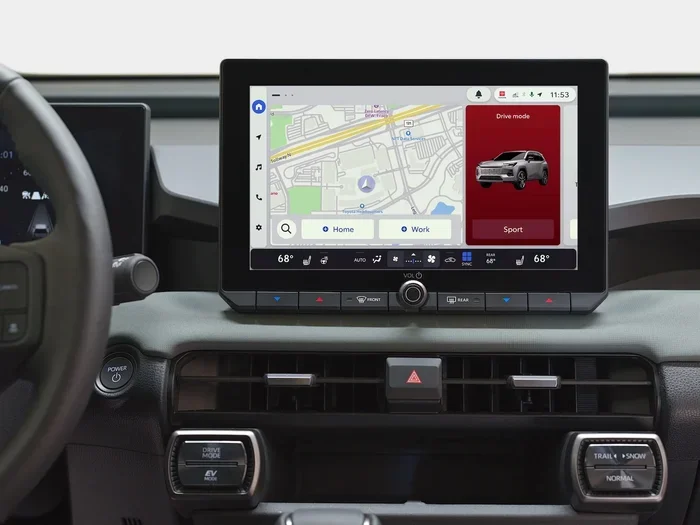
Start by turning on your ignition and pressing the “Nav” button on your dashboard. Look for a “Settings” or “System” menu. From there, select “System Information” or “About Navigation.” You should see a software version number listed on the screen. Write this down or take a photo with your phone.
The version number usually looks something like “2023.5” or “Map Version 14.2.1.” Toyota uses these numbers to track updates and let you know which ones are available. If your version is more than a year old, it is definitely time to update.
What Version Do You Need?
To find the latest version, visit the Toyota website and look up your specific model and year. Toyota posts the most recent map data refresh versions for each model. You can also call your local dealer and ask them to check the latest version for your vehicle. They will usually be happy to help and can tell you exactly what you need.
Keep in mind that map updates and software updates are sometimes separate. A map update refreshes the roads and points of interest, while a software update improves how the system runs. You may need both, so check which ones are available before you begin.
Methods to Update Your Toyota Navigation System
Toyota offers several ways to update Toyota navigation system data. The right method for you depends on your comfort level with technology, your model year, and how much time you have. Here are the four main options.
Method 1: USB Drive Update (DIY)
The USB method is the most popular USB update method for Toyota owners. It lets you update your maps and software from the comfort of your home. You download the update files from Toyota’s website, put them on a USB drive, and plug the drive into your car. The system does the rest.
This method works well for people who like to handle things themselves. It is free (aside from a USB drive if you do not already have one), and you can do it on your own schedule. The downside is that you need a compatible USB drive and a stable internet connection to download the files. Some older Toyota models may not support USB updates, so check your owner’s manual first.
One thing to note: if you also want to add apps to your car, a navigation update can sometimes improve app compatibility. It is worth doing both at the same time if possible.
Method 2: Visit a Toyota Dealer
If you prefer a hands-off approach, visiting a Toyota dealer is the way to go. A certified technician will hook your car up to their system and push the latest updates directly to your vehicle. This method ensures that every part of your Toyota navigation update is done correctly, including both map data and firmware.
The dealer method is especially useful if your car is still under warranty or if you are not comfortable working with USB files. Most dealers will perform a navigation update as part of a routine service visit, sometimes at no extra charge. Call ahead to confirm availability and schedule an appointment.
The main downside is time. You will need to bring your car in and wait while the update is performed. On busy days, this can take a few hours. But the peace of mind that comes with knowing the job was done right is well worth it for many owners.
Method 3: Toyota Entune App
Toyota Entune is a connected service that lets you manage certain features of your car from your phone. If your Toyota supports Entune, you may be able to check for and download navigation system software updates through the app. This is a convenient middle ground between the DIY USB method and the dealer visit.
The Entune app works over your car’s built-in Wi-Fi or your phone’s data connection. You simply open the app, check for updates, and follow the prompts. Some newer Toyota models even support over-the-air updates through Entune, which means you never need to leave your driveway.
Keep in mind that Entune features vary by model year. Older models may have limited connectivity, while newer ones offer a full suite of services. Check the Toyota website or talk to your dealer to see what Entune can do for your specific vehicle.
Method 4: Over-the-Air Updates (Newer Models)
If you drive a newer Toyota model, you may be eligible for over-the-air updates. This is the most futuristic option. Your car connects to Wi-Fi, downloads the update in the background, and installs it automatically. No USB drive, no dealer visit, no hassle.
Over-the-air updates are becoming more common in the Toyota lineup. Models equipped with the latest Toyota infotainment systems can receive map and software updates just like a smartphone. This feature is a game-changer because it means you can keep your navigation current without ever thinking about it.
To use this method, make sure your car is connected to a stable Wi-Fi network and has enough battery charge. Updates usually happen when the car is parked and turned off. You will get a notification on your touchscreen when an update is available and when it is ready to install.
Step-by-Step Guide: Updating via USB Drive
The USB drive method is the most common way to handle a Toyota navigation update at home. Here is a detailed walkthrough so you can do it with confidence.
Step 1: Download the Map Data
Go to the Toyota website and navigate to the navigation update section. Enter your vehicle details, including the model, year, and current software version. Toyota will show you the available updates. Download the map data file to your computer. The file size can be anywhere from 4 GB to 12 GB, so make sure you have enough storage space.
While you are downloading, take a moment to back up any custom settings on your navigation system. This is a good habit to form before any major update. You can usually find the backup option in the System Settings menu on your touchscreen.
Step 2: Format Your USB Drive
You will need a USB drive with at least 16 GB of storage. Format the drive to FAT32, which is the file system most Toyota systems recognize. Most computers have a built-in formatting tool for this. Right-click the USB drive in File Explorer (Windows) or Disk Utility (Mac), select Format, and choose FAT32.
Important: formatting erases everything on the USB drive, so make sure you move any existing files to your computer first. Also, avoid using USB hubs or extensions. Plug the drive directly into your computer for the best results.
Step 3: Transfer Files to the USB Drive
Once the download is complete and your USB drive is formatted, copy the update files to the root directory of the drive. Do not put them inside any folders. The files should be at the top level of the USB drive so the car’s system can find them easily.
After copying, safely eject the USB drive from your computer. A corrupted transfer can cause update failures, so make sure the process completes fully before removing the drive.
Step 4: Install the Update
Plug the USB drive into your Toyota’s USB port, which is usually located in the center console or armrest. Turn on the ignition and press the Nav button. The system should detect the update files automatically. Follow the on-screen prompts to begin the installation.
Do not turn off the ignition or remove the USB drive while the update is in progress. The installation can take anywhere from 15 minutes to over an hour, depending on the size of the update. Once it is complete, the system will prompt you to remove the USB drive. After that, your navigation should be running the latest version.
If you ever run into trouble with your car’s electronics during any update process, remember that you can also reprogram your ECM yourself in some cases, though navigation updates are typically a separate process.
Troubleshooting Common Update Issues
Even when you follow every step carefully, things can go wrong. Navigation updates are sensitive processes, and small issues can cause big headaches. Here are the most common problems and how to fix them.
System Freezes During Update
If your screen goes blank or freezes during an update, do not panic. First, check if the USB drive is still connected. Sometimes the connection loosens during the process. If the drive is secure, try turning the ignition off and back on. The system should resume the update automatically.
If the system still does not respond, you may need to remove the USB drive and start over. Before you do that, check Toyota’s website for any known issues with your specific update file. Sometimes a corrupted download causes freezing, and re-downloading the file solves the problem.
Error Messages and What They Mean
Error codes on your navigation screen can be confusing. A “File Not Found” error usually means the update files were not placed in the correct location on the USB drive. Make sure they are in the root directory, not inside a folder.
A “Version Mismatch” error means the update file does not match your current software version. Double-check that you downloaded the correct file for your model and year. If you are unsure, call Toyota support or visit your dealer. They can verify the correct file for your vehicle.
Some owners also encounter a “USB Not Recognized” error. This is usually a hardware issue. Try a different USB port or a different USB drive. Avoid using USB hubs or extension cables, as they can interfere with the connection.
No Signal or GPS Issues After Update
Sometimes GPS signal problems appear after a navigation update. This is usually temporary and resolves on its own. To speed things up, drive to an open area with a clear view of the sky and let the system search for satellites. You may also try resetting the car navigation reset by holding the power button on the system for 10 seconds.
If GPS issues persist, the antenna connection may have been disturbed during the update. In this case, a visit to the dealer is the best next step. They can check the hardware and make sure everything is connected properly.
Tips to Keep Your Toyota Navigation Running Smoothly
Updating your navigation is not a one-time event. To get the best performance over the life of your vehicle, you need to maintain the system properly. Here are some practical tips that make a big difference.
Regular Maintenance Habits
Make it a habit to check for updates at least twice a year. Spring and fall are good times because Toyota often releases seasonal map updates around these periods. Set a reminder on your phone so you do not forget.
Keep your USB drive clean and stored in a safe place when not in use. Dust and moisture can damage the drive and cause problems during future updates. Also, make sure your car’s battery is in good health. A weak battery can interrupt an update and cause corruption, which is something you definitely want to avoid.
Another good habit is to clear out old data from your navigation system regularly. Delete saved destinations you no longer need and clear the search history. This frees up memory and keeps the system running fast.
When to Update vs When to Wait
Not every update needs to be installed immediately. Map updates that fix road changes or add new points of interest should be installed as soon as possible. But minor software patches that only improve system stability can usually wait until you have a free afternoon.
The key is to stay current with major updates. If Toyota releases a significant navigation firmware update, try to install it within a few months. Major updates often include important safety improvements and bug fixes that you do not want to miss.
On the other hand, if your car is older and you plan to sell it soon, you might skip minor updates. The next owner can handle those. Focus on updates that directly affect the driving experience and safety.
For owners who also want to keep other car systems in top shape, regular maintenance of related components like your key fob programming and other electronics helps ensure everything works together seamlessly.
Conclusion
Updating your Toyota navigation system does not have to be intimidating. With the methods outlined in this guide, you have everything you need to keep your maps, software, and traffic data update features current. Whether you choose the DIY USB route, visit a dealer, or use the Entune app, the process is straightforward and well worth the effort.
A well-maintained navigation system makes every drive safer, faster, and less stressful. You get accurate directions, fresh map data, and access to the latest features Toyota has to offer. Plus, staying on top of updates helps protect the resale value of your vehicle, since a car with current technology is always more appealing to buyers.
So go ahead and take the first step today. Check your current version, download the latest update, and give your Toyota navigation system the refresh it deserves. Your future self will thank you every time you hit the road.
Frequently Asked Questions
How often should I update my Toyota navigation system?
Toyota recommends checking for updates at least twice a year. Major map updates typically come out once or twice annually, while software updates may be more frequent. If you notice your directions are outdated or the system is running slowly, it is a good sign that an update is due.
Can I update my Toyota navigation system for free?
Yes, in most cases navigation updates are free. You can download map files from Toyota’s website at no cost. Dealer updates may be free if your car is still under warranty or covered by a maintenance plan. Always check with your dealer to confirm any fees before you go in.
What type of USB drive do I need for a Toyota navigation update?
You need a USB drive with at least 16 GB of storage that is formatted to FAT32. Avoid USB 3.0 drives if your car only supports USB 2.0, as compatibility issues can arise. A simple, reliable USB drive from a reputable brand works best for this process.
Will updating my navigation system erase my saved data?
Most updates do not erase saved addresses, favorites, or settings. However, it is always a good idea to back up your data before starting any update. Taking a few minutes to save your information can save you from losing custom settings if something unexpected happens.
How long does a Toyota navigation update take?
A USB-based navigation update typically takes between 15 minutes and one hour. The exact time depends on the size of the update file and the speed of your USB drive. Over-the-air updates may take a bit longer since they download over Wi-Fi. Never interrupt the process by turning off the car.
What should I do if my navigation system still shows old maps after updating?
First, restart your system by holding the power button for 10 seconds. Sometimes the new maps do not appear until after a reboot. If the issue persists, check that the correct update file was installed for your specific model and year. Contact Toyota support or visit a dealer if the problem continues.