Why Isnt My Car Detecting My Phone Anymore at All
Your car not detecting your phone is frustrating but usually fixable. This guide covers Bluetooth pairing problems, software glitches, and hardware issues that cause device recognition failures. You will learn proven troubleshooting steps, expert tips, and practical solutions to get your phone connected again quickly and easily.
There is nothing more annoying than climbing into your car, ready to hit the road, and realizing your car is not detecting your phone. You have done this a hundred times before. The Bluetooth connection just works. But now, suddenly, your car infotainment system does not recognize your smartphone at all. You try tapping the screen. You toggle Bluetooth on and off. Nothing happens. Your hands are on the wheel, your patience is wearing thin, and you are stuck wondering what went wrong.
This problem is more common than you think. Thousands of drivers face the same issue every single day. Sometimes it is a simple fix. Other times, it points to a deeper problem with your car stereo or phone settings. Whatever the reason, this guide will walk you through every possible cause and solution. By the end, you will know exactly how to fix the problem and get back on the road with your music, calls, and navigation flowing seamlessly through your car audio system.
We will cover everything from basic Bluetooth troubleshooting to advanced phone pairing techniques. You will learn about software updates, factory resets, interference issues, and hardware failures. This is your complete troubleshooting guide for when your vehicle will not detect your mobile device. Let us dive right in.
Key Takeaways
- Restart Both Devices: A simple restart of your phone and car infotainment system resolves most detection issues.
- Check Bluetooth Settings: Make sure Bluetooth is enabled, visible, and not connected to another device nearby.
- Delete Old Pairings: Removing saved connections and re-pairing often fixes recognition problems instantly.
- Update Software: Outdated phone software or car firmware is a leading cause of connection failures.
- Reset Network Settings: Clearing your Bluetooth cache and network settings can eliminate stubborn glitches.
- Check for Interference: Physical obstructions, other devices, and signal range affect wireless detection.
- Visit a Professional: If all else fails, a mechanic or dealership can diagnose hardware problems.
📑 Table of Contents
- Why Your Car Is Not Detecting Your Phone Anymore
- Quick Fixes That Solve the Problem Instantly
- Bluetooth Troubleshooting: Step-by-Step Guide
- Phone Settings That Affect Car Detection
- Car Infotainment System Fixes
- When Hardware Is the Problem
- Preventing Future Connection Problems
- Expert Insights on Phone and Car Connectivity
- Key Takeaways
- Conclusion
Why Your Car Is Not Detecting Your Phone Anymore
Before you start tearing apart your car or phone, it helps to understand what is actually happening. When your car does not detect your phone, it means the Bluetooth handshake between the two devices is failing. A Bluetooth handshake is the process where your phone and your car infotainment system say hello to each other and agree to share data. When this handshake breaks, your device recognition fails completely.
Several things can disrupt this process. A software glitch on your phone can block the connection. An outdated car firmware version can cause incompatibility. Even a simple interference issue from another wireless device nearby can throw everything off. The key is to work through the possible causes one by one, starting with the easiest fixes and moving toward more complex solutions.
Common Reasons for Detection Failure
Let us look at the most common reasons your phone and car are not connecting:
- Bluetooth is turned off on either your phone or your car system.
- Your phone is connected to a different device nearby, like a smartwatch or headphones.
- The car stereo has reached its paired device limit and cannot accept new connections.
- Your phone software is outdated and has a compatibility bug.
- The car infotainment system needs a firmware update.
- Physical damage to the Bluetooth antenna in your vehicle.
- Too many devices are competing for the same wireless signal in your area.
Each of these issues has a straightforward fix. Let us go through them one by one so you can get your device pairing working again.
Quick Fixes That Solve the Problem Instantly
Before you dig into advanced troubleshooting, try these quick fixes. Most drivers are surprised how often one of these simple steps solves the entire problem.
Restart Your Phone and Car System
This is the number one fix for a reason. It works. When you restart your phone, you clear temporary bugs that may be blocking Bluetooth detection. When you restart your car infotainment system, you reset the Bluetooth module and clear any frozen processes.
To restart your car system, hold down the power button on your infotainment screen for about ten seconds. The screen will go dark and then come back on. On your phone, simply power it off and back on. Once both devices are back up, try searching for your car stereo again. You will be amazed how often this one step does the trick.
Toggle Bluetooth On and Off
Go to your phone settings and turn Bluetooth off completely. Wait about fifteen seconds. Then turn it back on. This forces your phone to re-scan for available devices. It clears any stuck connections and refreshes the Bluetooth module. Sometimes a simple toggle like this is all it takes to restore phone detection.
Check If Your Phone Is Already Connected
Sounds obvious, but you would be surprised. Sometimes your phone is already connected to your car audio system, but you just cannot see it because the connection is running in the background. Check your active Bluetooth connections in your phone settings. If you see your car listed, try disconnecting it first and then reconnecting fresh.
Bluetooth Troubleshooting: Step-by-Step Guide
If the quick fixes did not work, it is time to dig deeper. This step-by-step Bluetooth troubleshooting guide will help you identify and fix the root cause of your device recognition problem.
Step One: Forget the Device and Re-Pair
Over time, your phone stores a lot of pairing data. Sometimes this cached data becomes corrupted. When this happens, your phone and car cannot communicate properly, even though everything else looks fine.
Here is what to do. On your phone, go to Bluetooth settings. Find your car in the list of paired devices. Tap on it and select “Forget This Device” or “Remove Pairing.” Now do the same on your car infotainment system. Delete the phone from the car’s paired devices list. Then start fresh. Turn Bluetooth on both devices, make your car visible, and search from your phone. This new phone pairing process often resolves stubborn detection issues.
Step Two: Clear Your Bluetooth Cache
Your phone stores temporary data for every Bluetooth connection it has ever made. This is called the Bluetooth cache. Over time, this cache can become bloated or corrupted, which leads to connection failures.
On Android phones, go to Settings, then Apps, then find the Bluetooth Share app. Tap Storage and then Clear Cache. On iPhones, you cannot clear the cache directly, but resetting network settings achieves the same result. Go to Settings, then General, then Transfer or Reset iPhone, then Reset Network Settings. This will remove all saved Bluetooth connections, so you will need to re-pair your devices afterward.
Step Three: Check for Software Updates
Software updates are one of the most overlooked causes of Bluetooth connection problems. When your phone operating system or your car firmware becomes outdated, compatibility issues can arise. Your phone might not recognize your car, or your car might not recognize your phone.
Check for phone software updates first. Go to your phone settings and look for system updates. Install any available updates and restart your phone. Then check your car infotainment system for updates. Many modern vehicles support over-the-air updates. Check your car manual or visit your dealer to see if a firmware update is available. Keeping both devices up to date is one of the best ways to maintain a stable wireless connection.
Phone Settings That Affect Car Detection
Your phone settings play a huge role in whether your car can detect your device. Small changes in your phone configuration can either enable or completely block Bluetooth detection. Here are the settings you need to check.
Location Services and Bluetooth
This one surprises a lot of people. On many Android phones, Bluetooth scanning depends on location services being turned on. If your location is disabled, your phone may not appear in the car’s device discovery list. Go to your phone settings, find Location, and make sure it is enabled. You do not need to use any location-based apps. The setting just needs to be on for Bluetooth to work properly in many cases.
Battery Saver Mode
Battery saver mode can restrict background processes, including Bluetooth. When your phone is in power saving mode, it may turn off Bluetooth scanning to conserve energy. This means your car cannot detect your phone. Try disabling battery saver mode and see if your car finds your device immediately.
App Permissions
Some car apps need specific permissions to function correctly. Go to your phone settings, find Apps, and look for your car manufacturer’s app or any Bluetooth-related apps. Make sure these apps have permission to access Bluetooth, location, and background activity. Without the right permissions, your phone may not properly communicate with your car infotainment system.
Airplane Mode Conflicts
Even if airplane mode is off, sometimes a recent activation of airplane mode can leave Bluetooth in a confused state. Make sure airplane mode is completely off. Toggle it on and off once just to be safe. This refreshes all wireless modules on your phone and clears any lingering conflicts.
Car Infotainment System Fixes
Sometimes the problem is not your phone at all. It is your car stereo or infotainment system that is causing the detection failure. Here is what you can do from the car side.
Make Your Car Discoverable
Your car needs to be in discovery mode for your phone to find it. Some car systems automatically enter discovery mode when you start the engine. Others require you to manually enable it. Check your car manual for instructions on how to make your car stereo visible to new devices. Usually, you go to the Bluetooth menu on your infotainment screen and select “Search for Devices” or “Make Visible.”
Factory Reset Your Car Infotainment System
If nothing else has worked, a factory reset of your car system can do wonders. This wipes all Bluetooth pairings, network settings, and cached data from the infotainment system. It essentially gives you a clean slate.
The process varies by car brand and model. Some systems have a reset option in the settings menu. Others require you to hold a combination of buttons on the infotainment screen. Check your car manual or search online for your specific model. After the reset, set up your Bluetooth connection from scratch and see if your phone is detected.
Check the Bluetooth Range
Bluetooth has a limited range, typically around 30 feet. If your phone is buried in your bag, tucked under a seat, or in the back seat, the signal may be too weak for detection. Move your phone closer to the car’s infotainment system and try again. Also, make sure there are no large physical obstructions between your phone and the car’s Bluetooth antenna.
When Hardware Is the Problem
In some cases, the issue is not software or settings. It is a hardware problem. This is less common, but it does happen. Here is how to tell if hardware is causing your detection issues.
Signs of a Hardware Problem
- Your car detects other phones but not yours. This suggests the problem is with your phone’s Bluetooth hardware.
- Your car detects no phones at all, ever. This points to a problem with the car’s Bluetooth antenna or module.
- The Bluetooth icon appears but no data transfers. This could indicate a damaged antenna or loose connection.
- Bluetooth works intermittently. Random disconnections often signal a hardware fault rather than a software issue.
What to Do About Hardware Problems
If you suspect a hardware issue, start by testing with a different phone. Ask a friend or family member to bring their phone and try connecting to your car. If their phone connects fine, the problem is likely with your phone. If no phone connects to your car, the issue is with your vehicle.
For phone hardware issues, a repair shop or the phone manufacturer can help. For car hardware issues, visit a mechanic or your car dealership. The Bluetooth module in your car may need replacement. This is an affordable repair in most cases, and it will restore your wireless connection fully.
Preventing Future Connection Problems
The best way to deal with Bluetooth detection problems is to prevent them from happening in the first place. Here are some simple habits that keep your phone and car connected smoothly.
Keep Your Software Updated
Regular software updates fix bugs and improve compatibility. Make it a habit to check for updates on both your phone and your car system at least once a month. This small habit can save you hours of troubleshooting down the road.
Limit the Number of Paired Devices
Most car infotainment systems can only handle a limited number of paired devices. When the limit is reached, new connections may fail. Go through your car’s Bluetooth settings and remove devices you no longer use. Keep only the devices you actively pair with your car.
Restart Your System Regularly
A weekly restart of both your phone and car infotainment system keeps everything running smoothly. It clears temporary files, refreshes connections, and prevents the buildup of cached data that can cause problems over time.
Use Quality Accessories
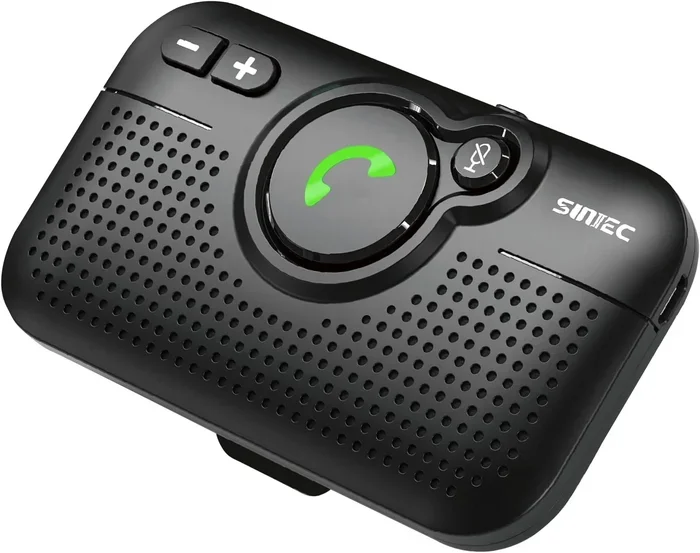
If you use a Bluetooth adapter, FM transmitter, or any other accessory to connect your phone to your car, make sure it is a quality product. Cheap accessories can introduce interference and cause detection failures. Invest in reputable brands that are known for reliable performance.
Expert Insights on Phone and Car Connectivity
Automotive technicians and tech experts agree on a few key points about phone detection issues. First, most problems are software-related, not hardware-related. This means the vast majority of cases can be fixed without expensive repairs. Second, the most effective fix is always the simplest one: restart both devices and re-pair from scratch. Third, keeping your software updated is the single best preventive measure you can take.
Experts also recommend keeping your phone within arm’s reach when first pairing with your car. Once the initial connection is established, Bluetooth range is usually more than enough for normal driving. But during that critical first pairing phase, proximity matters a lot.
Another expert tip is to disable Wi-Fi on your phone when troubleshooting Bluetooth issues. Wi-Fi and Bluetooth operate on similar frequencies and can interfere with each other. Turning off Wi-Fi temporarily can help your phone and car establish a clean Bluetooth connection without signal competition.
Key Takeaways
- Restart Both Devices First: A simple restart of your phone and car infotainment system resolves the majority of detection issues quickly and easily.
- Forget and Re-Pair Your Devices: Clearing old pairing data and establishing a fresh Bluetooth connection eliminates most software-related glitches.
- Keep Software Updated: Regular updates on both your phone and car system prevent compatibility issues that block device recognition.
- Check Your Phone Settings: Location services, battery saver mode, and app permissions all affect whether your car can detect your phone.
- Consider Hardware as a Last Resort: If software fixes do not work, the Bluetooth antenna or module may need professional inspection or replacement.
- Prevent Problems with Good Habits: Regular restarts, limited paired devices, and quality accessories keep your wireless connection stable and reliable.
Conclusion
Dealing with a car that will not detect your phone is frustrating, but it is almost always fixable. The solutions range from simple restarts to more involved troubleshooting steps. Start with the basics: restart both devices, toggle Bluetooth, and forget old pairings. Move on to software updates, cache clearing, and settings checks if those do not work. And only consider hardware problems if every software solution has been exhausted.
The key is patience and a systematic approach. Work through the steps in order. Do not skip ahead. Most drivers find their phone connected again within the first few steps. And once you do, the seamless connection between your phone and your car audio system makes every drive more enjoyable. Your music, calls, and navigation all flow through your car stereo without a hitch.
Remember that prevention is just as important as fixing. Keep your software updated, limit paired devices, and restart your systems regularly. These small habits go a long way toward keeping your Bluetooth connection strong and reliable. Now go ahead, get back on the road, and enjoy the drive with your phone connected and working perfectly.
Frequently Asked Questions
Why did my car suddenly stop detecting my phone?
A sudden loss of detection is usually caused by a software glitch, a Bluetooth cache issue, or an outdated phone or car firmware. Start by restarting both devices and forgetting old pairings. This resolves the problem in most cases without needing any advanced troubleshooting.
Can too many paired devices cause detection problems?
Yes, absolutely. Most car infotainment systems have a limit on how many devices they can store. When that limit is reached, the system may refuse to detect new phones. Go to your car Bluetooth settings and remove devices you no longer use to free up space.
Does battery saver mode affect Bluetooth detection?
It can. Battery saver mode restricts background processes, including Bluetooth scanning. This can prevent your car from finding your phone. Disable battery saver mode temporarily and check if detection improves.
How do I know if the problem is with my phone or my car?
Test with a different phone if possible. If another phone connects to your car, the issue is with your original phone. If no phone connects, the problem is with your car’s Bluetooth system. This simple test helps you narrow down the cause quickly.
Do I need to visit a dealership for Bluetooth problems?
Not usually. Most Bluetooth detection issues can be fixed at home with basic troubleshooting steps. However, if you suspect a hardware problem, such as a damaged Bluetooth antenna, a visit to a mechanic or dealership is recommended for proper diagnosis and repair.
How often should I update my car infotainment software?
Check for updates at least once a month. Many newer vehicles support over-the-air updates that you can install directly from the infotainment system. Regular updates improve compatibility, fix bugs, and keep your Bluetooth connection running smoothly.