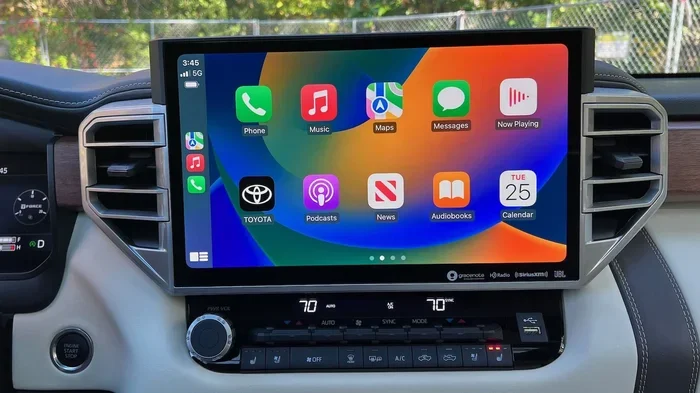
Why Are My Messages Not Showing Up on My Car Today
Your car messages may not be showing up because of Bluetooth issues, notification settings, or outdated software. Understanding the root cause helps you fix the problem fast and get back to safe, hands-free communication. This guide walks you through every possible reason and solution for messages not showing up on your car screen.
You are driving down the road. Your phone buzzes with a new text. But when you glance at your car screen, nothing shows up. It is frustrating, right? You are not alone. Many drivers face this exact problem every day. The good news is that it is usually easy to fix.
When messages not showing up on your car becomes a regular thing, it can make you feel disconnected. You miss important texts from family, friends, or your boss. Worse, you might try to check your phone while driving, which is dangerous. Understanding why this happens is the first step to solving it. Let us dive into the reasons and fixes together.
This article covers everything you need to know. We will look at Bluetooth issues, notification settings, software problems, and much more. By the end, you will know exactly what to do. You will get your car messages working again in no time.
Key Takeaways
- Bluetooth problems are the most common reason messages fail to appear on your car screen.
- Notification settings on your phone may be blocking messages from reaching your vehicle.
- Outdated infotainment software can cause compatibility issues with messaging apps.
- Apple CarPlay and Android Auto have specific settings that control message display.
- Simple resets and updates often solve the issue without professional help.
- App compatibility matters — not all messaging apps work seamlessly with car systems.
- Regular maintenance of your connected car features prevents future message display problems.
📑 Table of Contents
- Understanding How Car Messaging Works
- Top Reasons Messages Are Not Showing Up
- Step-by-Step Fixes for Message Display Problems
- How to Prevent Message Display Issues in the Future
- When to Seek Professional Help
- Quick Tips for Better Car Messaging
- Expert Insights on Car Messaging
- Key Takeaways
- Conclusion
Understanding How Car Messaging Works
Before we fix the problem, let us understand how messaging works in your car. Most modern vehicles have an infotainment system. This is the screen and computer built into your dashboard. It connects to your phone through Bluetooth or a USB cable. Once connected, it can display notifications, including text messages.
The process seems simple, right? Your phone receives a text. It sends that message to your car through a wireless connection. Your car screen then shows the sender and the message preview. But many things can go wrong in this chain. Let us look at each step carefully.
Connected car features have become standard in most new vehicles. Whether you drive a Toyota, Ford, Honda, or BMW, the basics are similar. Your car relies on your phone to send message data. If something breaks in that connection, messages will not show up.
The Role of Bluetooth in Car Messaging
Bluetooth is the star player here. It is the wireless bridge between your phone and your car. When Bluetooth works well, messages appear instantly on your dashboard. But Bluetooth is also the most common source of problems. A weak signal, a mismatched connection, or a simple glitch can break the link.
Think of Bluetooth like a conversation between two people. If one person is not listening, the message gets lost. The same thing happens with your phone and car. If the Bluetooth profile for messaging is not active, your car will not receive texts. This is a very common issue, and it is easy to fix once you know what to look for.
Apple CarPlay and Android Auto Explained
If your car supports Apple CarPlay or Android Auto, you have an extra layer of messaging. These systems mirror your phone screen onto your car display. They also control how notifications appear. But they also have their own settings that can block messages.
Apple CarPlay is popular in iPhones. It lets you use Siri to read and reply to texts. Android Auto does the same for Android phones. Both systems are powerful, but they need the right setup. If your settings are off, messages will not show up on your car screen.
Top Reasons Messages Are Not Showing Up
Now let us get into the heart of the matter. Why are your messages not appearing? There are several common reasons. Let us go through each one carefully.
Bluetooth Connection Issues
The number one reason for messages not showing up on your car is a bad Bluetooth connection. Your phone might connect to your car for audio, but not for data sharing. This means calls work, but messages do not. This is a very common mix-up.
Here are signs your Bluetooth connection is the problem:
- You can make calls through your car but cannot see texts.
- Messages only show up sometimes, not consistently.
- Your car screen says “Connected” but no notifications appear.
- The Bluetooth symbol appears on your phone, but message syncing fails.
Bluetooth issues often happen after a phone update or a car software update. Sometimes the connection just needs to be refreshed. Other times, you need to re-pair your devices from scratch.
Notification Settings Are Turned Off
Your phone has strict notification controls. These settings decide which apps can send alerts to your car. If the messaging app notification is turned off, your car will never show the message. This is a simple fix, but many people overlook it.
On iPhone, go to Settings, then Notifications, then Messages. Make sure Allow Notifications is on. On Android, go to Settings, then Apps, then your messaging app, then Notifications. Check that all notification channels are enabled.
Also, check your car settings. Some vehicles let you choose which notifications to display. If messages are turned off there, they will not appear no matter what your phone settings say. This two-way check is important and often missed.
Outdated Infotainment Software
Your car screen runs on software, just like your phone. And just like your phone, it needs updates. Outdated infotainment software can cause all kinds of problems. Message display issues are among the most common.
Car manufacturers release updates regularly. These updates fix bugs and improve compatibility. If you have not updated your car system in a while, now is a good time. Check your car manual for instructions on how to update the system. Some cars let you update over Wi-Fi, while others need a USB drive.
Messaging App Compatibility Problems
Not all messaging apps work the same way with car systems. Default apps like Apple Messages and Google Messages usually work great. But third-party apps like WhatsApp, Telegram, or Signal may not sync properly with your car.
This is because these apps use different notification systems. Your car infotainment system may not know how to read them. As a result, messages from these apps stay hidden on your dashboard. If you only use a third-party app, this could be your main issue.
Do Not Disturb While Driving Mode
Both iPhones and Android phones have a Do Not Disturb While Driving feature. This is a safety tool. It silences notifications when you are moving. But it can also block messages from showing up on your car screen.
If this mode is on, your car might not receive any message alerts. You can check this in your phone settings. On iPhone, go to Settings, then Do Not Disturb, then Driving. On Android, look for Do Not Disturb in Sound settings. You can set exceptions for certain contacts or repeat callers.
Phone Storage or Memory Issues
This one surprises people. If your phone is almost full, it may not sync messages properly. Your phone needs a little free space to process and send data to your car. When storage is tight, notifications can get delayed or blocked entirely.
Try deleting some unused apps or photos. Free up a few gigabytes of space. Then check if messages start showing up again. It sounds too simple, but it works more often than you would think.
Step-by-Step Fixes for Message Display Problems
Now that you know the common causes, let us fix them. Here are practical steps you can take right now.
Step 1: Reconnect Bluetooth
Start with the simplest fix. Turn off Bluetooth on your phone. Wait 10 seconds. Turn it back on. Then reconnect to your car. This refreshes the connection and often solves the problem instantly.
If that does not work, try removing the car from your phone’s Bluetooth list. Then re-pair it as a new device. This forces both devices to start fresh. It takes about two minutes and fixes many connection issues.
Step 2: Check Notification Access
Go to your phone settings and verify that your messaging app has full notification access. On iPhone, make sure Show Previews is set to Always. On Android, check that the app has permission to send notifications.
Then go to your car settings. Look for the notification or phone section. Make sure messages are allowed to display. Some cars have a setting called “Message Notifications” that you need to turn on separately.
Step 3: Update Everything
Update your phone software first. Then check for car infotainment updates. If your car supports wireless updates, do it over Wi-Fi. If not, you may need to visit a dealer or use a USB update.
Also, update your messaging app. App updates often fix bugs related to notification syncing. Keeping everything current is one of the best ways to prevent message display issues.
Step 4: Reset Network Settings
If Bluetooth issues persist, try resetting your phone’s network settings. This clears all saved Wi-Fi passwords and Bluetooth pairings. You will need to reconnect everything, but it often fixes stubborn connection problems.
On iPhone, go to Settings, then General, then Transfer or Reset iPhone, then Reset, then Reset Network Settings. On Android, go to Settings, then System, then Reset Options, then Reset Wi-Fi, Mobile, and Bluetooth.
Step 5: Try a Different Messaging App
If you are using a third-party messaging app, try switching to your phone’s default app temporarily. See if messages show up in the car then. If they do, the problem is app compatibility. You may need to use the default app for car messaging or look for a car-compatible alternative.
How to Prevent Message Display Issues in the Future
Fixing the problem is great. But preventing it from happening again is even better. Here are some habits that keep your car messaging working smoothly.
Keep Your Software Updated
Make it a habit to check for updates once a month. Both your phone and your car benefit from regular updates. Set a reminder on your calendar if you need to. This small habit saves a lot of frustration later.
Keep Bluetooth Clean
Remove old or unused Bluetooth pairings from your phone. Too many saved devices can confuse your connection. Keep only the devices you actively use. This keeps your Bluetooth list organized and your connections strong.
Restart Your Devices Regularly
A simple restart fixes many tech problems. Restart your phone once a week. Restart your car infotainment system by holding the power button for 10 seconds. This clears temporary glitches and keeps everything running smoothly.
Use Official Cables and Accessories
If you use a USB cable for connection, make sure it is high quality. Cheap cables can cause data transfer issues. Stick with cables from reputable brands or those recommended by your car manufacturer. This small investment pays off in reliability.
When to Seek Professional Help
Most message display issues are easy to fix at home. But sometimes, the problem is deeper. Here are signs you need professional help.
If you have tried all the steps above and messages still do not show up, there may be a hardware issue. Your car’s infotainment system might have a faulty module. Or the Bluetooth antenna in your car could be damaged. These problems need a trained technician to diagnose.
Also, if your car is still under warranty, check with your dealer before trying major fixes. Some updates or resets might void certain warranties. A dealer can often run diagnostics and fix the issue quickly. They have access to special tools that regular users do not.
Do not ignore persistent problems. A messaging issue might be a symptom of a larger infotainment system problem. Getting it checked early can save you time and money in the long run.
Quick Tips for Better Car Messaging
- Turn on message previews so you can see the full text on your car screen.
- Set your messaging app as the default on your phone for best compatibility.
- Keep your phone charged while driving. Low battery can affect Bluetooth performance.
- Use a phone mount to keep your device in a stable position for better connectivity.
- Disable battery optimization for your messaging app so it stays active in the background.
- Test your setup with a friend by sending a text before you need it on the road.
Expert Insights on Car Messaging
Automotive tech experts agree that Bluetooth messaging issues are the most common complaint among car owners. According to industry reports, nearly 30% of connected car users experience message display problems at some point. The good news is that 90% of these issues are software-related and easily fixable.
Experts also point out that the shift from USB connections to wireless Bluetooth has introduced new variables. Wireless connections are convenient, but they are also more prone to interference and signal drops. Keeping your devices close and your software updated helps a lot.
Another expert tip is to avoid using too many apps simultaneously while driving. Each running app uses system resources. This can slow down your infotainment system and delay message notifications. Close apps you are not using to keep your car system responsive.
Key Takeaways
- Bluetooth connection problems are the most common reason messages fail to appear on your car screen.
- Notification settings on both your phone and car need to be checked and enabled for messages.
- Outdated infotainment software can cause compatibility issues with messaging apps and notifications.
- Apple CarPlay and Android Auto have their own settings that control message display behavior.
- Simple resets, reconnections, and updates often solve the issue without professional help.
- Third-party messaging apps may not be fully compatible with your car’s infotainment system.
- Regular maintenance of connected car features prevents future message display problems.
Conclusion
Dealing with messages not showing up on your car is frustrating, but it is almost always fixable. The reasons are usually simple. It could be a Bluetooth issue, a notification setting, or an outdated software version. Once you identify the cause, the fix is usually quick and easy.
Start with the basics. Reconnect your Bluetooth. Check your notification settings. Update your phone and car software. These steps solve the problem for most drivers. If they do not work, dig deeper into app compatibility and network settings. You have all the tools and knowledge you need right here.
Remember, staying connected while driving should be safe and convenient. Your car’s messaging system is there to help you. When it works, it keeps you informed without taking your eyes off the road. Take care of your connected car features, and they will take care of you. Now go out there and get those messages showing up again.
Frequently Asked Questions
Why are my text messages not showing up on my car screen?
The most common reason is a Bluetooth connection issue. Your phone may be connected for calls but not for data sharing. Check your Bluetooth settings and make sure the message sync profile is active. Also, verify that notification settings on both your phone and car allow messages to display.
How do I get my iPhone messages to show on my car?
Make sure Bluetooth is on and your phone is paired with your car. Go to Settings, then Notifications, then Messages, and ensure Allow Notifications is enabled. If your car supports Apple CarPlay, make sure CarPlay is turned on and message notifications are allowed within CarPlay settings.
Can a phone update cause messages to stop showing on my car?
Yes, absolutely. Phone updates can change Bluetooth profiles and notification settings. After an update, your car may need to be re-paired. It is a good practice to check your connection and settings after any major phone or car software update.
Why do WhatsApp messages not show up on my car but regular texts do?
Third-party apps like WhatsApp use different notification systems that may not be fully supported by your car infotainment system. Your car may only display messages from default messaging apps. Try using your phone’s default Messages app for car notifications, or check if your car supports the specific app.
How often should I update my car infotainment system?
Check for updates at least once a month. Many car manufacturers release updates every few months. These updates fix bugs, improve performance, and enhance compatibility with messaging apps. If your car supports wireless updates, enable automatic updates when available.
Is it safe to reset my car’s infotainment system?
Yes, it is generally safe. A reset clears temporary glitches and refreshes your system. It does not delete your saved settings or paired devices permanently. However, you may need to re-pair your phone and adjust preferences after a reset. Always check your car manual for specific reset instructions.