How to Put a Phone in Pairing Mode Quickly and Easily
Learning how to put a phone in pairing mode is the first step to seamless Bluetooth connectivity. Whether you want to connect your phone to your car, headphones, or speakers, the process is simple once you know where to look. This guide walks you through every step with clear instructions for all major phone brands. You will also find troubleshooting tips and expert advice to avoid common pairing problems. By the end, you will be able to pair any device in minutes.
Have you ever been in your car, ready to start a road trip, and realized you cannot connect your phone to the audio system? Or maybe you are trying to pair your headphones before a workout and the Bluetooth just will not cooperate. Frustrating, right? The good news is that putting your phone in pairing mode is much easier than most people think. Once you learn the steps, you will do it in under a minute every single time.
This guide will show you exactly how to put a phone in pairing mode for every major device and situation. We will cover iPhone and Android phones, car Bluetooth systems, wireless speakers, and headphones. You will also learn how to fix common problems that keep devices from connecting. By the time you finish reading, you will feel confident pairing any Bluetooth device on the spot.
Key Takeaways
- Quick Access: Most phones let you enable pairing mode through the quick settings panel or Bluetooth menu in seconds.
- Brand-Specific Steps: iPhone and Android devices have slightly different processes, and this guide covers both.
- Car Connectivity: Pairing your phone to your car’s Bluetooth system follows a similar flow across most vehicle brands.
- Troubleshooting Matters: Knowing how to reset Bluetooth and clear old connections solves most pairing issues.
- Security Awareness: Always verify the pairing code and avoid connecting in crowded public spaces.
- Multiple Devices: You can pair your phone to several devices, but managing them keeps your connection smooth.
📑 Table of Contents
- What Does It Mean to Put a Phone in Pairing Mode?
- How to Put an iPhone in Pairing Mode
- How to Put an Android Phone in Pairing Mode
- How to Put Your Phone in Pairing Mode for Your Car
- How to Pair Your Phone to Wireless Speakers and Headphones
- Common Pairing Problems and How to Fix Them
- Expert Tips for Better Bluetooth Pairing
- How to Manage Multiple Paired Devices
- Security Considerations When Pairing Bluetooth Devices
- Future of Bluetooth and Phone Connectivity
- Conclusion
What Does It Mean to Put a Phone in Pairing Mode?
Pairing mode is a special state your phone enters to make itself visible to other Bluetooth devices. When Bluetooth is turned on but your phone is not in pairing mode, other devices cannot see it. Think of pairing mode like raising your hand in a crowded room so someone can find you. It sends out a signal that says, “Hey, I am here and ready to connect.”
Not all phones behave the same way when you toggle Bluetooth on. Some phones automatically enter pairing mode when you turn Bluetooth on for the first time. Others require you to go into the settings and select the option manually. Understanding this difference saves you time and prevents confusion. Let us walk through the exact steps for each type of phone.
Why Pairing Mode Matters for Car Connectivity
If you are in the automotive world, you know how important car Bluetooth is. Hands-free calling, music streaming, and navigation directions all rely on a stable wireless connection. When your phone is not paired to your car, you miss out on all of these features. Putting your phone in pairing mode is the gateway to a better driving experience.
Modern cars support Bluetooth connectivity for both audio streaming and phone calls. Some vehicles even let you connect multiple phones at once. But before any of that works, your phone needs to be discoverable. That is exactly what pairing mode does. It makes your phone visible to your car’s infotainment system so they can find each other.
How to Put an iPhone in Pairing Mode
If you use an iPhone, the process is straightforward. Apple keeps the Bluetooth settings simple, which is great for most users. Here is exactly what to do:
- Open the Settings app on your iPhone.
- Tap on Bluetooth near the top of the screen.
- Toggle the switch to turn Bluetooth on.
- If this is your first time pairing, your iPhone will automatically appear as discoverable.
- If it does not show up, tap on Other Devices at the bottom of the screen.
- Your iPhone should now appear under “My Devices” or as a discoverable option.
One thing to keep in mind: iPhones stay in pairing mode for only a short time. If your car or headphones do not find it right away, go back to the Bluetooth settings and toggle it off and on again. This refreshes the discoverable window and gives the other device another chance to detect your phone.
Quick iPhone Pairing Tip
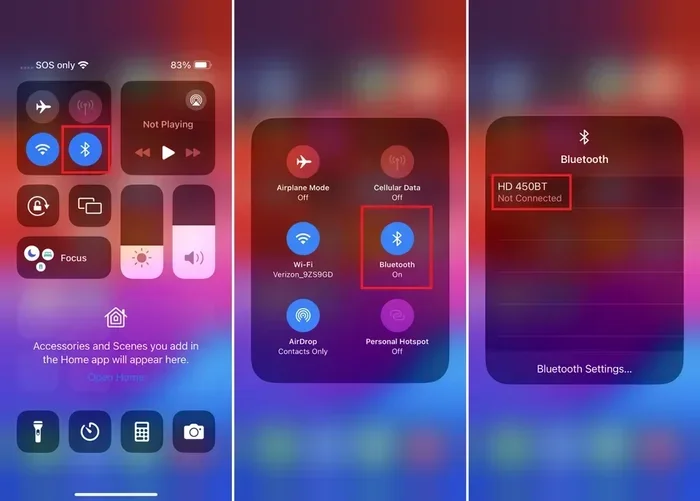
You can also use the Control Center to turn on Bluetooth quickly. Swipe down from the top-right corner of your screen and tap the Bluetooth icon. However, this method does not always put your iPhone into full pairing mode. For the best results, go through the Settings app instead. It takes just a few extra seconds but works much more reliably.
How to Put an Android Phone in Pairing Mode
Android phones from Samsung, Google, Motorola, and other brands follow a similar process. The steps may vary slightly depending on your phone model and Android version, but the general flow stays the same.
- Swipe down from the top of your screen to open the Quick Settings panel.
- Tap the Bluetooth icon to turn it on.
- For full pairing mode, long-press the Bluetooth icon to open the Bluetooth settings.
- Tap Pair New Device or Scan for Devices.
- Your phone will now search for nearby Bluetooth devices.
- Your phone should appear in the list of available devices on the other end.
Some Android phones have a specific “Pairing Mode” toggle in the settings. Look for options like Visible to All Nearby Bluetooth Devices or Discoverable. Make sure this is turned on if your phone is not showing up on other devices.
Samsung-Specific Pairing Steps
Samsung phones have a slightly different layout in their Bluetooth settings. After turning on Bluetooth, go to Settings > Connections > Bluetooth. Then tap Scan at the top of the screen. Your Samsung phone will become visible to other devices. The pairing process is smooth and fast on Samsung devices, which makes it one of the best phone brands for Bluetooth device connectivity.
How to Put Your Phone in Pairing Mode for Your Car
Connecting your phone to your car is one of the most common reasons people search for pairing instructions. Whether you drive a Toyota, Honda, Ford, Chevrolet, or any other brand, the general process is very similar. Here is how to do it step by step.
Step 1: Turn on Your Car’s Bluetooth
Start your car and go to the infotainment system. Navigate to the Settings menu and look for Bluetooth or Phone Connectivity. Turn on the Bluetooth function on your car’s system. Most cars will then enter a search or pairing mode automatically.
Step 2: Enable Pairing Mode on Your Phone
Now follow the steps above to put your phone in pairing mode. Make sure your phone’s Bluetooth is on and it is set to be discoverable. Keep your phone within a few feet of your car’s infotainment system for the best results.
Step 3: Find Each Other
On your car’s screen, select Search for Devices or Add New Device. On your phone, look for your car’s name in the list of available devices. Tap on it to initiate the connection. You may see a pairing code on both screens. Confirm that the codes match and then tap Pair or Connect.
Step 4: Test the Connection
Once paired, try playing music from your phone. You should hear it come through your car speakers. Make a test call to confirm hands-free calling works. If both work, you are all set. If not, do not worry. We will cover troubleshooting in a later section.
How to Pair Your Phone to Wireless Speakers and Headphones
The process for wireless speakers and headphones is very similar to car pairing. The main difference is that these devices do not have a screen to confirm the pairing code. Instead, they rely on audio cues or voice prompts.
For Wireless Headphones
Most Bluetooth headphones enter pairing mode automatically the first time you turn them on. For subsequent pairings, you usually need to hold down the power button or a dedicated Bluetooth button for a few seconds. The LED light will start flashing, which means the headphones are ready to pair. On your phone, go to Bluetooth settings and select your headphones from the list.
For Wireless Speakers
Portable Bluetooth speakers typically have a dedicated Bluetooth button or a power button that doubles as a pairing button. Press and hold it until you hear a beep or see a flashing light. Then go to your phone’s Bluetooth settings and select the speaker. The connection should be instant in most cases.
Quick Tip for Multiple Devices
If you use the same headphones with your phone and your laptop, you can usually switch between them easily. Just turn off Bluetooth on one device and turn it on for the other. Most modern headphones remember up to two or three paired devices, making switching seamless.
Common Pairing Problems and How to Fix Them
Even when you follow every step correctly, things can go wrong. Bluetooth technology is reliable, but it is not perfect. Here are the most common problems and how to solve them.
Phone Does Not Show Up on the Other Device
This is the most frustrating pairing issue. The first thing to check is whether your phone is actually in pairing mode. Go back to the Bluetooth settings and make sure discoverable mode is on. Also check that the other device is not already connected to a different phone. Some devices only allow one active connection at a time.
Another common cause is distance. Bluetooth has a limited range, usually about 30 feet. If your phone is too far from the car or speaker, it will not be detected. Move closer and try again.
Paired But No Sound
Sometimes the connection works but you cannot hear any audio. This usually happens because the audio is being routed to the wrong device. On your phone, go to Bluetooth settings and tap the gear icon next to the connected device. Make sure Media Audio and Phone Audio are both turned on.
On Android phones, you can also check the media output by swiping down and tapping the media player tile. Select your Bluetooth device as the output source.
Connection Keeps Dropping
Interference from other wireless devices can cause frequent disconnections. Wi-Fi routers, microwaves, and even USB 3.0 ports can disrupt Bluetooth signals. Move away from these sources and see if the connection stabilizes.
Also check for software updates on both devices. Outdated firmware is one of the leading causes of Bluetooth troubleshooting issues. A simple update often fixes connection drops completely.
The Pairing Code Does Not Match
If you see different codes on your phone and your car or speaker, do not proceed with the connection. This could be a sign of a security issue. Turn off Bluetooth on both devices, wait a few seconds, and try again. If the problem persists, restart both devices and attempt pairing once more.
Expert Tips for Better Bluetooth Pairing
After helping hundreds of people connect their phones to their cars and devices, here are some tips that make a huge difference.
- Keep Your Phone Close: During the initial pairing, keep your phone within 3 feet of the other device. This ensures a strong signal and faster detection.
- Forget Old Connections: If your phone is trying to connect to a device you no longer use, go to Bluetooth settings and select Forget Device. This clears the old connection and frees up space for new ones.
- Restart Bluetooth: The simplest fix for most issues. Turn Bluetooth off, wait 10 seconds, and turn it back on. This refreshes the connection and often solves the problem instantly.
- Check Battery Levels: Low battery on either device can weaken the Bluetooth signal and cause pairing failures. Charge both devices before attempting to pair.
- Use Airplane Mode as a Reset: If nothing else works, turn on Airplane Mode, wait 30 seconds, and turn it off. This resets all wireless connections including Bluetooth.
- Update Your Software: Both your phone and the device you are pairing with should run the latest software. Updates often include fixes for Bluetooth connectivity bugs.
How to Manage Multiple Paired Devices
Once you get comfortable with device pairing, you will likely have multiple devices connected to your phone. Managing them properly keeps everything running smoothly.
On iPhone, go to Settings > Bluetooth and tap the info icon next to any device. From there, you can forget the device, adjust audio settings, or prioritize it for auto-connection. On Android, the process is similar. Go to Settings > Bluetooth, tap the gear icon, and choose your preferred options.
For car owners who pair multiple phones, most infotainment systems let you set a priority phone. The priority phone automatically connects when you start the car. This is a great feature for families who share a vehicle. Check your car’s manual for instructions on setting up multiple phone profiles.
Security Considerations When Pairing Bluetooth Devices
Bluetooth technology is convenient, but it is not completely risk-free. When you put your phone in pairing mode, it becomes visible to all nearby Bluetooth devices. In a crowded place like an airport or a shopping mall, this could expose you to unwanted connection attempts.
Here are a few simple security tips:
- Turn Off Pairing Mode When Done: Once your devices are connected, turn off discoverable mode to prevent unwanted connections.
- Verify the Pairing Code: Always check that the code shown on both devices matches before confirming the connection.
- Avoid Pairing in Public: If possible, pair devices in a private or secure location rather than in crowded public spaces.
- Keep Bluetooth Off When Not in Use: This not only saves battery but also reduces your exposure to potential security risks.
Following these simple habits keeps your mobile connection safe and secure every time you pair a new device.
Future of Bluetooth and Phone Connectivity
Bluetooth technology continues to evolve with each new version. The latest Bluetooth 5.3 standard offers faster connection speeds, longer range, and lower power consumption. This means future phones will pair to cars, speakers, and headphones even faster and more reliably than they do today.
Some newer cars now support wireless Apple CarPlay and Android Auto, which eliminate the need for a physical cable entirely. These systems rely on Bluetooth connectivity to stream music, display navigation, and enable hands-free calling. As wireless audio technology improves, the need for cables will continue to decrease.
If you own a car that is a few years old, a Bluetooth adapter or receiver can bring modern wireless capabilities to your stock audio system. These small devices plug into your car’s aux input or FM transmitter and create a new Bluetooth connection point. They are affordable and easy to install, making them a great upgrade for older vehicles.
Conclusion
Putting your phone in pairing mode is a simple skill that everyone should master. Whether you are connecting to your car for a daily commute, pairing headphones for a morning run, or linking up a wireless speaker for a backyard gathering, the process is quick and straightforward once you know the steps. How to put a phone in pairing mode is not complicated, and this guide has shown you every method you need.
Remember to keep your phone close during pairing, check for discoverable mode, and troubleshoot common issues using the tips we shared. With a little practice, you will be pairing devices without even thinking about it. The wireless freedom that comes from a successful Bluetooth connection is well worth the few minutes it takes to learn the process.
Now that you have all the information you need, go ahead and try it. Pick up your phone, follow the steps, and enjoy seamless phone connectivity wherever you go. You will wonder how you ever managed without it.
Frequently Asked Questions
How long does it take to put a phone in pairing mode?
It usually takes less than 30 seconds. Simply go to your Bluetooth settings, turn it on, and your phone becomes discoverable. If it does not show up right away, toggle Bluetooth off and on once to refresh the connection.
Why is my phone not showing up when I try to pair it?
This usually happens because discoverable mode is off or the phone is too far from the other device. Make sure your phone is set to be visible to nearby Bluetooth devices and that you are within 30 feet of the device you want to connect to.
Can I pair my phone to my car without a Bluetooth connection?
Yes, you can use an auxiliary cable or a Bluetooth adapter. A Bluetooth receiver plugs into your car’s aux port and creates a wireless connection point. This is a great option for older cars that do not have built-in Bluetooth.
Is it safe to pair Bluetooth devices in public places?
It is generally safe, but you should take precautions. Always verify the pairing code matches on both devices and avoid leaving your phone in discoverable mode longer than necessary. Turn off Bluetooth when you are not actively using it.
How many devices can I pair to my phone at once?
Most modern phones can store multiple paired devices and connect to one or two at a time. You can manage your paired devices in the Bluetooth settings on both iPhone and Android phones.
What should I do if my phone keeps disconnecting from my car’s Bluetooth?
Try deleting the car from your phone’s Bluetooth list and pairing it again from scratch. Also check for software updates on both your phone and your car’s infotainment system. Interference from other wireless devices can also cause disconnections.