How Do I Get Bluetooth to Recognize My Device Fast
Getting Bluetooth to recognize your device doesn’t have to be frustrating. This guide walks you through proven fixes that work in minutes. You’ll learn simple troubleshooting steps, car-specific tips, and expert tricks to keep your wireless connection strong and reliable every time.
Bluetooth technology has become a part of our daily lives. We use it to connect phones to speakers, headphones to laptops, and devices to car systems. But nothing is more annoying than when your Bluetooth device won’t recognize another device. You turn it on, wait, and nothing happens. It feels like magic when it works, but when it doesn’t, it can ruin your whole day.
If you’ve ever asked yourself, “How do I get Bluetooth to recognize my device fast?” — you’re in the right place. This guide gives you clear, simple steps to fix Bluetooth recognition problems. Whether you’re trying to connect your phone to a car stereo, pair headphones, or link two speakers, these tips will help. Let’s get your devices talking to each other again.
Key Takeaways
- Turn Bluetooth off and on again: This simple restart fixes most recognition problems instantly.
- Check device compatibility: Older devices may not support newer Bluetooth versions, causing pairing failures.
- Remove old pairings: Clearing saved devices frees up memory and resolves conflicts.
- Keep devices close: Bluetooth range is limited, and distance causes recognition failures.
- Update your software: Outdated drivers and firmware are a leading cause of Bluetooth issues.
- Use a car Bluetooth adapter: Older cars without built-in Bluetooth need a reliable adapter for wireless connectivity.
📑 Table of Contents
- Why Bluetooth Sometimes Fails to Recognize Devices
- Step-by-Step Fixes to Get Bluetooth Recognizing Your Device
- Bluetooth Recognition in Cars
- Common Bluetooth Pairing Mistakes to Avoid
- Advanced Bluetooth Troubleshooting Tips
- When to Replace Your Bluetooth Device
- Bluetooth in Everyday Devices Beyond Phones
- Quick Tips for a Strong Bluetooth Connection
Why Bluetooth Sometimes Fails to Recognize Devices
Bluetooth uses short-range radio waves to connect devices. When two devices try to pair, they need to “see” each other first. If one device can’t detect the other, the connection fails. Several common reasons cause this problem.
Distance and Signal Strength
Bluetooth has a limited range. Most devices work within 30 feet of each other. Walls, furniture, and even your body can block the signal. If your phone is in your pocket and your speaker is in another room, the connection may not happen. Keep devices within a few feet of each other during the pairing process.
Bluetooth Is Already Connected to Another Device
Many Bluetooth devices can only connect to one device at a time. If your speaker is already paired with your tablet, it might not show up on your phone. This is a common reason for recognition failures. You need to disconnect or unpair the active connection first.
Old or Outdated Software
Devices run on software, just like computers. When that software gets old, it can cause problems. Bluetooth drivers need regular updates. If your phone or computer hasn’t been updated in months, the Bluetooth module might not work properly. Always check for software updates before trying other fixes.
Step-by-Step Fixes to Get Bluetooth Recognizing Your Device
Now that you know why Bluetooth fails, let’s fix it. These steps work for phones, tablets, laptops, and car systems. Try them in order for the best results.
Step 1: Turn Bluetooth Off and Back On
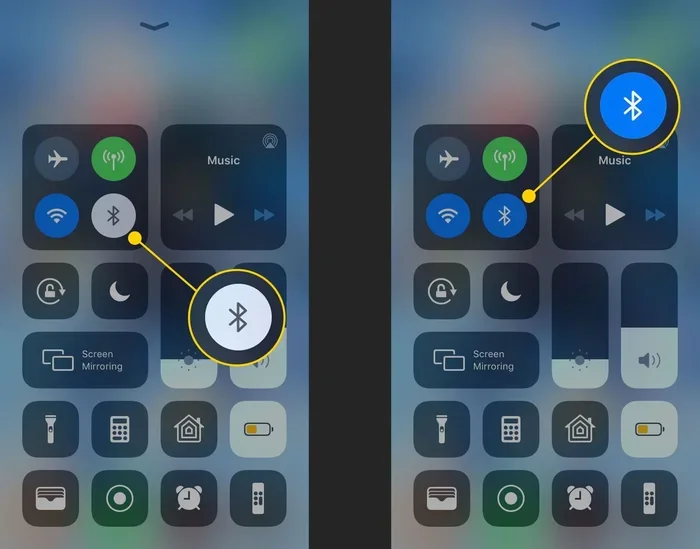
This sounds too simple, but it works more often than you’d think. Turning Bluetooth off and on resets the wireless radio. It clears temporary glitches and forces the device to search for new connections.
On most phones, you can swipe down from the top of the screen and tap the Bluetooth icon. Wait five seconds, then tap it again. On a laptop, go to settings and toggle Bluetooth off. Wait ten seconds, then turn it back on.
After turning it back on, check if your other device shows up in the list. This single step fixes Bluetooth recognition problems about half the time.
Step 2: Make Sure Your Device Is Discoverable
For one device to find another, it needs to be in “discoverable” mode. This means the device is actively broadcasting its presence. Most devices stay discoverable for only a short time after you turn on Bluetooth.
On phones, you usually don’t need to do anything extra. Just make sure Bluetooth is on and the screen is awake. On speakers and headphones, you often need to hold down a button to enter pairing mode. Look for a flashing light — that means the device is ready to be found.
Step 3: Remove Old Paired Devices
Over time, your device saves a long list of previously connected devices. This list can get crowded. When it’s too full, new devices might not show up. Clearing old pairings frees up space and removes connections that might be causing conflicts.
Go to your Bluetooth settings. Look for the list of saved or previously connected devices. Delete any device you no longer use. Then try pairing again. This simple clean-up often solves stubborn recognition problems.
Step 4: Restart Both Devices
A full restart does more than just turning Bluetooth off. It refreshes the entire system. All wireless radios, drivers, and background processes start fresh. This is one of the most effective Bluetooth troubleshooting steps you can take.
Turn off both devices completely. Wait at least 30 seconds. Then turn them back on. Try pairing again after both devices are fully awake. You’ll be surprised how often this fixes the problem.
Step 5: Check for Software Updates
Manufacturers release updates to fix bugs, including Bluetooth issues. If your device hasn’t updated in a while, this could be the cause of your problem.
On phones, go to Settings, then Software Update. On computers, check your operating system update center. For car stereos and Bluetooth adapters, check the manufacturer’s website or app. Installing the latest update can resolve wireless connection problems quickly.
Step 6: Forget and Re-Pair the Device
If the devices were paired before but now won’t connect, you need to start fresh. “Forgetting” a device removes the saved pairing data completely. Then you can create a new, clean connection.
Find the device in your Bluetooth list. Tap on it and select “Forget” or “Remove.” Then turn Bluetooth off and back on. Put the other device in pairing mode again. Let them find each other and connect from scratch. This method works well for devices that keep failing to recognize each other.
Bluetooth Recognition in Cars
Connecting your phone to your car’s Bluetooth system is one of the most common use cases. When your car doesn’t recognize your phone, it can be especially frustrating. You’re ready to drive, and your hands-free calling or music streaming just won’t work.
Several car-specific factors affect Bluetooth recognition. Let’s look at the most common car Bluetooth problems and how to solve them.
Why Your Car Won’t Find Your Phone
Car Bluetooth systems are often older than your phone. This creates a compatibility gap. Your phone might use a newer Bluetooth version that the car stereo doesn’t support. Also, car systems sometimes need a long time to scan for new devices. Patience is key here.
Make sure your car ignition is on but the engine doesn’t need to be running. Many car stereos only activate their Bluetooth module when the ignition is on. Check your car manual if you’re not sure.
Using a Bluetooth Adapter for Older Cars
If your car doesn’t have built-in Bluetooth, you can add it with an adapter. A 12V to 230V car inverter can power Bluetooth adapters that need more energy. These adapters plug into your car’s cigarette lighter or power socket and provide a wireless connection for older vehicles.
For simpler setups, a 12V car socket to 3 pin adapter gives you more options for powering your Bluetooth device in the car. This is especially useful when you need to connect multiple accessories at once.
When choosing a car Bluetooth adapter, look for one that supports the latest Bluetooth version. A newer adapter will have better range, faster connections, and fewer recognition problems. Make sure it’s compatible with your phone’s operating system too.
Keeping Your Car Bluetooth System Clean
Car Bluetooth systems save pairing history just like phones. Over months of use, this list grows. Old pairings from phones of passengers or previous owners can cause confusion. Clear the car’s Bluetooth memory regularly. This keeps the system running smoothly and prevents recognition issues.
To clear the car Bluetooth memory, go to the car stereo settings. Find the Bluetooth or Phone section. Look for “Delete All Paired Devices” or a similar option. Confirm the deletion, and then try pairing your phone again.
Common Bluetooth Pairing Mistakes to Avoid
Even experienced users make mistakes when pairing Bluetooth devices. These small errors can cause big problems. Here are the most common ones and how to avoid them.
Not Waiting Long Enough
Bluetooth pairing takes time. Some devices need 30 seconds or more to find each other. If you don’t see the device right away, don’t panic. Wait and give the devices time to complete the search process. Rushing the process often leads to repeated failed attempts.
Pairing in the Wrong Mode
Devices have different modes for different purposes. A speaker might be in “play” mode but not in “pairing” mode. You need to put it in pairing mode specifically. Usually, this means holding down a button until a light flashes. Read the device manual if you’re unsure how to enter pairing mode.
Ignoring Signal Interference
Other wireless devices can interfere with Bluetooth. Wi-Fi routers, microwaves, and even USB 3.0 ports can cause signal disruption. If you’re trying to pair devices in a crowded office or a busy kitchen, move to a quieter spot. Less interference means better recognition.
Using Too Many Devices at Once
Some Bluetooth devices struggle when multiple devices are nearby. Your phone, tablet, laptop, and smartwatch might all be broadcasting Bluetooth signals. This can confuse the device you’re trying to pair. Turn off Bluetooth on devices you’re not using during the pairing process.
Advanced Bluetooth Troubleshooting Tips
If the basic steps don’t work, there are more advanced methods to try. These techniques help when the problem is deeper than a simple restart.
Reset Network Settings
On phones and tablets, you can reset all network settings. This clears Wi-Fi passwords, cellular settings, and Bluetooth pairings. It gives you a completely fresh start. You’ll need to reconnect to Wi-Fi and re-pair your Bluetooth devices after this, so be prepared.
Go to Settings, then General or System, then Reset. Choose “Reset Network Settings.” Enter your passcode if prompted. Confirm the reset. This is a powerful fix for persistent Bluetooth recognition problems.
Check Bluetooth Driver on Computers
Computers use Bluetooth drivers to manage wireless connections. If the driver is corrupted or outdated, your device won’t recognize Bluetooth peripherals. You can update drivers through your device manager on Windows or through system preferences on Mac.
On Windows, right-click the Start button and select Device Manager. Find the Bluetooth section. Right-click your Bluetooth adapter and select “Update Driver.” Follow the prompts to install the latest version. On a Mac, go to System Preferences and check for software updates.
Try a Different USB Port or Power Source
If you’re using a Bluetooth adapter or dongle, the port you use matters. USB 3.0 ports can sometimes interfere with Bluetooth signals. Try a USB 2.0 port instead. Also, avoid using USB hubs — plug the adapter directly into the computer for the best results.
Power source issues can also affect Bluetooth performance. If you’re using a portable Bluetooth speaker, make sure the battery is charged. Low battery can weaken the Bluetooth signal and cause recognition problems. A fully charged device connects more reliably every time.
The Role of Bluetooth Version in Device Recognition
Different devices support different Bluetooth versions. Bluetooth 5.0 is newer and better than Bluetooth 4.2, for example. When a newer device tries to connect to an older one, there can be compatibility issues. The newer device might send signals the older device can’t understand.
Check the Bluetooth version of both devices before pairing. You can usually find this in the device settings or on the manufacturer’s website. If one device has a much older version, that might explain why recognition fails. In some cases, a firmware update can bring older devices up to speed.
When to Replace Your Bluetooth Device
Sometimes the problem isn’t your settings or your phone. The Bluetooth device itself might be faulty or too old to work with modern systems. Here are signs that it’s time for a replacement.
If your device won’t turn on at all, the battery might be dead beyond repair. If it connects sometimes but not others, the Bluetooth module could be failing. If you’ve tried every fix and the device still won’t recognize others, it’s likely a hardware problem.
Before you buy a new device, check if a firmware update is available. Some manufacturers release updates that fix long-standing Bluetooth bugs. Visit the manufacturer’s website and enter your model number. If an update is available, install it and try again.
When shopping for a new Bluetooth device, look for the latest Bluetooth version. Bluetooth 5.0 or higher offers better range, faster speeds, and more reliable connections. Read reviews to see how well the device pairs with other devices. A well-reviewed device will save you frustration in the long run.
Bluetooth in Everyday Devices Beyond Phones
Bluetooth isn’t just for phones and computers. It’s in watches, fitness trackers, speakers, keyboards, mice, and even cars. Understanding how Bluetooth works across different devices helps you troubleshoot faster.
Wireless earbuds use Bluetooth to connect to your phone. Smartwatches use Bluetooth to sync with your phone. Car stereos use Bluetooth for hands-free calling and music streaming. Each device type has its own quirks, but the core troubleshooting steps remain the same.
Even toy cars with Bluetooth features follow the same pairing principles. If a toy car won’t connect to a controller, the same steps apply — check power, make sure both devices are in pairing mode, and keep them close together.
The key is understanding that Bluetooth is a universal language between devices. When two devices speak different “versions” of that language, or when something blocks the signal, recognition fails. The fixes are almost always the same regardless of the device type.
Quick Tips for a Strong Bluetooth Connection
- Keep devices close together during the initial pairing process.
- Turn off other wireless devices temporarily to reduce interference.
- Charge both devices fully before trying to pair them.
- Restart both devices if the first pairing attempt fails.
- Update all software on both devices before troubleshooting.
- Clear old pairings regularly to keep the Bluetooth list clean.
- Be patient — some devices take 30 to 60 seconds to find each other.
Following these tips regularly will make your Bluetooth pairing experience much smoother. You’ll spend less time fixing problems and more time enjoying your wireless connection.
Frequently Asked Questions
Why won’t my Bluetooth find any devices at all?
This usually means your Bluetooth radio isn’t working properly. Try turning Bluetooth off and on again. If that doesn’t work, restart your device completely. If the problem persists, check for software updates or reset your network settings. A hardware issue might be the cause if none of these steps work.
How long does Bluetooth pairing usually take?
Most Bluetooth pairings take between 15 and 60 seconds. If it takes longer than two minutes, something is wrong. Check that both devices are in pairing mode and within close range. Removing old pairings and restarting both devices often speeds up the process.
Can Bluetooth recognition problems be caused by a low battery?
Yes, absolutely. Low battery power weakens the Bluetooth signal. A device with very little charge might not broadcast a strong enough signal to be found. Always charge your devices fully before attempting to pair them for the best results.
Do I need to update my Bluetooth driver?
On computers, outdated Bluetooth drivers are a common cause of recognition problems. Check your device manager and look for available driver updates. On phones and tablets, system updates usually include Bluetooth driver fixes. Keep your operating system up to date to avoid driver-related issues.
Why does my car Bluetooth keep disconnecting after pairing?
Car Bluetooth systems can be sensitive to signal strength and interference. If your phone moves too far from the car stereo, the connection drops. Also, if your phone connects to a different Bluetooth device nearby, it may disconnect from the car. Make sure your phone prioritizes the car connection in Bluetooth settings.
Is there a limit to how many devices can be paired with one Bluetooth device?
Yes, most Bluetooth devices have a pairing memory limit. This varies by device but is usually between 5 and 20 saved devices. When the memory is full, new devices might not be recognized. Regularly delete old pairings you no longer need to keep the Bluetooth list working properly.
=== CONCLUSION ===
Dealing with Bluetooth recognition problems can be frustrating, but the fixes are usually simple. Start with the basics — turn Bluetooth off and on, make sure devices are discoverable, and keep them close together. Restart both devices if needed. Clear old pairings and check for software updates. These steps solve most Bluetooth recognition issues quickly.
For car Bluetooth connections, consider using a quality adapter and keeping your car stereo’s memory clean. Avoid common pairing mistakes like rushing the process or ignoring signal interference. And remember that patience is your best tool — Bluetooth pairing sometimes just needs a little time.
When you follow these steps consistently, getting Bluetooth to recognize your device fast becomes second nature. You’ll spend less time troubleshooting and more time enjoying your wireless connection. Keep this guide handy for the next time Bluetooth gives you trouble, and you’ll be back up and running in no time.