How Do I Connect My Phone to My Car Navigation System
Connecting your phone to your car navigation system is simpler than you think. Whether you use Bluetooth, USB, Apple CarPlay, or Android Auto, this guide walks you through every method. You will learn quick pairing steps, troubleshooting tips, and how to get the most from your car navigation setup.
Have you ever jumped into your car and wished your phone could talk to your navigation system? You are not alone. Millions of drivers face the same question every day. Connecting your phone to your car navigation system opens up a world of convenience. You get real-time traffic updates, hands-free calling, and music streaming all in one place. This guide will show you exactly how to make it happen. We cover every method from Bluetooth to USB to wireless options. By the end, you will feel confident connecting your device like a pro.
Modern cars come packed with technology. But sometimes that technology feels confusing. The good news is that most connection methods are straightforward. You do not need to be a tech expert. A few simple steps and you are good to go. Let us dive into the different ways you can link your phone to your car navigation system.
Key Takeaways
- Bluetooth Pairing: The most common wireless method for connecting phones to car navigation systems.
- USB Connection: Offers stable connectivity and charges your phone while navigating.
- Apple CarPlay & Android Auto: Bring your phone screen directly to your car display for seamless navigation.
- Wireless Options: Many newer cars support wireless connections without any cables.
- Troubleshooting: Simple resets and updates fix most connection issues quickly.
📑 Table of Contents
- Why Connecting Your Phone to Car Navigation Matters
- Method 1: Bluetooth Pairing for Wireless Connection
- Method 2: USB Cable Connection
- Method 3: Apple CarPlay for iPhone Users
- Method 4: Android Auto for Android Users
- Method 5: Wireless Connection and Screen Mirroring
- Common Connection Problems and How to Fix Them
- Expert Tips for the Best Phone-to-Car Experience
- Comparison: Bluetooth vs. USB vs. CarPlay vs. Android Auto
- Final Thoughts
Why Connecting Your Phone to Car Navigation Matters
Your phone is a powerful tool. It has maps, music, contacts, and apps you use every day. When you connect it to your car, all of that becomes available on the road. Smartphone integration makes driving safer and more enjoyable. Instead of holding your phone, you use your car screen or voice commands.
Here are some key benefits of linking your phone to your car navigation system:
- Hands-free calling: Answer calls without taking your hands off the wheel.
- Real-time GPS navigation: Get live directions with traffic updates.
- Music streaming: Play Spotify, Apple Music, or podcasts through your car speakers.
- Voice commands: Control your phone with simple voice prompts.
- Battery charging: Some connections keep your phone powered on long trips.
These features make every drive smoother. Whether you commute daily or take road trips, phone connection is a game changer.
Method 1: Bluetooth Pairing for Wireless Connection
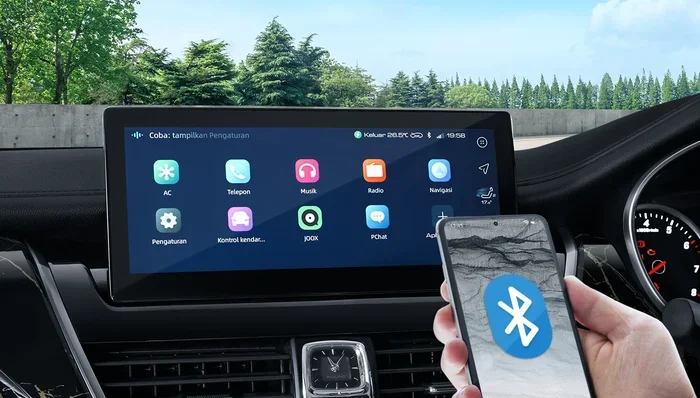
Bluetooth is the most popular way to connect phones to cars. It is wireless, easy, and works with almost every vehicle. Most cars made after 2012 support Bluetooth. If your car has a touch screen, Bluetooth pairing is usually a breeze.
Step-by-Step Bluetooth Pairing
Follow these simple steps to pair your phone via Bluetooth:
- Turn on your car and go to the settings menu on your infotainment system.
- Select Bluetooth or Phone Connection from the options.
- Make sure Bluetooth is turned on from your car settings.
- On your phone, go to Settings and tap Bluetooth.
- Turn Bluetooth on and wait for your phone to scan for devices.
- Your car should appear in the list of available devices. Tap on it.
- A pairing code may appear on both screens. Confirm the code matches.
- Tap Pair or Connect on both devices.
That is it! Your phone is now connected to your car navigation system. You can make calls, play music, and use navigation apps through your car speakers.
Tips for Better Bluetooth Performance
- Keep your phone within 10 feet of the car when pairing.
- Delete old paired devices from your car system if you have connection issues.
- Update your phone software regularly for the best compatibility.
- Turn off Bluetooth on other devices nearby to avoid interference.
Bluetooth connection works great for audio and calls. However, it may not support full screen mirroring. For that, you need CarPlay or Android Auto, which we cover next.
Method 2: USB Cable Connection
A USB cable provides a direct and stable connection. It is ideal when you need reliable navigation and fast data transfer. Most cars have a USB port in the center console or dashboard. Some car music system units also include USB inputs for charging and data.
How to Connect via USB
Connecting your phone with a USB cable is very simple:
- Locate the USB port in your car. It is usually near the center console or armrest.
- Plug one end of the USB cable into your phone.
- Plug the other end into the car USB port.
- Your car screen should display a prompt. Tap Allow or Trust.
- Select USB mode if asked. Choose File Transfer or MTP.
- Your navigation app should now display on the car screen.
USB connections are great because they charge your phone while you drive. They also provide a more stable link than Bluetooth for navigation apps. If you use Google Maps or Waze, a USB connection ensures smooth performance.
When to Use USB Over Bluetooth
USB is better when you need:
- Screen mirroring for navigation apps.
- Faster data transfer for large map downloads.
- Consistent charging during long drives.
- Stable audio streaming without dropouts.
Keep a good quality USB cable in your car at all times. Cheap cables can cause connection problems. A 6 channel car amplifier or 4 channel car amplifier can also improve your audio quality when connected via USB for music playback.
Method 3: Apple CarPlay for iPhone Users
Apple CarPlay brings your iPhone experience to your car. It projects your phone screen onto your car display. You get Maps, Phone, Messages, Music, and more right on your dashboard. Wireless CarPlay is now available in many newer vehicles, making it even more convenient.
Setting Up CarPlay
Here is how to get CarPlay running on your car navigation system:
- Make sure your iPhone runs iOS 12 or later.
- Plug your iPhone into the car USB port using a Lightning cable.
- Your car should detect CarPlay automatically.
- Tap CarPlay on your car screen.
- On your iPhone, tap Trust when prompted.
- Your CarPlay home screen will appear on the car display.
For wireless CarPlay, go to your car settings and enable Wireless CarPlay. Your iPhone will connect automatically when you sit in the driver seat. No cables needed.
Getting the Most from CarPlay
- Use Siri for hands-free navigation and messaging.
- Set your default navigation app in CarPlay settings.
- Download offline maps for areas with weak signal.
- Customize your CarPlay layout to show your favorite apps.
CarPlay works seamlessly with Apple Maps, Google Maps, and Waze. It also supports Spotify, Apple Music, and podcasts. If your car does not support CarPlay natively, you can add it with an aftermarket 7 inch car music system that includes CarPlay compatibility.
Method 4: Android Auto for Android Users
Android Auto works much like CarPlay but for Android phones. It brings your favorite apps to your car screen in a safe, driver-friendly layout. Android Auto compatible cars and head units are becoming more common every year.
Setting Up Android Auto
Follow these steps to connect Android Auto:
- Make sure your phone runs Android 9.0 or later.
- Download Android Auto from the Google Play Store.
- Plug your phone into the car USB port.
- Your car should recognize Android Auto.
- Follow the on-screen setup instructions.
- Grant the necessary permissions for location, calls, and music.
Wireless Android Auto is also available on many newer phones and car systems. Simply enable wireless Android Auto in your phone settings, and it connects automatically.
Best Apps for Android Auto Navigation
- Google Maps: Reliable directions with live traffic updates.
- Waze: Community-driven traffic and hazard alerts.
- Spotify: Stream music and podcasts hands-free.
- Podcast Addict: Great for long drives with audio content.
Android Auto also supports screen mirroring for some apps. This means your phone screen appears on your car display. For the best experience, consider a quality car stereo with built-in Android Auto support.
Method 5: Wireless Connection and Screen Mirroring
Wireless technology has made phone-to-car connections even easier. Many modern vehicles support wireless smartphone integration without any cables. This is perfect for drivers who want a clean dashboard without cord clutter.
Types of Wireless Connections
- Wireless Bluetooth: Connects your phone for calls and audio without cables.
- Wireless CarPlay: Projects your iPhone screen to the car wirelessly.
- Wireless Android Auto: Mirrors your Android phone screen without a USB cable.
- MirrorLink: An older standard supported by some car brands for screen mirroring.
Setting Up Wireless Connections
Wireless setup varies by car brand and model. Generally, you need to:
- Enable wireless mode in your car infotainment settings.
- Turn on Bluetooth and Wi-Fi on your phone.
- Select your car from the available devices on your phone.
- Follow the pairing prompts on both screens.
Wireless connections offer freedom from cables. However, they may use more battery on your phone. Keep your phone plugged in during long trips if you use wireless mirroring. A 12v to 230v car inverter can also help keep your devices powered on the road.
Common Connection Problems and How to Fix Them
Even with simple setups, issues can happen. Here are the most common problems and quick fixes.
Phone Not Showing Up on Car Screen
This usually happens when Bluetooth is not active on one device. Try turning Bluetooth off and back on both your phone and car system. Also, restart your phone. Sometimes a simple reboot fixes the problem. Make sure your car is in park before attempting to pair.
Audio Cuts Out or Sounds Scratchy
Audio issues often come from weak Bluetooth signals. Move your phone closer to the car system. Check for interference from other wireless devices. If you use a USB connection, try a different cable or port. A 3m cloth for car cleaning near the USB port can also help if dust is blocking the connection.
CarPlay or Android Auto Keeps Disconnecting
Update your phone and car software. Outdated software is the top cause of disconnection issues. On your iPhone, go to Settings, General, Software Update. On Android, check Settings, System, Software Update. Also, delete and re-pair your phone from the car system if problems persist.
Navigation App Not Displaying on Car Screen
Make sure your navigation app is set as the default in CarPlay or Android Auto settings. On iPhone, go to Settings, General, CarPlay, and select your car. On Android, open the Android Auto app and set your preferred navigation app. You may also need to reinstall the navigation app on your phone.
For deeper issues with your car audio system, consider visiting a professional. A 12v car socket to 3 pin adapter can also help if your car power outlets are not compatible with your charging cable.
Expert Tips for the Best Phone-to-Car Experience
Here are some pro tips to get the most out of your phone-to-car navigation setup:
- Keep your apps updated. Navigation apps release updates for better performance and new features. Always install the latest version.
- Download offline maps. This saves data and works in areas with poor signal. Google Maps and Waze both support offline mode.
- Use a quality cable. Cheap USB cables cause frustration. Invest in a braided, certified cable that lasts longer.
- Clean your ports regularly. Dust and lint in USB ports cause connection issues. A gentle brush or compressed air helps.
- Practice voice commands. Learn the voice commands for your car system. It keeps your eyes on the road and hands on the wheel.
- Set up before you drive. Configure your apps and settings while parked. It keeps you safe and avoids distractions.
- Consider an aftermarket head unit. If your car is older, a new head unit with CarPlay or Android Auto support transforms your driving experience.
These small steps make a big difference. Your car navigation system works best when everything is set up properly and kept updated.
Comparison: Bluetooth vs. USB vs. CarPlay vs. Android Auto
| Feature | Bluetooth | USB | CarPlay | Android Auto |
|---|---|---|---|---|
| Connection Type | Wireless | Wired | Wireless or Wired | Wireless or Wired |
| Screen Mirroring | No | Limited | Yes | Yes |
| Hands-Free Calls | Yes | Yes | Yes | Yes |
| Music Streaming | Yes | Yes | Yes | Yes |
| Navigation Apps | Limited | Full Support | Full Support | Full Support |
| Phone Charging | No | Yes | Yes (wired) | Yes (wired) |
| Setup Difficulty | Easy | Easy | Easy | Easy |
| Best For | Quick audio and calls | Stable navigation | iPhone users | Android users |
Each method has its strengths. Bluetooth is the easiest for basic calls and music. USB gives stable navigation and charging. CarPlay and Android Auto offer the full phone experience on your car screen. Choose the method that fits your needs best.
Many drivers use a combination of methods. They connect via Bluetooth for calls and use USB or wireless CarPlay for navigation. This gives you the best of both worlds.
Final Thoughts
Connecting your phone to your car navigation system is one of the best upgrades you can make. It makes driving safer, more entertaining, and far more convenient. Whether you prefer Bluetooth, USB, CarPlay, or Android Auto, the process is straightforward. Follow the steps in this guide and you will be connected in minutes.
Start with the method that suits your phone and car best. Experiment with different options to find what works for you. Keep your software updated and your cables ready. Soon, your phone and car will work together like a team. Every drive becomes smoother, safer, and more enjoyable when your phone connection is set up right.
Take a few minutes today to set up or improve your connection. You will wonder how you ever drove without it. Happy navigating!
Frequently Asked Questions
Can I connect any phone to any car navigation system?
Most modern cars support Bluetooth and USB connections, which work with both iPhones and Android phones. However, CarPlay is exclusive to Apple devices, and Android Auto works with Android phones. Check your car manual to see which features your specific model supports.
Why does my phone keep disconnecting from my car Bluetooth?
Bluetooth disconnections are usually caused by outdated software, interference from other devices, or a full paired device list. Try updating your phone and car software, turning Bluetooth off and back on, or removing old paired devices from your car system.
Do I need a special cable to connect my phone via USB?
You need a standard USB cable that supports data transfer, not just charging. Many phones come with charging-only cables. Look for a cable labeled “data” or “sync” to ensure it transfers navigation and audio information to your car.
Can I use wireless CarPlay if my car does not support it?
Yes, you can add wireless CarPlay support with aftermarket head units or adapters. Brands like Pioneer, Sony, and Kenwood offer CarPlay-compatible units that fit most cars. Check compatibility with your vehicle before purchasing.
Is it safe to use navigation apps while driving?
Yes, when connected to your car system, navigation apps are designed for safe use. They display directions on your car screen and support voice commands. This keeps your eyes on the road and hands on the wheel, making navigation safer than using your phone directly.
How do I improve audio quality when streaming music through my car?
Use a USB connection for the best audio quality. Bluetooth compresses audio slightly, so a wired connection delivers cleaner sound. You can also enhance audio by adding a quality car amplifier or ensuring your car speakers are clean and well-maintained.
=== CONCLUSION ===
Connecting your phone to your car navigation system does not have to be complicated. You now know every major method from Bluetooth pairing to USB connections and CarPlay and Android Auto setup. Each method offers unique benefits for hands-free calling, navigation, and music streaming. Pick the one that fits your phone and car best, and follow the simple steps outlined in this guide.
Remember to keep your software updated, use quality cables, and practice safe setup habits. A good phone connection transforms every drive. You stay connected, entertained, and focused on the road ahead. Start connecting today and enjoy the full power of your smartphone on every journey.