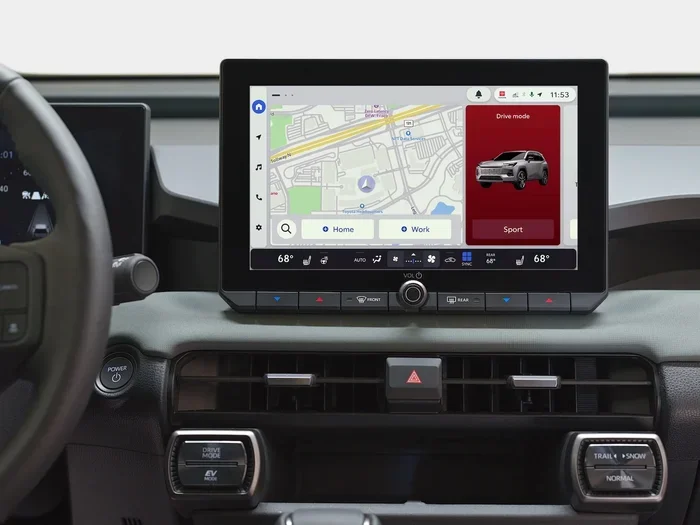
Can I Use Google Maps in My Toyota For Easy Navigation
Yes, you can use Google Maps in your Toyota for reliable turn-by-turn navigation. Whether you have a newer Toyota with built-in connectivity or an older model, there are simple ways to get Google Maps running on your dashboard. This guide walks you through every method, from wireless smartphone pairing to using the Toyota Entune system, so you can navigate with confidence on any trip.
This is a comprehensive guide about Can I Use Google Maps in My Toyota.
Key Takeaways
- Multiple Methods Available: You can use Google Maps on your Toyota through Apple CarPlay, Android Auto, or the built-in Entune system depending on your model year.
- Smartphone Pairing Is Key: Connecting your phone wirelessly or via USB gives you full access to Google Maps navigation on the Toyota touchscreen.
- Offline Maps Work Too: You can download maps ahead of time so Google Maps still works even without a strong signal.
- Toyota Entune Has Its Own Maps: Newer Toyota models come with built-in navigation, but Google Maps offers more flexibility and real-time traffic updates.
- Setup Takes Only Minutes: With a few simple steps, you can have Google Maps running and ready for your next drive.
- Safety First: Always set your destination before driving and use voice commands to keep your hands on the wheel.
[FEATURED_IMAGE_PLACEHOLDER]
Can I Use Google Maps in My Toyota For Easy Navigation?
Navigating unfamiliar roads can be stressful. But what if you could bring the power of Google Maps right into your Toyota dashboard? The good news is that using Google Maps in your Toyota is absolutely possible, and it is easier than most people think.
Toyota has made great strides in its infotainment systems over the years. From older models with basic audio setups to the latest Toyota vehicles with full touchscreen displays, there is a way to get Google Maps navigation working for you. Whether you drive a compact Corolla or a rugged Tacoma, this guide will show you how.
In this article, we will cover every method you can use to get Google Maps running in your Toyota. We will look at wireless connections, USB setups, the Toyota Entune system, and even offline map options. By the end, you will know exactly how to turn your Toyota into a GPS-powered navigation machine using one of the most popular mapping apps in the world.
The best part? You do not need to be a tech expert. Most setups take less than five minutes, and the process is straightforward. Let us dive in and explore how you can use Google Maps in your Toyota for easy, stress-free navigation on every drive.
Why Google Maps Works Great in a Toyota
Google Maps is one of the most downloaded apps in the world, and for good reason. It offers real-time traffic updates, voice-guided directions, and detailed maps of almost every road on the planet. When you pair it with a Toyota vehicle, you get a powerful navigation setup that combines the best of both worlds.
Toyota vehicles come equipped with modern infotainment systems that support smartphone integration. This means your Toyota touchscreen can mirror your phone’s display, giving you access to all your favorite apps, including Google Maps. The large display on newer Toyota models makes it easy to read directions at a glance, which is a huge safety advantage over squinting at your phone mount on the dashboard.
Another reason Google Maps works so well in a Toyota is the hands-free functionality. Once connected, you can use voice commands to search for destinations, adjust volume, and even answer calls without taking your hands off the wheel. This keeps your eyes on the road and your focus on driving, which is exactly what you want.
Google Maps also updates constantly. New roads, changed speed limits, and real-time traffic conditions are all factored into the directions you receive. This is something a standalone car GPS system cannot always match. With Google Maps in your Toyota, you always have the most up-to-date navigation data available.
Toyota Models That Support Google Maps
Most Toyota models from the past decade can run Google Maps in some form. Here is a quick look at what to expect across different Toyota vehicles:
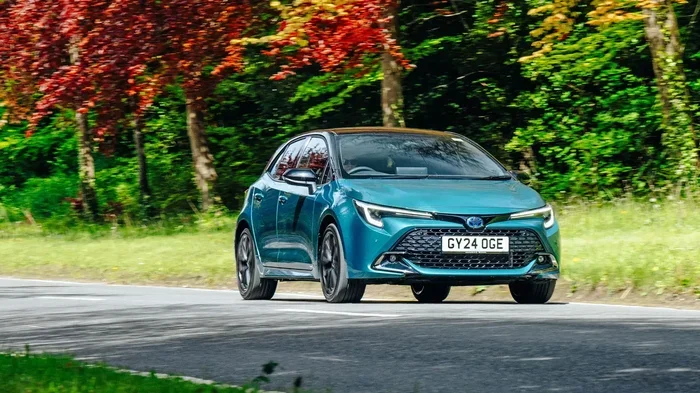
- Toyota Corolla: Supports Apple CarPlay and Android Auto, which both allow Google Maps use.
- Toyota Camry: Full touchscreen models from 2018 onward work seamlessly with Google Maps through smartphone integration.
- Toyota RAV4: The newer RAV4 models come with large touchscreens that support Google Maps via wireless or USB connection.
- Toyota Tacoma: Even base models often support Apple CarPlay and Android Auto, making Google Maps accessible.
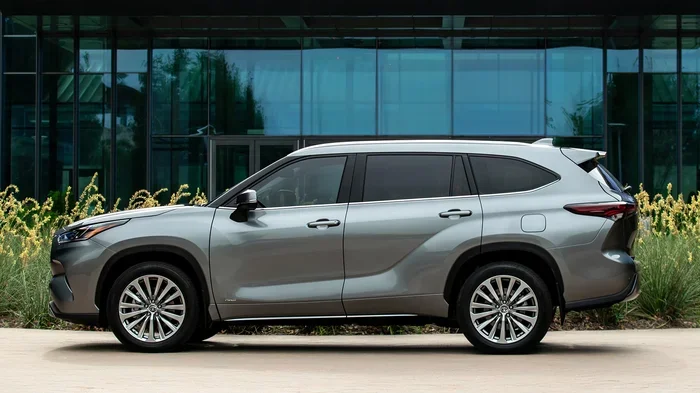
- Toyota Highlander: Higher trims include built-in navigation, but Google Maps can still be used through phone mirroring.
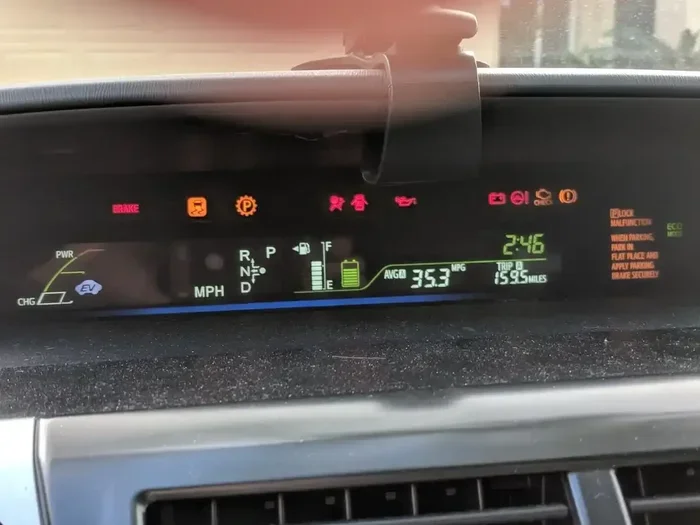
- Toyota Prius: The Prius infotainment system supports smartphone pairing for Google Maps navigation.
If you are unsure whether your specific Toyota model supports these features, you can check your owner’s manual or look at the infotainment home screen for Apple CarPlay or Android Auto icons. These are your gateways to using Google Maps in your Toyota.
How to Set Up Google Maps on Your Toyota
Setting up Google Maps in your Toyota is a straightforward process. The exact steps depend on how you choose to connect your phone, but the overall process is simple and user-friendly. Let us walk through the main methods.
Method 1: Wireless Apple CarPlay or Android Auto
The easiest way to use Google Maps in your Toyota is through wireless smartphone mirroring. If your Toyota supports wireless Apple CarPlay or Android Auto, you can connect your phone without any cables at all.
Here is how to do it:
- Make sure your Toyota infotainment system is on and in Bluetooth or phone mode.
- On your iPhone or Android phone, go to the CarPlay or Android Auto settings.
- Select your Toyota from the list of available devices.
- Once connected, tap the Google Maps icon on the Toyota touchscreen.
- Search for your destination and start navigating.
This method works beautifully because your phone handles all the heavy lifting. The Toyota screen simply displays the Google Maps interface, so you get the same experience you would on your phone, just bigger and easier to read while driving.
Method 2: USB Cable Connection
If your Toyota does not support wireless connectivity, you can always use a USB cable. This method works with almost every Toyota model that has a USB port and a touchscreen display.
Simply plug your phone into the USB port using a compatible cable. Your Toyota should recognize the phone and offer to switch to Apple CarPlay or Android Auto mode. From there, open Google Maps just like you would on your phone. The USB connection also charges your phone, which is a nice bonus on long road trips.
One thing to keep in mind: use a high-quality USB cable. Cheap cables sometimes cause connection issues or fail to transfer data properly. A reliable cable ensures your Google Maps stays connected without interruptions.
Method 3: Using Toyota Entune Built-In Navigation
Some newer Toyota models come with the Entune system, which includes built-in navigation. While Entune has its own mapping service, you can also access Google Maps through the system’s web browser or app store on supported models.
To use Entune for Google Maps:
- Press the Entune or Home button on your Toyota touchscreen.
- Navigate to the Apps section.
- Look for the Google Maps app or the web browser.
- Open Google Maps and enter your destination.
Keep in mind that not all Entune systems support direct app downloads. Some older Entune versions only allow you to use your phone through a USB or Bluetooth connection. If that is the case, Method 1 or Method 2 above will work better for you.
Tips for Using Google Maps in Your Toyota
Once you have Google Maps set up in your Toyota, there are a few tips that can make your experience even better. These small adjustments can make a big difference in how smoothly your navigation runs.
Download Offline Maps Before You Go
One of the best features of Google Maps is the ability to download maps for offline use. This is especially helpful when you are driving through areas with poor cell signal, like rural highways or mountain roads. To download offline maps, open Google Maps on your phone, search for your destination area, and tap “Download Offline Map.” This way, your Toyota navigation keeps working even if you lose signal.
Use Voice Commands While Driving
Safety should always come first. Instead of tapping on the screen while driving, use Google Maps voice commands. Simply say “Hey Google” or “OK Google” followed by your destination. This keeps your hands on the wheel and your eyes on the road. Most Toyota models with Apple CarPlay or Android Auto support full voice command integration with Google Maps.
Adjust the Display Brightness
Toyota touchscreens can sometimes be hard to read in bright sunlight. You can adjust the display brightness in your Toyota settings or use the auto-brightness feature if your model supports it. A properly adjusted screen makes Google Maps directions much easier to read at a glance.
Keep Your Phone Charged
Using Google Maps can drain your phone battery quickly, especially on long trips. Always use the USB cable to charge your phone while navigating. If you are using a wireless connection, keep your phone on a wireless charging pad if your Toyota supports one.
Update Google Maps Regularly
Google Maps updates frequently with new roads, businesses, and traffic data. Make sure you keep the app updated on your phone for the best experience. An outdated version of Google Maps may not display the latest routes or traffic conditions accurately.
Common Problems and How to Fix Them
Even with the best setup, you might run into some issues when using Google Maps in your Toyota. Here are the most common problems and how to solve them quickly.
Google Maps Won’t Connect to the Toyota Screen
If Google Maps does not appear on your Toyota touchscreen after connecting your phone, try these steps:
- Disconnect and reconnect the USB cable or Bluetooth connection.
- Restart your phone and your Toyota infotainment system.
- Make sure Apple CarPlay or Android Auto is enabled on your phone.
- Check that Google Maps is updated to the latest version.
Sometimes a simple restart of both your phone and the Toyota system fixes the connection issue instantly.
Google Maps Is Slow or Lagging
If Google Maps runs slowly on your Toyota screen, it might be because your phone is low on memory or processing power. Close other apps running in the background and make sure your phone has enough storage space. Also, check that you are using a fast USB cable or a strong wireless connection for the best performance.
Navigation Voice Directions Are Too Quiet
If you cannot hear Google Maps voice directions, check the volume on both your phone and your Toyota audio system. You may also need to adjust the media volume specifically, as navigation prompts often use a separate volume channel from your music.
GPS Signal Is Weak
Toyota vehicles with built-in GPS antennas usually have strong signal reception. However, if your GPS signal is weak, try moving your phone closer to the dashboard or using a different USB port. In some cases, restarting the Toyota infotainment system can help re-establish a stronger GPS connection.
Comparing Google Maps to Built-In Toyota Navigation
Many Toyota owners wonder whether they should use Google Maps or stick with the built-in Toyota navigation system. Here is a quick comparison to help you decide:
| Feature | Google Maps | Toyota Built-In Navigation |
|---|---|---|
| Real-Time Traffic Updates | Yes | Limited |
| Offline Maps | Yes | No |
| Voice Commands | Yes | Yes |
| Points of Interest Search | Excellent | Good |
| Free to Use | Yes | Often Requires Subscription |
| Map Updates | Automatic | Manual or Paid |
| Works on Older Toyota Models | Yes (via Phone) | No |
As you can see, Google Maps offers several advantages over the built-in Toyota navigation system. It is free, always up to date, and works on virtually any Toyota model through smartphone integration. The built-in system has its merits, but for most drivers, Google Maps is the more flexible and powerful choice.
That said, if your Toyota came with a navigation system, it can still be useful as a backup. The best approach is to use both systems together, depending on your needs. For daily commuting, Google Maps is hard to beat. For long road trips in remote areas, the built-in system might offer some additional benefits.
Can I Add Apps to My Toyota Infotainment System?
If you are wondering about adding apps beyond Google Maps, the answer depends on your Toyota model and infotainment system. Many newer Toyota vehicles support app downloads through the Entune system or through Apple CarPlay and Android Auto. Adding apps to your Toyota is a great way to customize your driving experience and get the most out of your vehicle’s technology.
For example, you can add music streaming apps like Spotify or Pandora, podcast apps, and even messaging apps that work with voice commands. The key is making sure your Toyota model supports the connection type you need. If you are unsure about what apps your Toyota can handle, check the Toyota owner’s manual or visit the Toyota website for your specific model’s features.
Keep in mind that adding third-party apps sometimes requires a compatible smartphone and a stable connection. Always make sure your phone and Toyota system are fully compatible before trying to add new apps. This ensures a smooth experience and avoids frustrating connection issues.
Can I Change the Sound System in My Toyota to Improve Navigation Audio?
The audio quality of your Toyota navigation directions matters, especially on noisy highways. If you find that Google Maps voice directions are hard to hear, you might consider upgrading your Toyota sound system. Changing the sound system in your Toyota can improve not only your music listening experience but also the clarity of navigation prompts.
Toyota vehicles come with different audio systems depending on the trim level. Higher-end trims often include premium audio brands like JBL or Lexicon. If your Toyota has a basic factory audio system, upgrading to an aftermarket sound system can make a noticeable difference in how clearly you hear navigation directions. Just make sure any sound system upgrade is compatible with your Toyota’s infotainment setup so you do not lose functionality like Apple CarPlay or Android Auto.
Before making any changes, consider whether the stock audio system simply needs a settings adjustment first. Sometimes the balance or fade settings on your Toyota audio system are set in a way that reduces the volume of navigation prompts. A quick check of the audio settings can often solve the problem without any hardware changes.
Can I Program a Key Fob Myself for Quick Access to Navigation?
While programming a key fob is not directly related to Google Maps, having quick access to your Toyota’s navigation features can be convenient. Some Toyota models allow you to set up shortcut buttons on the steering wheel or key fob that can quickly launch your preferred apps, including Google Maps. Programming a key fob yourself is possible on many Toyota models and can save you a trip to the dealership.
Check your Toyota owner’s manual for instructions on customizing steering wheel controls or key fob buttons. This small customization can make your daily driving more efficient, especially if you rely on Google Maps for your regular commute. Having a dedicated button to launch navigation means you can start your route with just the press of a button, keeping your hands on the wheel and your focus on the road.
Frequently Asked Questions
Can I use Google Maps on any Toyota model?
Most Toyota models from the past decade can use Google Maps through Apple CarPlay or Android Auto connection. Even older Toyota models without a touchscreen can use Google Maps through Bluetooth audio and phone mirroring. The exact experience depends on your specific Toyota model and year, but Google Maps compatibility is very wide across the Toyota lineup.
Do I need an internet connection to use Google Maps in my Toyota?
You need an internet connection for real-time traffic updates and live route changes. However, you can download offline maps in the Google Maps app on your phone before you drive. This allows you to navigate without a signal, though you will not get live traffic data or alternative route suggestions without a connection.
Is Google Maps better than Toyota’s built-in navigation system?
For most drivers, Google Maps offers more features, better real-time traffic data, and free map updates. Toyota’s built-in navigation can be useful, but it often requires a paid subscription and does not update as frequently. Google Maps is generally the more flexible and powerful option for everyday navigation.
Can I use Google Maps on my Toyota without a touchscreen?
Yes, you can still use Google Maps on a non-touchscreen Toyota by connecting your phone through Bluetooth or USB. The directions will appear on your phone screen, and you can hear voice prompts through your Toyota speakers. While you will not have the large display advantage, the navigation still works effectively.
Will using Google Maps drain my Toyota battery?
Using Google Maps through your phone can drain your phone battery, but it should not affect your Toyota’s battery significantly. If you connect your phone via USB, the Toyota charging system will keep your phone charged while you navigate. For wireless connections, make sure your phone battery is adequately charged before starting a long trip.
Can I use Google Maps offline in my Toyota?
Yes, you can download offline maps in the Google Maps app on your phone before you start driving. Once downloaded, these maps work without an internet connection. Your Toyota will display the map and provide directions just as it would online, though you will miss out on real-time traffic updates and live rerouting features.
Final Thoughts
Using Google Maps in your Toyota is one of the simplest and most effective ways to upgrade your driving navigation experience. Whether you connect wirelessly through Apple CarPlay or Android Auto, use a USB cable, or access Google Maps through the Toyota Entune system, you get access to the same powerful navigation tools that make Google Maps the world’s most popular mapping app.
The setup process is quick, the features are robust, and the real-time traffic updates and offline map capabilities make Google Maps a standout choice for any Toyota owner. With the tips and troubleshooting steps covered in this guide, you are well-equipped to get Google Maps running smoothly in your Toyota and navigate with confidence on every trip.
So go ahead, connect your phone, open Google Maps, and start exploring. Your Toyota is ready to be your ultimate navigation companion, and with Google Maps on board, you will never have to worry about getting lost again. Safe travels and happy navigating.
Frequently Asked Questions
What is Can I Use Google Maps in My Toyota?
Can I Use Google Maps in My Toyota is an important topic with many practical applications.