How to Pair Bluetooth in Your Car for Hands Free Music
Pairing Bluetooth in your car is easier than you think and it lets you enjoy hands free music, make safe calls, and stay connected without touching your phone. This guide walks you through every step from turning on Bluetooth to fixing common connection problems. Whether you drive a new sedan or an older model, you will find clear tips that work for almost any vehicle.
There is nothing quite like cruising down the highway with your favorite playlist flowing through your car speakers. How to pair Bluetooth in your car for hands free music is one of the simplest upgrades you can make to your daily drive. It saves you from tangled wires, keeps your hands on the wheel, and makes every trip more enjoyable.
Whether you are driving a brand new SUV or an older hatchback, connecting your phone wirelessly is now easier than ever. Most modern vehicles come with built in Bluetooth support right out of the factory. Even if your car is older, a simple 12V car socket adapter can power a Bluetooth receiver and bring wireless capability to any ride. In this guide, we will walk you through every step so you can start streaming music and making calls without any hassle.
Key Takeaways
- Bluetooth pairing is simple: Most cars made after 2012 have built in Bluetooth that connects in under two minutes.
- Hands free calling keeps you safe: You can answer calls without taking your eyes off the road, which reduces distraction.
- Wireless music streaming works great: Stream your favorite playlists, podcasts, and audiobooks directly through your car speakers.
- Troubleshooting is easy: Most Bluetooth problems fix quickly by restarting devices, updating software, or clearing old pairings.
- Older cars can get Bluetooth too: A cheap Bluetooth adapter or FM transmitter brings wireless capability to any vehicle.
- Keep your devices updated: Regular software updates on both your phone and car system prevent most connection issues.
📑 Table of Contents
- Understanding Bluetooth Technology in Your Car
- Step by Step Guide to Pairing Bluetooth in Your Car
- Troubleshooting Common Bluetooth Pairing Problems
- Tips for the Best Bluetooth Audio Experience
- Upgrading Your Car Audio System for Better Bluetooth
- Safety Benefits of Hands Free Bluetooth in Cars
- Bluetooth Pairing for Different Car Brands
- Common Mistakes to Avoid When Pairing Bluetooth
- Final Thoughts on Pairing Bluetooth in Your Car
Understanding Bluetooth Technology in Your Car
Bluetooth is a short range wireless technology that lets devices talk to each other without cables. It uses radio waves to send data between your phone and your car stereo. The connection range is typically about 30 feet, which is more than enough for most vehicles.
When you pair two devices, they exchange a secure code and remember each other for future connections. This means you only need to pair once. After that, your phone and car connect automatically when both Bluetooth features are turned on. It is a seamless process that takes seconds once it is set up.
How Bluetooth Connects to Your Car Stereo
Your car stereo acts as the receiving device. When you send a pairing request from your phone, the stereo picks it up and displays a passkey on screen. You enter that code on your phone, and the connection is established. From that point on, your phone can stream audio and send calls through your car speakers.
Some cars use a dedicated Bluetooth module while others have it built directly into the infotainment system. Both work the same way for the user. The difference is mainly in how the system was installed and how easy it is to access the settings.
Step by Step Guide to Pairing Bluetooth in Your Car
Follow these simple steps and you will be connected in no time. The process is very similar across most car brands and phone types.
Step 1: Turn on Bluetooth on Your Phone
Open your phone settings and look for the Bluetooth option. Toggle it on. Your phone will start scanning for nearby devices. On iPhone, you can swipe down from the top right corner and tap the Bluetooth icon. On Android, swipe down from the top and tap the Bluetooth symbol.
Step 2: Put Your Car Stereo in Pairing Mode
Go to your car infotainment system and find the Bluetooth settings. Select the option to search for new devices or pair a new phone. Most car systems show a message like “Pairing Mode Active” or display a code on the screen.
Step 3: Select Your Car from the Phone Device List
On your phone, look for your car name in the list of available devices. Tap on it. Your phone and car will exchange information and create a secure bond. You may need to confirm a passkey on both screens.
Step 4: Test the Connection
Play some music on your phone and check if it comes through your car speakers. Try making a test call to make sure the microphone works too. If both work, you are all set. How to pair Bluetooth in your car for hands free music is now complete and you can enjoy wireless streaming every time you drive.
Step 5: Enable Auto Connection
Most car systems remember your phone after the first pairing. Make sure the auto connect option is turned on in your car Bluetooth settings. This way, the moment you sit in your car and turn the key, your phone connects automatically. No extra steps needed.
Troubleshooting Common Bluetooth Pairing Problems
Sometimes things do not go smoothly. Bluetooth issues are frustrating but usually easy to fix. Here are the most common problems and their solutions.
Phone Does Not Find the Car Stereo
This is the most common issue. First, make sure your car stereo is in pairing mode. Some systems only stay in pairing mode for a few minutes. If the car is not showing up on your phone, try turning Bluetooth off and back on again on both devices. Restarting both your phone and car infotainment system often solves this problem instantly.
Connection Keeps Dropping
If your Bluetooth connection drops frequently, it could be a range issue. Make sure your phone is not buried deep in your bag or pocket. Also check if other wireless devices nearby are causing interference. A car power inverter or other electronic accessory near the stereo can sometimes cause signal disruption too.
Audio Sounds Distorted or Low Quality
Poor audio quality usually means the connection profile is set wrong. Bluetooth can handle both calls and music. Make sure your car stereo is set to the right audio profile. For music, look for A2DP or Media Audio settings. For calls, check the HFP or Hands Free Profile setting.
Old Pairing Data Is Causing Issues
Sometimes your phone remembers an old connection that conflicts with a new one. Go to your Bluetooth settings and delete any saved devices you no longer use. Then try pairing again from scratch. This fresh start solves many stubborn connection problems.
Tips for the Best Bluetooth Audio Experience
Once your Bluetooth is paired, you can improve your listening experience with a few simple habits. These tips help you get the most out of wireless audio in your car.
- Keep your phone charged: Bluetooth uses battery power. A low battery phone can cause weak connections and audio dropouts.
- Update your car software: Many car manufacturers release Bluetooth updates. Check with your dealer or look for system updates in your infotainment settings.
- Use high quality audio files: Streaming at higher bitrates sounds better. Use apps that support lossless audio when possible.
- Clean your phone microphone: A dirty mic port can make your voice sound muffled during calls. Use a soft cloth or a 3M car glass cleaner on a microfiber cloth to gently clean your phone and car screens.
- Limit connected devices: Too many paired devices can slow down your connection. Remove devices you no longer use.
- Use a Bluetooth car kit for older vehicles: If your car does not have built in Bluetooth, a simple Bluetooth FM transmitter or AUX Bluetooth adapter works wonders.
Quick Tips for Daily Use
Make Bluetooth part of your driving routine. Before you start the engine, check that Bluetooth is on. Keep your phone in a visible and accessible spot like the dashboard mount. This not only improves signal strength but also keeps it within easy reach for any adjustments you need to make while driving.
Upgrading Your Car Audio System for Better Bluetooth
If you want even better sound quality, consider upgrading your car audio setup. A good Bluetooth connection is only as good as the speakers and amplifier that deliver the sound.
Add a Car Amplifier for Cleaner Sound
A 6 channel car amplifier can dramatically improve the sound quality of your Bluetooth music. It takes the audio signal from your stereo and boosts it before sending it to your speakers. The result is louder, clearer, and more detailed sound. This is especially noticeable with bass heavy tracks and podcasts.
Choose the Right Bluetooth Adapter
For cars without built in Bluetooth, a dedicated Bluetooth adapter is the best solution. Look for one that supports the latest Bluetooth version for better range and stability. Some adapters also support aptX or LDAC codecs, which offer much higher audio quality than standard Bluetooth streaming.
Consider a Hands Free Car Kit
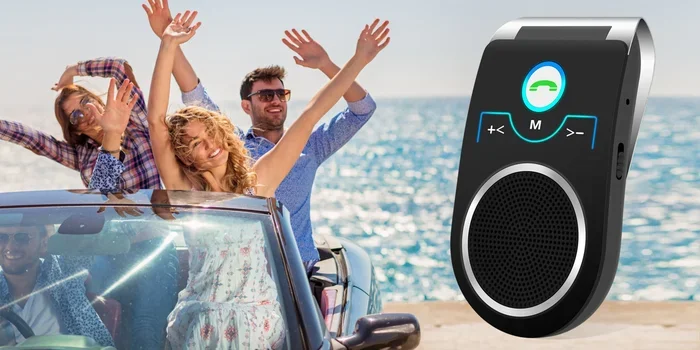
If your main goal is safe calling, a dedicated hands free car kit is a great investment. These kits include a microphone and speaker that mount to your visor or dashboard. They connect to your phone via Bluetooth and provide clear call quality without relying on your car stereo at all.
Safety Benefits of Hands Free Bluetooth in Cars
Beyond the convenience of wireless music, hands free Bluetooth offers real safety benefits. Driving requires your full attention, and anything that takes your focus away from the road is dangerous. Bluetooth lets you keep both hands on the wheel and your eyes on the traffic ahead.
With hands free calling, you can answer important calls without fumbling with your phone. Voice commands let you control your music, make calls, and even send messages using just your voice. Many car systems now support Siri and Google Assistant through Bluetooth, making it even easier to stay connected safely.
Studies show that hands free devices significantly reduce distracted driving incidents. While no electronic device is completely risk free, Bluetooth is one of the safest ways to stay connected on the road. It keeps your attention where it belongs, on driving.
Bluetooth Pairing for Different Car Brands
Every car brand has its own way of handling Bluetooth settings. Here are some quick tips for popular brands.
- Toyota and Lexus: Press the Bluetooth button on the steering wheel or go to Settings > Bluetooth on the infotainment screen.
- Honda and Acura: Press the Phone button on the steering wheel. Select Add Device and follow the on screen prompts.
- Ford: Go to Settings > Phone & Bluetooth on the SYNC system. Select Add a Device and choose your phone from the list.
- Chevrolet and GMC: Press the Phone button on the steering wheel. Select Bluetooth Settings and then Add a Device.
- BMW and Mercedes: Go to the Communication or Media menu. Select Bluetooth and set the system to discoverable mode.
While the exact steps vary, the general process is the same across all brands. Turn on Bluetooth on your phone, put your car in pairing mode, select your car from the phone list, and confirm the connection. Once paired, your devices will remember each other and reconnect automatically.
Common Mistakes to Avoid When Pairing Bluetooth
Avoid these simple mistakes that cause most Bluetooth problems. Learning what not to do saves you time and frustration.
- Not checking if Bluetooth is turned on: It sounds obvious but many people skip this step. Always verify Bluetooth is active on both devices first.
- Pairing too many devices: Your car can only handle a few active connections at once. Too many paired devices slow things down and cause confusion.
- Ignoring software updates: Both your phone and car system need updates for the best Bluetooth performance. Check for updates regularly.
- Placing your phone too far from the car: Bluetooth range is limited. Keep your phone inside the car or close to the window for the strongest signal.
- Forgetting to delete old pairings: Leftover connections from previous phones or devices can interfere with new pairings. Clean up your Bluetooth list regularly.
Final Thoughts on Pairing Bluetooth in Your Car
How to pair Bluetooth in your car for hands free music is a skill that takes only a few minutes to learn but pays off every single time you drive. The convenience, safety, and enjoyment of wireless audio make it one of the most valuable upgrades you can make to your vehicle. Whether you are commuting to work, taking a road trip, or just running errands, Bluetooth keeps you connected without pulling your attention away from the road.
Start with the basic pairing steps and work through any issues using the troubleshooting tips above. If your car is older and lacks built in Bluetooth, a simple adapter or transmitter brings wireless capability to any vehicle. And for the best sound quality, consider upgrading your car audio system with a quality amplifier or better speakers.
The beauty of Bluetooth technology is that it keeps getting better with each new version. As cars and phones continue to evolve, the pairing process becomes even smoother. Stay updated, keep your devices clean, and enjoy the freedom of wireless driving. Your next drive will feel more connected, safer, and more enjoyable than ever before.
Frequently Asked Questions
Can I pair multiple phones to my car Bluetooth at the same time?
Most car Bluetooth systems can remember several paired phones at once. However, only one phone can stream audio at a time. When you start the car, it usually connects to the last phone that was paired. You can switch between phones in your car Bluetooth settings if needed.
Why does my Bluetooth keep disconnecting while driving?
Bluetooth disconnections while driving are often caused by distance, interference, or a low phone battery. Keep your phone close to the car stereo and make sure both devices have enough charge. Also check that your car software and phone operating system are up to date, as outdated software causes many connection drops.
Do I need any special equipment to use Bluetooth in my car?
No special equipment is needed if your car has built in Bluetooth. If your car is older and does not support Bluetooth, you can use a Bluetooth FM transmitter or an AUX Bluetooth adapter. These plug into your car power socket and send audio wirelessly to your stereo. They are affordable and easy to install.
Is Bluetooth safe to use while driving?
Yes, Bluetooth is one of the safest ways to stay connected while driving. It lets you make and receive calls hands free, keeping both hands on the wheel. Many car systems also support voice commands, so you can control your phone without ever touching it. This significantly reduces driving distractions.
How do I delete a Bluetooth device from my car stereo?
Go to your car infotainment system Bluetooth settings. Find the list of paired devices. Select the device you want to remove and choose the delete or forget option. This clears the old connection and frees up space for a new pairing. It is a good habit to do this when you sell your car or switch to a new phone.
Can I control my music through the car steering wheel buttons after pairing Bluetooth?
Yes, most car systems let you control Bluetooth music using steering wheel buttons. You can skip tracks, adjust volume, and even pause or play music without touching your phone. Check your car manual for the specific button functions. This feature makes it even safer and more convenient to enjoy wireless music on every drive.
=== CONCLUSION ===
Pairing Bluetooth in your car is a simple process that transforms your driving experience. You get hands free music, safer calls, and a clutter free cabin with just a few minutes of setup. Follow the steps in this guide and you will be streaming wirelessly in no time. Remember to troubleshoot any issues using the tips above and consider upgrading your car audio system for the best possible sound. Happy driving and happy listening.