Does Tesla Lock When You Walk Away And How It Works
Yes, Tesla does lock when you walk away — this smart feature uses your phone key or key card to detect when you leave the vehicle and automatically secures it. Understanding how Tesla walk-away lock works helps you stay confident about your car’s security every time you step away.
Key Takeaways
- Automatic Locking: Tesla vehicles equipped with walk-away door lock will automatically lock after you walk a certain distance away.
- Phone Key Required: The walk-away lock feature relies on your paired phone key or key card to detect when you have left the vehicle.
- All Modern Models: Most Tesla models including Model 3, Model Y, Model S, and Model X support this feature, though older models may need a software update.
- Customizable Settings: You can enable or disable walk-away lock through the Tesla mobile app or the vehicle’s touchscreen settings.
- Security Plus: Walk-away lock works alongside other Tesla security features like Sentry Mode and alarm alerts.
- Common Issues: Bluetooth connectivity, low phone battery, or software glitches can sometimes prevent the lock from activating.
📑 Table of Contents
How Tesla Walk-Away Lock Works
Tesla vehicles are packed with smart technology. One of the most convenient features is the walk-away door lock. But how exactly does it work? Let us break it down.
When you walk away from your Tesla, the car uses Bluetooth or Ultra-Wideband (UWB) technology to detect your phone key. Once you move beyond a certain distance — usually around 5 to 8 feet — the vehicle starts a short countdown. After a few seconds, the doors lock automatically. The mirrors fold in. The alarm system arms itself. It all happens seamlessly.
This feature is part of Tesla’s passive entry system. Passive entry means you do not need to press any button to lock or unlock. The car senses your presence and responds accordingly. It is one of those things that makes owning a Tesla feel futuristic.
Not every Tesla has this feature enabled by default. Some models require you to turn it on in the settings. And the exact behavior can vary depending on your model year and software version. We will cover that in detail below.
The Science Behind Walk-Away Detection
Tesla uses a combination of sensors and Bluetooth Low Energy (BLE) signals to track your phone. When your phone moves out of range, the car interprets that as you leaving. The system then triggers the lock sequence.
Newer Teslas use Ultra-Wideband technology for even more precise detection. UWB can tell exactly how far away you are. This reduces false locks. It also means your car is less likely to lock while you are still standing next to it.
The whole process takes just a few seconds. You walk away. You hear a soft click. You see the mirrors fold. The Tesla lock engages. It is smooth, quiet, and very reliable — most of the time.
Which Tesla Models Support Walk-Away Locking
Tesla has been rolling out walk-away door lock across its lineup. But not every vehicle has it, and not every version of the same model supports it equally.
Here is a quick look at the models:
- Model 3: Most Model 3 vehicles from 2019 onward support walk-away lock. Earlier models may need a software update to enable it.
- Model Y: The Model Y has had walk-away lock since its launch. It works reliably with both phone key and key card.
- Model S: Newer Model S vehicles (2021 and later) include this feature. Older versions may not have it unless updated.
- Model X: Similar to the Model S, the Model X supports walk-away lock on recent software versions.
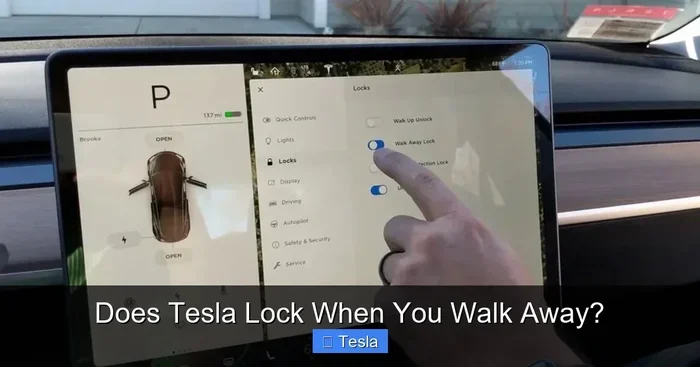
If you are unsure whether your Tesla has this feature, check the settings menu. Go to Controls, then Safety & Security. Look for Walk-Away Door Lock. If it is there, you are good to go.
Software Updates and Feature Availability
Tesla regularly pushes over-the-air updates. These updates can add new features or improve existing ones. Walk-away lock may not be available on older models until they receive the right software update.
It is also worth noting that Tesla sometimes changes how features work between hardware versions. For example, a Model 3 with HW3 (Hardware 3) may handle walk-away lock differently than one with HW2.5. Always keep your Tesla updated to get the latest security features.
Settings and Customization Options
One of the best things about Tesla is how customizable it is. You can tweak the walk-away lock behavior to suit your preferences.
How to Enable Walk-Away Door Lock
Enabling walk-away lock is simple. Follow these steps:
- Tap the Tesla “T” icon on your touchscreen.
- Go to Controls.
- Select Safety & Security.
- Find Walk-Away Door Lock.
- Toggle it On.
Once enabled, your Tesla will lock automatically when you walk away. You can also adjust the delay before the lock engages. Some owners prefer a shorter delay, while others like a few extra seconds.
Disabling Walk-Away Lock
Not everyone loves this feature. Maybe you live in a busy area where doors lock and unlock randomly. Or maybe you prefer manual control. Either way, you can turn it off.
Just follow the same steps above and toggle Walk-Away Door Lock to Off. Your Tesla will then only lock when you press the button on the touchscreen or use the mobile app.
Customizing Lock Behavior Through the Mobile App
The Tesla mobile app gives you even more control. You can lock your car remotely, check lock status, and receive notifications. The app also lets you manage your phone key and key card settings.
If your Tesla does not lock when you walk away, the mobile app is a great place to troubleshoot. You can see whether the phone key is connected and whether the lock command was sent successfully.
Troubleshooting Common Walk-Away Lock Issues
Like any smart feature, walk-away lock can sometimes act up. Here are the most common issues and how to fix them.
Phone Not Detected After Walking Away
This is the most common complaint. You walk away, but the doors stay unlocked. Why?
First, check your phone’s Bluetooth connection. If Bluetooth is off, the Tesla cannot detect your phone key. Also, make sure the Tesla app is running in the background on your phone. Low battery mode on your phone can sometimes interfere with Bluetooth signals.
Second, your phone battery might be too low. If your phone is at 5% or below, Bluetooth performance can drop. The Tesla may not register that you have left the vehicle.
Third, try restarting the Tesla touchscreen. Sometimes a simple reboot fixes sensor issues. Hold down both scroll wheels on the steering wheel until the screen goes black and the Tesla logo appears.
Car Locks While You Are Still Nearby
False locks can be annoying. This happens when the Tesla thinks you have walked away, but you are actually still close by.
This is more common in older models without Ultra-Wideband technology. The Bluetooth range detection is less precise. If you experience this often, consider walking a bit further before turning around. Or simply disable walk-away lock and lock manually.
Lock Does Not Engage After Software Update
Sometimes a Tesla software update changes how walk-away lock behaves. If your car stops locking after an update, check the settings first. Make sure walk-away lock is still toggled on.
If it is enabled and still not working, try resetting the phone key. Remove the phone key from the Tesla app and re-pair it. This often fixes communication glitches between the phone and the car.
When to Contact Tesla Service
If none of the above fixes work, it may be a hardware issue. The Bluetooth antenna or the door lock actuator could be malfunctioning. In that case, reach out to Tesla Service through the mobile app. They can schedule a service appointment and diagnose the problem.
Tesla Security Features Beyond Walk-Away Lock
Walk-away lock is just one piece of Tesla’s security puzzle. Tesla vehicles come with several layers of protection that work together to keep your car safe.
Sentry Mode
Sentry Mode is one of Tesla’s most popular security features. When enabled, it uses the car’s cameras to monitor the surrounding area. If it detects a threat, it switches to an alarm state and records video.
Sentry Mode uses the car’s batteries to power the cameras. This means it drains some charge while active. Most owners find this a fair trade-off for the extra security it provides.
Alarm and Motion Alerts
Tesla’s alarm system activates when the car is locked. If it detects motion or impact, the alarm sounds. You also receive a push notification on your phone through the mobile app.
These alerts work hand-in-hand with walk-away lock. When the car locks automatically, the alarm system arms itself. You get double protection without lifting a finger.
Key Card and Phone Key Security
Tesla offers multiple ways to unlock and start your car. The phone key uses Bluetooth and UWB. The key card uses NFC (Near Field Communication). Both are secure, but they work differently.
The phone key is more convenient for walk-away lock because it continuously communicates with the car. The key card requires you to tap it on the B-pillar to unlock. It does not support automatic locking.
If you lose your phone, you can still use the key card to access your Tesla. And if you lose both, Tesla Service can help you get back into your vehicle and pair a new key.
Comparing Tesla Lock Features
Here is a quick comparison of Tesla’s locking options:
- Walk-Away Lock: Automatic, hands-free, requires phone key.
- Manual Lock (Touchscreen): You press a button, works with any key method.
- Mobile App Lock: Lock remotely from anywhere, useful if you forgot to lock.
- Key Card Tap: Tap on the B-pillar to unlock only. Does not auto-lock.
Each method has its place. Walk-away lock is the most convenient for daily use. The mobile app is great as a backup. The key card is a reliable fallback.
Expert Tips for Getting the Most Out of Tesla Locking
Want to make sure your Tesla locks every time you walk away? Here are some pro tips from experienced Tesla owners.
Keep Your Phone Charged
This sounds obvious, but it is the number one reason walk-away lock fails. Make it a habit to keep your phone above 20% battery, especially when you are heading out.
Disable Battery Saver for the Tesla App
Both iOS and Android have battery optimization features that can restrict background app activity. This can prevent the Tesla app from maintaining a Bluetooth connection. Go to your phone’s battery settings and whitelist the Tesla app.
Use the Mobile App as a Backup
When in doubt, lock your car using the mobile app. It is instant and reliable. You can also set up automation to lock your car remotely at certain times or locations.
Walk Away Confidently
Once you have walk-away lock set up correctly, you can walk away with peace of mind. The car handles everything. You do not need to look back or press any buttons.
Just remember that the feature works best when your phone has a strong Bluetooth signal. If you are in a crowded area with lots of Bluetooth interference, the lock may take a little longer to engage.
Pair With Sentry Mode for Full Protection
For maximum security, enable both walk-away lock and Sentry Mode. This combination means your car locks itself when you leave and actively monitors its surroundings. It is one of the best ways to protect your Tesla, whether you are at home, at work, or running errands.
Some EV owners also look into broader electric vehicle ownership benefits like tax incentives and charging savings. If you are curious about available credits, check out the 500 EV Tax Credit Going Away to understand what incentives may apply to your Tesla purchase or lease.
Conclusion
So, does Tesla lock when you walk away? The answer is a clear yes. The walk-away door lock is one of Tesla’s most impressive convenience features. It uses Bluetooth and Ultra-Wideband technology to detect when you have left the vehicle and locks the doors automatically.
Most modern Tesla models support this feature. You can enable it in the Safety & Security settings on your touchscreen or through the mobile app. And if something goes wrong, there are straightforward troubleshooting steps you can follow.
Walk-away lock works best when paired with other Tesla security features like Sentry Mode and motion alerts. Together, these tools give you a comprehensive security system that works automatically.
Take a few minutes today to check your walk-away lock settings. Make sure your phone key is paired and your Bluetooth is working. Once everything is set up, you can walk away from your Tesla with full confidence. Your car will take care of the rest.
Frequently Asked Questions
Does every Tesla model have walk-away lock?
Most Tesla models from 2019 onward support walk-away lock, including the Model 3, Model Y, Model S, and Model X. However, the feature must be enabled in your settings, and older models may require a software update to access it.
How far do I need to walk before my Tesla locks?
Tesla typically locks when you are about 5 to 8 feet away from the vehicle. The exact distance depends on your phone’s Bluetooth signal strength and whether your Tesla uses Ultra-Wideband technology for more precise detection.
Can I lock my Tesla manually if walk-away lock is off?
Yes, you can always lock your Tesla manually. You can press the lock button on the touchscreen, use the mobile app, or use the key card to unlock and then manually lock through the app.
Why does my Tesla sometimes not lock when I walk away?
The most common reasons are low phone battery, Bluetooth being turned off, or the Tesla app not running in the background. Restarting the touchscreen or re-pairing your phone key usually fixes the issue.
Does walk-away lock drain my Tesla battery?
No, walk-away lock does not meaningfully drain your battery. The Bluetooth and sensor systems use very little power. The battery drain is negligible compared to normal vehicle operations.
Can I use walk-away lock with a key card only?
No, walk-away lock requires a phone key or a key fob. The key card only supports tap-to-unlock and does not enable automatic locking when you walk away.