How Do I Add a Second Profile to My Toyota App Now
Adding a second profile to your Toyota app is simple and takes just a few minutes. Whether you share your car with a spouse, teen driver, or family member, a second profile keeps everyone’s settings, favorites, and preferences separate. This guide walks you through every step of the process with clear instructions and helpful tips.
Have you ever wished your Toyota app could tell your spouse from your teen driver? Maybe you want your own music stations, seat position, and climate settings to stay separate from someone else who drives the same car. The good news is that adding a second profile to your Toyota app is easier than you think. You do not need to be a tech expert. In fact, the whole process takes less than ten minutes once you know where to look.
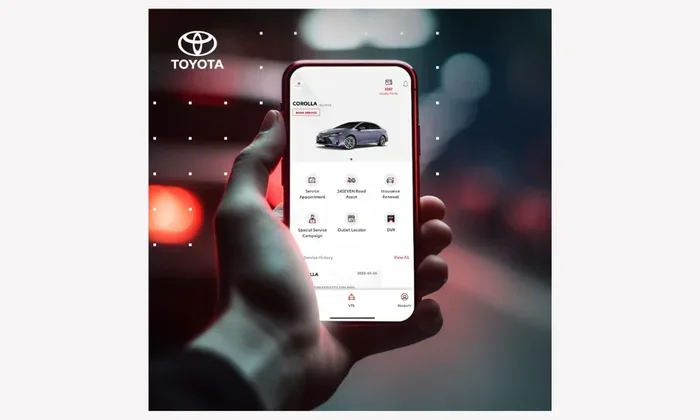
The Toyota app, also known as MyToyota, lets you control many parts of your vehicle right from your phone. You can lock doors, check fuel levels, and even start the engine remotely. But when more than one person uses the same car, things can get messy without separate profiles. That is where adding a second profile comes in handy. It keeps everyone’s data organized and makes the app feel personal for every driver.
In this guide, we will walk you through the entire process step by step. We will cover what a profile actually does, how to create one, and what to do if you run into trouble. By the end, you will feel confident setting up multiple users on your Toyota app. Let us get started.
Key Takeaways
- Multiple profiles keep settings separate: Each user gets their own saved preferences, climate settings, and navigation history.
- The process is quick and free: You do not need any special tools or paid subscriptions to add a second profile.
- You can manage profiles from the app or the car: Both methods work equally well for adding or removing users.
- Each profile supports different features: Music preferences, phone pairings, and seat positions can all be customized per profile.
- Switching between profiles is seamless: A simple tap or voice command lets you jump between users instantly.
- Security is built in: Each profile has its own login, so personal data stays private.
📑 Table of Contents
- What Does a Toyota App Profile Do?
- How to Add a Second Profile to My Toyota App
- Can You Add a Second Profile Through the Car Itself?
- What Features Can You Customize Per Profile?
- Common Problems When Adding a Second Profile
- Expert Tips for Managing Multiple Profiles
- How Does This Compare to Other Toyota App Features?
- Final Thoughts
What Does a Toyota App Profile Do?
Before you learn how to add a second profile, it helps to understand what a profile actually does. Think of it like a user account on your phone or computer. Each profile holds its own set of preferences and data. When you switch to a different profile, the app changes to show that person’s settings.
Personalized Settings for Every Driver
A profile saves things like your favorite radio stations, the temperature you like inside the car, and your phone’s Bluetooth pairing. It can also store navigation addresses and driving habits. When you switch to a different profile, the car adjusts to match that person’s choices. This is especially useful in families where drivers have very different tastes.
Why Separate Profiles Matter
Without separate profiles, everyone shares the same settings. Imagine your teenager changing the climate temperature to something you hate, or your spouse deleting your favorite playlist. Separate profiles prevent this confusion. Each person gets their own space inside the app. This also helps with privacy, since personal data like navigation history stays tied to the right user.
You can also use the Toyota app to manage things like remote start and vehicle location per profile. Some features may be tied to specific drivers, which makes having your own profile even more valuable.
How to Add a Second Profile to My Toyota App
Now let us get into the actual steps. Adding a second profile is straightforward, but the exact steps can vary slightly depending on your Toyota model and app version. We will cover the most common method first, which works for most recent Toyota vehicles.
Step 1: Open the Toyota App
Launch the Toyota app on your smartphone. Make sure you are logged into your primary account. If you have not downloaded the app yet, head to the Apple App Store or Google Play Store and search for “Toyota.” Download it and sign in with your Toyota account credentials.
Step 2: Go to Settings
Once you are in the app, look for the Settings icon. It usually looks like a gear or three horizontal lines in the corner of the screen. Tap on it to open the main menu. From there, find the section labeled “Profiles,” “Users,” or “Account Settings.” The exact name depends on your app version.
Step 3: Select “Add New Profile”
Inside the profiles section, you should see an option to add a new user or create a second profile. Tap on it. The app will ask you to enter a name for the new profile. Choose something clear, like “Spouse” or “Teen Driver,” so you can tell them apart easily.
Step 4: Set Preferences
After naming the profile, the app will walk you through basic setup. You can choose a default climate temperature, select preferred radio stations, and link a phone number for Bluetooth. Take your time here. This is where the profile becomes truly personal for the second user.
Step 5: Save and Switch
Once you have entered the details, tap “Save.” The new profile is now active. You can switch between profiles by going back to the Settings menu and selecting the profile you want to use. The app will refresh to show that profile’s settings.
Can You Add a Second Profile Through the Car Itself?
Yes, you can. Most newer Toyota models let you add a second profile directly from the infotainment screen in the car. This method is great if you do not have your phone handy. The steps are similar to the app method, but you use the touchscreen instead.
Start by going to the Settings menu on the car’s display. Look for “User Profiles” or “Driver Profiles.” Select “Add New User” and follow the on-screen prompts. You will name the profile and set basic preferences. The car will save the new profile to its memory, so it is available every time you start the engine.
One nice thing about doing it through the car is that you can test the profile right away. Switch to the new profile and see how the seat position, mirrors, and audio settings adjust. If anything does not look right, you can go back and tweak it.
Keep in mind that some older Toyota models may not support multiple profiles through the infotainment system. In that case, the app method is your best bet. You can also check if your vehicle supports remote connect features through the app, which can enhance the profile experience.
What Features Can You Customize Per Profile?
One of the best parts about having multiple profiles is the ability to customize features for each person. Here is a breakdown of what you can typically set up per profile:
Climate and Comfort Settings
Each profile can have its own preferred temperature. So if you like it cool and your partner likes it warm, no problem. The car will adjust based on which profile is active. Some models also save seat position and mirror adjustments per profile.
Audio and Entertainment
Music tastes differ from person to person. With a second profile, you can save your own favorite stations, playlists, and audio balance settings. The other driver gets their own choices without affecting yours. You can even explore adding apps to your car for extra entertainment options.
Phone and Device Pairing
Each profile can be linked to a different phone. This means your calls, messages, and media apps stay separate. When you switch profiles, the car connects to the right phone automatically. This is a huge convenience for families or couples who share a vehicle.
Navigation and Favorites
Saved addresses and navigation routes are profile-specific. Your daily commute can be stored in your profile, while your spouse’s gym route stays in theirs. This keeps the navigation screen clean and relevant for whoever is driving.
Common Problems When Adding a Second Profile
While the process is generally smooth, some people run into issues. Here are the most common problems and how to fix them.
Profile Not Showing Up After Creation
If you create a second profile but it does not appear in the list, try closing the app completely and reopening it. Sometimes the app needs a refresh to display new profiles. You can also try logging out and back in. If that does not work, check for app updates in your phone’s store.
Settings Not Syncing Between Phone and Car
Occasionally, the profile settings you save in the app do not match what shows up on the car’s screen. This usually happens when the phone and car are not connected to the same Wi-Fi or cellular network. Make sure both devices have a stable internet connection. Restarting the car’s infotainment system can also help sync things up.
Cannot Switch Profiles While Driving
For safety reasons, most Toyota models do not let you switch profiles while the car is in motion. You will need to pull over or put the car in park first. This is a built-in safety feature, not a bug. Always switch profiles when the vehicle is stationary.
App Crashes During Profile Setup
If the app crashes while you are setting up a new profile, make sure your phone has enough storage space. Low storage can cause apps to behave unpredictably. Clearing the app cache or reinstalling the Toyota app can also resolve this issue.
Expert Tips for Managing Multiple Profiles
Once you have your second profile set up, a few best practices can make the experience even better. Here are some tips from people who use multiple profiles every day.
- Name profiles clearly. Use names like “Mom,” “Dad,” or “Teen” instead of generic labels. This avoids confusion when switching.
- Review settings monthly. Over time, preferences can drift. Check that each profile still has the right settings for its user.
- Use the app to manage profiles on the go. You do not need to be near the car to adjust profile settings. The Toyota app lets you make changes from anywhere.
- Keep your primary profile as the default. This ensures the car starts in your preferred state every time you turn the key.
- Teach other drivers how to switch profiles. Make sure everyone in your household knows how to select their profile before driving.
- Explore the Toyota app’s full feature set. There is a lot more you can do beyond profiles. For example, you might want to change the sound system in your car or explore other customization options.
Managing multiple profiles becomes second nature after a week or two. The initial setup is the hardest part. Once everything is in place, every driver in your household will enjoy a personalized experience every time they get behind the wheel.
How Does This Compare to Other Toyota App Features?
Adding a second profile is just one way to get more out of the Toyota app. Here is how it stacks up against other popular features:
| Feature | What It Does | Requires Multiple Profiles? |
|---|---|---|
| Remote Start | Start the car from your phone | No, but profiles add personalization |
| Vehicle Tracking | Locate your car on a map | No, works for all profiles |
| Climate Control | Adjust temperature remotely | Yes, each profile can have different settings |
| Key Fob Programming | Program a new key fob | No, but profiles keep settings separate |
| App Integration | Add third-party apps to the car | No, but profiles can save different app preferences |
As you can see, multiple profiles work hand in hand with many other Toyota app features. They add a layer of personalization that makes the whole experience better for every driver.
If you are interested in other ways to enhance your Toyota experience, you might want to look into programming a key fob yourself or exploring what apps you can add to your car. These topics complement the profile setup nicely and help you get the most from your Toyota.
Final Thoughts
Adding a second profile to your Toyota app is one of the simplest ways to improve your daily driving experience. It keeps settings organized, protects privacy, and makes the car feel like it belongs to everyone who drives it. The process is fast, free, and does not require any special equipment.
Whether you share your car with a spouse, a teenager, or a roommate, a second profile solves the problem of conflicting preferences. Each person gets their own space, their own settings, and their own personalized experience. It is a small change that makes a big difference.
We hope this guide helped you understand exactly how to add a second profile to your Toyota app. If you run into any issues, refer back to the troubleshooting section. And remember, the Toyota app has many more features waiting for you to explore. Take some time to browse and see what else can make your driving life easier.
Now that you know how to set up multiple profiles, you can enjoy a more organized and personalized Toyota experience every time you turn the key. Happy driving!
Frequently Asked Questions
Can I add more than two profiles to my Toyota app?
Yes, most Toyota models and app versions support adding multiple profiles beyond just two. You can create profiles for each regular driver in your household. The exact number may vary depending on your vehicle model and app version, so check your app settings to see how many profiles your system allows.
Do I need a separate Toyota account for each profile?
No, you do not need a separate account. All profiles are managed under one Toyota account. Each profile simply stores different preferences and settings. This makes it easy to manage everything from a single login while keeping each driver’s experience personalized.
Can I delete a profile I no longer need?
Yes, you can delete any profile from the Toyota app. Go to Settings, select Profiles, and choose the profile you want to remove. Confirm the deletion, and the profile will be removed from the app and the car’s system. This is helpful when a driver no longer uses the vehicle regularly.
Will adding a second profile affect my car’s performance?
No, adding a second profile has no effect on your car’s performance. Profiles only store user preferences like seat position, climate settings, and audio choices. They do not change how the engine, transmission, or other mechanical systems operate. Your car runs the same regardless of how many profiles you have.
Can I switch profiles while the car is moving?
No, for safety reasons, you cannot switch profiles while the car is in motion. You must be parked or in neutral with the brake applied. This prevents distractions while driving. Always switch profiles before you start moving or after you have fully stopped.
What should I do if the Toyota app won’t let me create a new profile?
First, make sure your app is updated to the latest version. Outdated apps can have bugs that prevent new features from working. If updating does not help, try clearing the app cache or reinstalling it. You can also contact Toyota customer support for help if the problem continues.