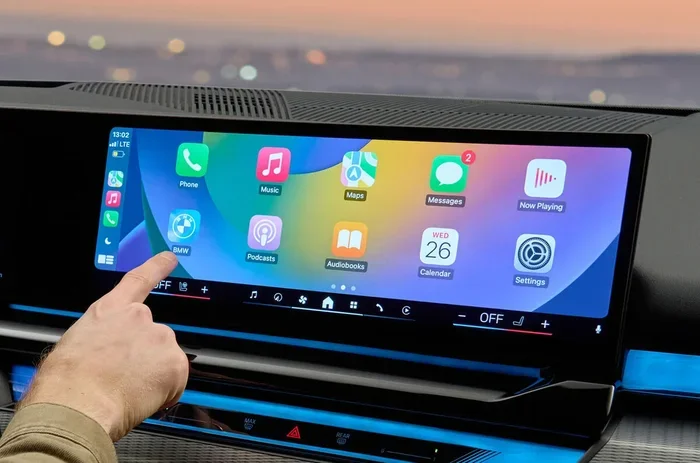
Why Is My iPhone Not Connecting to My Vehicle Anymore
Your iPhone may fail to connect to your vehicle due to Bluetooth glitches, outdated software, faulty cables, or car infotainment system errors. This guide walks you through proven fixes for Bluetooth pairing problems, CarPlay issues, and USB connection iPhone car troubles. You will learn simple step-by-step solutions to restore your connection fast.
There is nothing more frustrating than getting into your car, ready to hit the road, and realizing that your phone will not connect. You want to play music, use GPS, or take a hands-free call, but your iPhone just sits there silently. If you have ever wondered why is my iPhone not connecting to my vehicle, you are not alone. This is a very common problem that affects drivers every single day. The good news is that most causes are easy to fix with simple steps.
Whether your Bluetooth connection problems started suddenly or your CarPlay not working after an update, this guide has you covered. We will walk through every possible reason your phone and car are not getting along. By the end, you will know exactly what to check, what to fix, and how to prevent the problem from coming back. Let us get your iPhone car connection troubleshooting sorted out right now.
Key Takeaways
- Restart Both Devices First: A simple restart of your iPhone and vehicle infotainment system resolves most connection issues.
- Check Bluetooth Settings Carefully: Make sure Bluetooth is on, your car is visible, and old pairings are removed.
- Update iOS and Your Car Software: Outdated software is one of the top reasons iPhones fail to connect to vehicles.
- Inspect Your USB Cable and Port: Damaged cables or dirty ports cause USB connection iPhone car failures.
- Reset Network Settings When Needed: This clears stored Bluetooth data and fixes stubborn pairing problems.
- Know When to Seek Professional Help: Some issues require a dealership or mechanic, especially hardware faults.
📑 Table of Contents
- Common Reasons Your iPhone Will Not Connect to Your Vehicle
- Bluetooth Pairing Problems and Quick Fixes
- CarPlay and USB Connection iPhone Car Issues
- Software Updates and Settings That Affect Your Connection
- Vehicle-Side Problems You Might Be Overlooking
- How to Prevent iPhone Connection Issues in the Future
- Expert Insights on iPhone-Vehicle Connectivity
- Conclusion
Common Reasons Your iPhone Will Not Connect to Your Vehicle
Before you start changing settings or buying new cables, it helps to understand what is actually going wrong. Several different issues can cause the same frustrating result. Here are the most common reasons why is my iPhone not connecting to my vehicle and what each one means for you.
Bluetooth Pairing Problems
Bluetooth is the most common way iPhones connect to cars. But Bluetooth pairing problems happen more often than you might think. Sometimes the phone and the car simply forget each other. This can happen after a software update, a low battery, or even a change in your daily routine. Your iPhone Bluetooth settings may also have a glitch that prevents discovery mode from working properly.
Another frequent cause is that your car’s infotainment system is not set to be visible. Many vehicles hide their Bluetooth signal when they are not actively searching for a new device. If your car is not broadcasting, your iPhone will never find it. This is one of the simplest fixes, but it is also one of the most overlooked.
CarPlay and USB Connection iPhone Car Issues
If you rely on Apple CarPlay for navigation and music, a broken connection can ruin your drive. CarPlay not working can stem from a faulty USB cable, a dirty charging port, or a software conflict. Wireless CarPlay not connecting is another growing issue, especially in older vehicles that did not originally support it.
USB connection iPhone car problems often trace back to the cable itself. A cable that charges your phone may not transfer data properly. This is a very common mistake people make. They assume any cable will work, but data transfer requires a specific type of cable. Using a cheap or damaged cable is one of the top reasons for iPhone car connection troubleshooting failures.
Outdated Software on Your iPhone or Car
Software updates are not just about new features. They also fix bugs that can break your Bluetooth connection. If your iPhone is running an older version of iOS, it may not be compatible with your car’s latest infotainment system. Similarly, if your vehicle’s software is outdated, it may not recognize newer iPhones properly.
An iOS update iPhone mismatch can cause all sorts of issues. One device gets updated while the other does not, and suddenly they cannot communicate. Keeping both your phone and your car updated is one of the best ways to prevent connection problems before they start.
Bluetooth Pairing Problems and Quick Fixes
Bluetooth issues are the number one reason drivers search for why is my iPhone not connecting to my vehicle. Let us go through the most effective fixes for Bluetooth not pairing iPhone and Bluetooth connection problems in detail.
Step 1: Turn Bluetooth Off and Back On
This sounds too simple, but it works more often than you would expect. Open your iPhone Bluetooth settings and toggle Bluetooth off. Wait about ten seconds, then turn it back on. Do the same on your vehicle’s infotainment screen. This clears temporary glitches and forces both devices to re-establish the connection fresh.
Many people skip this step and jump straight to more complicated fixes. Do not make that mistake. A simple toggle can resolve the issue in under thirty seconds.
Step 2: Remove Old Pairings and Re-Pair
Sometimes your phone and car have stored conflicting data from old connections. This can cause your iPhone pairing failed to keep happening. To fix this, go to your iPhone Bluetooth settings and tap the “i” icon next to your car. Choose “Forget This Device.” Then do the same on your car’s system if it has the option.
After removing the old pairing, restart both devices and try connecting again. This fresh start often solves stubborn Bluetooth pairing problems that have been bugging you for weeks.
Step 3: Check for Bluetooth Interference
Other Bluetooth devices nearby can cause interference. If you have a smartwatch, earbuds, or a fitness tracker connected, they might be competing for the same signal. Try turning off other Bluetooth devices temporarily and see if your car connection improves.
Physical obstacles also matter. A metal phone case or a phone stored in a glove box can weaken the Bluetooth signal. Keep your iPhone in a clear line of sight from your car’s antenna for the best results.
Quick Tips for Bluetooth Issues
- Make sure your car is in park before attempting to pair.
- Check that your iPhone is not in Airplane Mode.
- Restart your vehicle’s infotainment system by holding the power button for ten seconds.
- Move your phone closer to the car’s antenna, usually near the rearview mirror.
- Avoid connecting too many devices at once.
CarPlay and USB Connection iPhone Car Issues
When CarPlay not working or your USB connection iPhone car link fails, it can feel like your entire driving experience falls apart. You lose your navigation, your music, and your hands-free calling all at once. Let us break down the most common causes and fixes.
Check Your USB Cable First
Not all USB cables are created equal. A cable that charges your phone may not support data transfer. This is the single most common cause of USB connection iPhone car failures. If your car asks you to “Trust This Device” and you never see the prompt, the cable is likely the culprit.
Use only Apple-certified cables or high-quality cables from reputable brands. Avoid cables that came with cheap accessories or cables you have had for years and never replaced. A worn-out cable is one of the sneaky reasons why is my iPhone not connecting to my vehicle through USB.
Clean Your iPhone Charging Port
Dust, lint, and debris can build up in your iPhone charging port over time. This prevents the cable from making proper contact. Use a soft brush or a toothpick to gently clean out the port. Be very careful not to damage the pins inside.
After cleaning, try connecting again. You may be surprised how often this simple step fixes what seemed like a major problem.
Wireless CarPlay Connection Fixes
If you use wireless CarPlay not connecting, the issue is usually related to your car’s Wi-Fi settings. Wireless CarPlay uses a Wi-Fi connection, not Bluetooth, to transfer data. Make sure your car’s infotainment system is set to allow Wi-Fi connections and that your iPhone is not blocking the connection.
Some vehicles require you to enable wireless CarPlay in the settings menu first. Check your car’s manual or the manufacturer’s website for specific instructions. Apple CarPlay troubleshooting for wireless connections often involves toggling Wi-Fi off and on on your iPhone.
Comparison: Bluetooth vs. USB vs. Wireless CarPlay
| Connection Type | Best For | Common Issues | Ease of Fix |
|---|---|---|---|
| Bluetooth | Hands-free calls, audio streaming | Pairing failures, interference | Very Easy |
| USB Cable | CarPlay, charging, data transfer | Faulty cable, dirty port | Easy |
| Wireless CarPlay | No-cable convenience, navigation | Wi-Fi conflicts, software bugs | Moderate |
Each connection type has its strengths and weaknesses. Bluetooth is the most universal but offers the slowest data transfer. USB provides the most stable connection but depends on cable quality. Wireless CarPlay is the most convenient but requires both devices to support it and be on the same Wi-Fi network.
Software Updates and Settings That Affect Your Connection
Software is the invisible backbone of every connection between your iPhone and your car. When something goes wrong in the software, it can feel like the problem is physical, but it is often just a settings issue.
Update Your iPhone and Your Car’s Software
An iOS update iPhone mismatch is one of the most overlooked causes of connection failure. Go to Settings, then General, then Software Update on your iPhone. Install any pending updates and restart your phone. Do the same for your vehicle if your car supports over-the-air updates.
Many car manufacturers release software updates through their own apps or at dealerships. Check your car manufacturer’s website for the latest infotainment updates. Keeping both devices current is one of the best iPhone car connection troubleshooting habits you can build.
Reset Network Settings on Your iPhone
If your Bluetooth not pairing iPhone issue persists, resetting your network settings can work wonders. Go to Settings, then General, then Transfer or Reset iPhone, then Reset, and choose Reset Network Settings. This clears all saved Wi-Fi passwords, Bluetooth pairings, and cellular settings.
Do not worry. You will not lose any personal data. You will just need to reconnect to your Wi-Fi and re-pair your car. This is one of the most effective fixes for persistent Bluetooth connection problems and is well worth trying before moving on to more complex solutions.
Check Your iPhone Cellular Data Settings
Some CarPlay features require an active cellular data connection. If your iPhone cellular data car is turned off or restricted, certain CarPlay functions may not work properly. Go to Settings, then Cellular, and make sure Cellular Data is enabled. Also check that CarPlay is allowed to use data in the settings.
Disable VPN or Security Apps Temporarily
VPN apps and certain security software can block your iPhone from communicating with your car’s system. If you use a VPN, try turning it off temporarily and see if your connection improves. This is a quick test that can reveal whether a background app is causing the problem.
Common Mistakes That Block iPhone Connections
- Using a non-Apple or uncertified USB cable.
- Leaving your iPhone in a metal or magnetic phone mount that blocks signals.
- Never restarting your vehicle’s infotainment system.
- Ignoring software update notifications on both devices.
- Keeping too many Bluetooth devices paired at once.
- Storing your phone in a faraday pouch or wallet with RFID blocking.
- Not clearing old pairings when switching cars or getting a new phone.
Vehicle-Side Problems You Might Be Overlooking
It is easy to assume the problem is always with your iPhone. But sometimes the issue lives inside your vehicle. Understanding your car’s side of the equation is essential for complete iPhone car connection troubleshooting.
Infotainment System Glitches
Your car’s infotainment system is essentially a small computer. Like any computer, it can freeze, crash, or develop bugs. A vehicle infotainment reset often fixes these issues. Most systems can be reset by holding the power button for ten to fifteen seconds until the screen goes dark and restarts.
Some vehicles require a full battery disconnect to reset the infotainment system. Check your owner’s manual for the correct procedure. A reset clears temporary glitches and gives the system a fresh start, which often restores your connection.
Bluetooth Module Hardware Issues
If your car’s Bluetooth module is faulty, no amount of iPhone troubleshooting will help. Signs of a hardware issue include the Bluetooth icon never appearing on your car’s screen, the system crashing every time you try to pair, or the connection dropping constantly even after a fresh pairing.
A vehicle Bluetooth reset through the infotainment settings can sometimes fix minor hardware glitches. But if the problem is truly hardware-based, you may need a visit to the dealership or a qualified auto electrician. They can diagnose whether the Bluetooth module needs replacement.
Antenna and Signal Problems
Your car’s Bluetooth antenna can degrade over time, especially in older vehicles. Weather damage, corrosion, or even a recent car repair can affect the antenna’s performance. If you notice that other Bluetooth devices connect fine but your iPhone does not, the antenna could be the issue.
This is a less common cause, but it is worth considering if you have ruled out all the simpler explanations. A dealership can test your car’s Bluetooth antenna and recommend a repair if needed.
How to Prevent iPhone Connection Issues in the Future
Prevention is always better than cure. Once you get your connection working again, you want to keep it working. Here are the best habits to maintain a strong, reliable connection between your iPhone and your vehicle.
- Restart your iPhone and car infotainment system weekly.
- Keep both devices updated with the latest software.
- Use only Apple-certified or high-quality USB cables.
- Clean your iPhone charging port monthly.
- Remove old pairings when you no longer use a device.
- Avoid connecting and disconnecting your phone rapidly, which can confuse the system.
- Store your iPhone in a consistent location in your car for stronger signal reception.
Building these small habits into your routine takes almost no time but saves you from hours of frustration. A little prevention goes a very long way when it comes to keeping your iPhone car stereo and CarPlay running smoothly.
Expert Insights on iPhone-Vehicle Connectivity
Automotive tech experts consistently point to one key insight: most connection problems are software-related, not hardware-related. This means the vast majority of issues can be resolved without visiting a mechanic or buying expensive replacement parts.
One technician shared that the single most effective fix they recommend is a full reset of both the iPhone and the vehicle’s infotainment system. “People jump to conclusions about broken hardware,” the expert noted. “In nine out of ten cases, it is a software glitch that a simple reset fixes.”
Another common expert recommendation is to always try the oldest fix first. Restart both devices, check your settings, and work your way up to more complex solutions. This saves time and prevents unnecessary repairs.
When it comes to iPhone car connection troubleshooting, patience and methodical checking are your best tools. Do not skip steps or assume the worst. Work through the list systematically, and you will solve the problem in most cases.
Conclusion
Dealing with connection issues between your iPhone and your vehicle is incredibly frustrating, but it is almost always solvable. The next time you find yourself asking why is my iPhone not connecting to my vehicle, you now have a complete toolkit of fixes at your fingertips. Start with the simplest solutions like restarting both devices and checking your Bluetooth settings. Move on to cable checks, software updates, and network resets as needed.
Remember that Bluetooth connection problems, CarPlay not working issues, and USB failures all have clear, actionable fixes. Keep your devices updated, use quality cables, and build simple maintenance habits. Your iPhone car connection troubleshooting does not have to be complicated or expensive.
With the steps outlined in this guide, you can get back to enjoying hands-free calling, navigation, and music in your car quickly and confidently. Do not let a connection problem ruin your drive. Take action today and get your iPhone and vehicle talking to each other again.
Frequently Asked Questions
Why does my iPhone keep disconnecting from my car Bluetooth?
Frequent disconnections are usually caused by outdated software, a low battery on either device, or interference from other Bluetooth devices. Try resetting your network settings and updating both your iPhone and your car’s infotainment system to resolve this issue.
Can a dirty USB port cause my iPhone not to connect to my car?
Yes, absolutely. Dust, lint, and debris in your iPhone charging port or your car’s USB port can prevent a proper connection. Clean both ports gently with a soft brush or compressed air and try connecting again.
How do I reset my car’s infotainment system?
Most infotainment systems can be reset by holding the power button for ten to fifteen seconds until the screen turns off and restarts. Some vehicles may require a battery disconnect. Check your car’s owner manual for the exact procedure.
Is Wireless CarPlay less reliable than USB CarPlay?
Wireless CarPlay can be slightly less stable than a USB connection, especially if your Wi-Fi signal is weak or if there are software conflicts. However, it offers the convenience of no cables and works well in most modern vehicles with updated software.
What should I do if my car does not appear in my iPhone Bluetooth list?
Make sure your car is in pairing mode and that Bluetooth is turned on in your car’s settings. Also check that your iPhone is not in Airplane Mode. If the car still does not appear, try forgetting old pairings on both devices and re-pairing from scratch.
Do phone cases affect Bluetooth connection to my car?
Yes, thick metal cases or cases with magnetic mounts can block or weaken Bluetooth signals. Remove the case temporarily and try connecting again to see if the case is the cause of your connection problem.