How Do I Program My Remote Without Needing Any Codes
Programming your remote without codes is easier than you think. You can use the auto-search method, manual button sequences, or HDMI-CEC to set up your universal remote in minutes. This guide covers every method step by step, so you can get your devices working fast.
Have you ever stared at your remote control, trying to figure out why it refuses to work with your brand-new TV or streaming box? You are not alone. Many people face the same frustration when they buy a universal remote or replace an old one. The good news is that you do not always need a long list of remote codes to get things working.
Programming your remote without codes is a skill that saves time and frustration. Whether you are setting up a universal remote for your living room or trying to sync a replacement control for your sound system, there are simple methods that work every time. This guide will walk you through each approach in plain, easy-to-follow steps.
You will learn how the auto-search method works, how to use manual button sequences, and even how HDMI-CEC can skip the code process entirely. By the end, you will feel confident enough to program any remote on your own. Let us get started.
Key Takeaways
- Auto-Search Method: Lets your remote find the right code on its own without any input needed.
- Manual Button Sequences: A reliable fallback that works on most remotes with a simple key combo.
- HDMI-CEC Feature: A smart shortcut for controlling TVs and streaming devices without codes at all.
- Brand Code Lists: Still useful for older remotes and specific device brands.
- Common Fixes: Simple troubleshooting steps solve most remote programming issues quickly.
- Pro Tips: Small habits like firmware updates keep your remote running smoothly long-term.
📑 Table of Contents
- Understanding How Remote Programming Works Without Codes
- Methods to Program Your Remote Without Needing Any Codes
- Step-by-Step Guide to Programming Any Remote
- Common Problems and How to Fix Them
- Pro Tips for a Smooth Remote Setup
- How Remote Programming Fits Into Your Smart Home Setup
- Frequently Asked Questions
- Conclusion
Understanding How Remote Programming Works Without Codes
Before you dive into the steps, it helps to understand what is happening behind the scenes. When you press a button on your remote, it sends a signal to your device. This signal tells the device what to do. In the old days, you needed a specific brand code to match the remote to the TV or device. But modern remotes have gotten smarter.
Today, many remotes can auto-detect the right signal without you entering any numbers. They simply try different codes one by one until they find the one that works. This is called the auto-search method, and it is the most popular way to program a remote without codes. Other methods include using built-in features like HDMI-CEC or following a button sequence that triggers a learning mode.
Why Would You Want to Skip Codes?
There are several good reasons to avoid using remote codes altogether. First, code lists can be outdated. The code that worked for your TV model three years ago might not work today. Second, entering long codes is tedious and prone to errors. One wrong digit, and you have to start over. Third, some newer devices simply do not come with a code list anymore.
Using a code-free method removes all of these headaches. It is faster, more reliable, and works across a wider range of devices. Whether you are a tech-savvy user or someone who just wants things to work, programming without codes is the way to go.
Methods to Program Your Remote Without Needing Any Codes
There are several proven methods you can use. Each one works well for different situations. Below, we break them down so you can pick the best one for your setup.
The Auto-Search Method
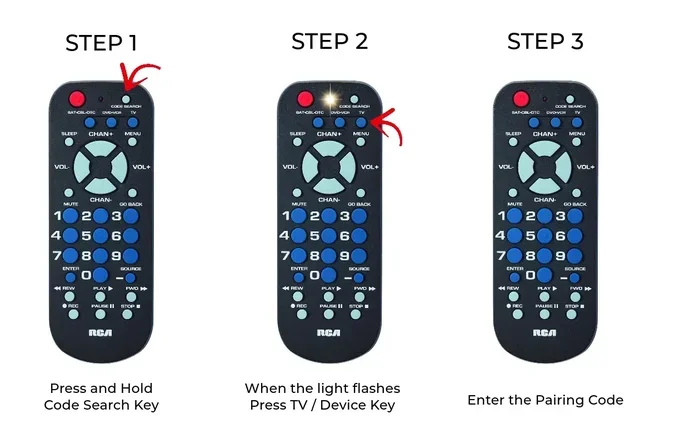
The auto-search method is the most common way to program a universal remote without codes. Here is how it works. You put the remote into search mode, and it starts sending signals to your device one after another. When the TV or device responds, you stop the search and save the code.
Most remotes follow a similar process. You press and hold a specific button, often labeled Setup or Code Search. Then you enter a special key combination. The remote light will blink, letting you know it is ready. From there, you point the remote at your device and press the power button repeatedly until the device turns off.
This method works for TVs, soundbars, streaming boxes, and even some car entertainment systems. It is a powerful tool that eliminates the need for any code list. If you have ever wondered about how different devices communicate, you might find it interesting to learn at what speed hybrids switch to gas, since both involve signal-based switching systems.
Manual Button Sequence Programming
Some remotes allow you to program them using a button sequence. This is a manual process, but it does not require any codes. Instead, you press a specific combination of buttons in a set order. This triggers the remote to enter a learning or setup mode.
For example, you might need to press Info, then Menu, then OK in quick succession. The remote screen will display a message confirming that it is ready to search. This method is especially useful for remotes that do not have a dedicated Code Search button.
The button sequence approach works well with most major brands. It is also handy when you are setting up a remote for a device that is not on the standard code list. Just make sure you follow the sequence exactly as written in the manual.
Using HDMI-CEC for Smart Devices
If you have a modern smart TV or streaming device, you might not need any remote programming at all. HDMI-CEC (Consumer Electronics Control) is a feature that lets devices talk to each other through the HDMI cable. When enabled, your TV remote can control connected devices like soundbars, streaming sticks, and game consoles.
HDMI-CEC goes by different names depending on the brand. Samsung calls it Anynet+. LG uses Simplink. Sony uses BRAVIA Sync. Despite the different names, they all do the same thing. They let you control multiple devices with one remote.
To use HDMI-CEC, simply go into your TV settings and turn on the feature. Then make sure the connected device also has CEC enabled. You should be able to change the volume, switch inputs, and power devices on and off without any programming. It is the easiest code-free setup available today.
The Brand Code List Method (As a Backup)
Even though this guide focuses on programming without codes, the brand code list method is worth knowing about. Some remotes come with a printed list of codes for different brands. You look up your brand, enter the code, and test if it works. If it does not, you try the next code on the list.
This method is not entirely code-free, but it is still straightforward. It is a good backup option when the auto-search method fails. You can find brand code lists on the manufacturer’s website or in the user manual that came with your remote.
Step-by-Step Guide to Programming Any Remote
Now that you know the main methods, let us walk through a full setup. This guide assumes you are using the auto-search method, which works for most universal remotes.
Preparing Your Remote and Device
Before you start, make sure you have everything ready. Here is a quick checklist:
- Your remote and the device you want to control (TV, soundbar, or streaming box).
- Fresh batteries in the remote.
- A clear line of sight between the remote and the device.
- The device powered on.
- The remote manual nearby for reference.
Taking these simple steps before you begin will save you time and prevent frustration. A proper setup starts with good preparation.
Following the Auto-Search Process
Here is the step-by-step process for the auto-search method:
- Turn on the device you want to control.
- Press and hold the Setup or Code Search button on the remote.
- Enter the device type code if prompted (TV, DVD, etc.).
- Release the button when the remote light starts blinking.
- Point the remote at the device and press the Power button repeatedly.
- Wait for the device to turn off. This means the remote found the right signal.
- Press Setup again to save the code.
The whole process usually takes less than five minutes. Once saved, your remote should control the device without any issues.
Verifying the Connection
After programming, test every button. Try the power, volume, channel, and input buttons. Make sure each one responds correctly. If a button does not work, you can repeat the auto-search process or try a different method.
Verifying the connection is an important step that many people skip. A quick test saves you from surprises later when you need the remote the most.
Common Problems and How to Fix Them
Even with the best method, you might run into some issues. Here are the most common problems and how to solve them.
Remote Not Responding
If your remote does not seem to do anything, start with the basics. Check the batteries. Replace them if they are old. Make sure the remote is pointed directly at the device. Some devices have a small light that flashes when they receive a signal.
If the batteries are fresh and the remote is aimed correctly, try resetting the remote. You can usually do this by holding the Setup button for ten seconds. This clears any saved codes and lets you start fresh.
Device Not Recognizing the Remote
Sometimes the device turns on but does not respond to button presses. This usually means the remote found a close but not exact match. Try running the auto-search again and stop at a different point. You might need to try multiple codes before finding the right one.
Another common cause is infrared interference. Other remotes or light sources can sometimes confuse the signal. Make sure no other remotes are pointing at the device while you program.
Pro Tips for a Smooth Remote Setup
Here are some expert tips that make the whole process smoother and faster.
Keep Your Remote Firmware Updated
Many modern remotes receive firmware updates that add support for new devices. Check the manufacturer’s website or app for updates. A simple update can add new device compatibility without you needing to reprogram anything.
Use the Right Remote for the Right Device
Not all remotes work equally well with all devices. A universal remote is great for most setups, but some devices work better with their original remote. If you are having trouble, try the original remote first to confirm the device is working properly.
Also, keep in mind that some devices use Bluetooth or Wi-Fi instead of infrared signals. These require a different type of remote. Make sure your remote supports the connection type your device uses.
Label Your Remote After Setup
Once you have programmed your remote, take a moment to label it. Use a small piece of tape or a label maker to note which device each button controls. This simple habit saves a lot of confusion, especially if you control multiple devices with one remote.
Labeling also helps if you share your remote with family members. Everyone can quickly figure out which buttons do what without guessing.
How Remote Programming Fits Into Your Smart Home Setup
Programming your remote without codes is just one piece of a larger smart home puzzle. Once your remote is set up, you can integrate it with other smart devices for a seamless experience. Many modern remotes support voice control through Alexa or Google Assistant.
You can also use your remote to control smart lights, smart plugs, and thermostats. The more devices you connect, the more valuable a well-programmed remote becomes. It becomes the central hub for your entire entertainment and smart home setup.
Some people also enjoy programming remotes for their RC toy cars, and if you want to learn more about that topic, check out our guide on 10 lines on my favourite toy car for fun ideas and inspiration.
Frequently Asked Questions
Can I program a remote without any codes at all?
Yes, you can. The auto-search method is the most popular code-free way to program a remote. It lets the remote find the right signal on its own. You simply put it in search mode and let it do the work. Most universal remotes support this feature.
How long does it take to program a remote without codes?
Most people finish the process in three to five minutes. The auto-search method is fast because the remote does all the work for you. Manual button sequences take about the same amount of time. HDMI-CEC is even faster since it requires no programming at all.
What if the auto-search method does not find the right code?
Try running the search again and stopping at a different point. Sometimes the remote finds a close match but not the exact one. You can also try the manual button sequence method as an alternative. If neither works, check the manufacturer’s website for a brand code list as a backup.
Do I need the remote manual to program without codes?
It helps but is not strictly necessary. Most remotes follow a similar process for the auto-search method. The key buttons are usually Setup, Code Search, and Device Type. If you lose your manual, you can often find the steps on the manufacturer’s website.
Can I use the code-free method for any device?
The auto-search method works for most TVs, soundbars, streaming boxes, and DVD players. However, some older or niche devices may not respond to code-free programming. In those cases, you might need to use the brand code list method or check for a firmware update on the device.
Is HDMI-CEC the same as programming a remote?
Not exactly. HDMI-CEC is a built-in feature that lets devices communicate through the HDMI cable. It does not require any programming or codes. It is more of a plug-and-play solution. However, you do need to enable it in the settings of both the TV and the connected device.
Conclusion
Programming your remote without codes is a simple skill that anyone can learn. Whether you use the auto-search method, a manual button sequence, or rely on HDMI-CEC, the process is straightforward and fast. You do not need to be a tech expert to get it right.
The key is to start with the right method for your setup. The auto-search method works for most people and most devices. HDMI-CEC is perfect for smart TVs and streaming devices. And the manual button sequence is a great backup option when nothing else works.
Take a few minutes today to set up your remote properly. You will save yourself hours of frustration in the future. With the tips and steps in this guide, you have everything you need to program any remote without codes. Give it a try and enjoy the convenience of a fully working remote control setup.