How Do I Get to the QR Code on Any Phone or Device
Finding and scanning a QR code on your phone is simpler than you think. Whether you need to scan a QR code for vehicle registration, car service appointments, or automotive purchases, this guide walks you through every step. You will learn exactly how to access the QR code scanner on any device, locate QR codes in automotive settings, and troubleshoot common scanning issues.
Have you ever stood in front of a QR code and felt completely lost? Maybe it was on a car dealership window, a vehicle registration form, or a service center flyer. You knew the code held important information, but you did not know how to get to it. If you have ever asked yourself, “How do I get to the QR code?” you are not alone. Millions of people search for this exact question every month, and most of them are surprised by how simple the answer really is.
The truth is, accessing a QR code on any phone or device takes just a few seconds. Whether you are trying to scan a QR code for vehicle registration, pulling up a car maintenance QR link, or checking a vehicle identification number through a digital code, your phone already has everything you need. This guide will show you exactly how to find and scan QR codes on any device, with a special focus on automotive use cases that matter most to car owners and buyers.
QR technology has transformed the automotive industry. From scanning a QR code at a dealership to book a test drive, to using your smartphone camera to access vehicle warranty information, these small square patterns connect the physical and digital worlds. By the end of this article, you will know exactly how to get to any QR code on your phone, what to do when things do not work, and why QR codes are becoming essential in car ownership and vehicle management.
Key Takeaways
- Every modern phone has a built-in QR code scanner: You do not need to download extra apps for most devices.
- QR codes appear everywhere in the automotive world: From car dealerships to vehicle registration stickers, knowing where to look saves time.
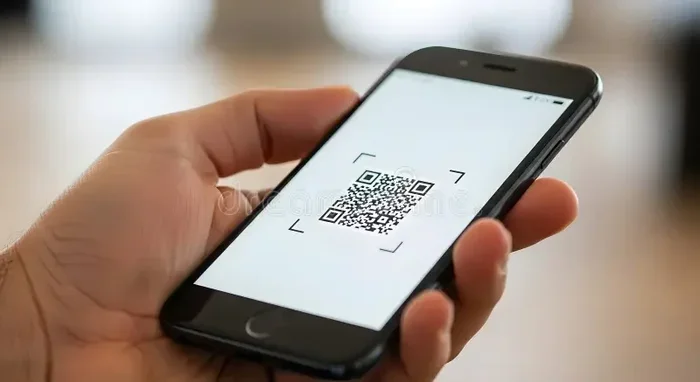
- Scanning a QR code takes seconds: Open your camera, point it at the code, and tap the notification that appears.
- Troubleshooting is easy: Simple fixes like cleaning your lens or updating your software solve most scanning problems.
- QR codes make car ownership easier: They streamline everything from service bookings to warranty claims.
- Both iPhone and Android support native QR scanning: The process is slightly different but equally simple on both platforms.
- Safety matters: Always verify the source of a QR code before scanning, especially in automotive transactions.
📑 Table of Contents
What Is a QR Code and Why Does It Matter for Your Vehicle?
A QR code is a quick response code. It is a two-dimensional barcode that stores information. When you scan it with your phone, it instantly directs you to a website, a PDF document, a contact card, or a specific action like opening a booking page. The technology has been around since 1994, but it has exploded in popularity over the last few years, especially in the automotive sector.
In the car world, QR codes serve many purposes. A dealership might place a QR code on a vehicle window that links directly to the full specs, pricing, and financing options. Insurance companies print QR codes on cards that instantly pull up your policy details. Service centers use QR codes on maintenance reminders so you can book appointments with one tap. Even tire shops place QR codes on receipts that link to warranty claims and replacement part orders.
The beauty of QR technology is its simplicity. You do not need to type a long URL or search for a specific page. You simply point your phone at the code, and the information appears instantly. For car owners, this means faster service, easier access to documents, and a smoother experience at every turn. Understanding how to use QR codes puts you ahead in today’s digital automotive landscape.
Why QR Codes Are Growing in the Automotive Industry
The automotive industry has embraced QR technology faster than almost any other sector. Car manufacturers now embed QR codes on new vehicles that link to digital owner’s manuals. Dealerships use QR codes on window stickers to provide instant access to vehicle history reports. Even parking meters and toll roads now feature QR codes for cashless payments.
During the pandemic, contactless interactions became essential. QR codes allowed car buyers to browse inventory, service customers to check in without touching shared pens or tablets, and owners to access digital service records. This trend has only accelerated. Today, if you buy a new car, there is a good chance you will encounter multiple QR codes during the ownership experience. From the moment you visit a dealership to the day you sell the vehicle, QR codes play a role.
How to Find and Access QR Codes on Any Phone or Device
Getting to the QR code scanner on your phone is easier than most people think. Both iPhone and Android devices have built-in scanning capabilities. You do not need to download a separate QR code reader app unless you prefer one. Your smartphone camera handles the job natively.
On iPhone: The Built-In QR Scanner
If you have an iPhone running iOS 11 or later, you already have a QR code scanner built right into your camera app. Here is how to access it. Open the Camera app from your home screen. Point the camera at the QR code. Make sure the code fits within the frame on your screen. Wait for a notification to appear at the top of your display. Tap the notification to open the link.
That is it. No app download needed. No extra steps required. Your iPhone automatically recognizes QR codes and provides a direct tap-to-open experience. If the notification does not appear, go to Settings, then Camera, and make sure “Scan QR Codes” is turned on. This setting is enabled by default on most iPhones, but it is worth checking if you are having trouble.
Another way to access the QR scanner on iPhone is through the Control Center. Swipe down from the top-right corner of your screen to open Control Center. Tap the QR code icon if it is available. This opens the scanner directly without needing to launch the Camera app first. Some users prefer this method because it is faster and more convenient.
On Android: Using Google Lens and the Camera App
Android phones also offer native QR code scanning. The exact steps depend on your phone model and Android version, but the process is straightforward. Open your Camera app. Point it at the QR code. Look for a notification or a clickable link that appears on your screen. Tap it to open the content.
Many Android phones also support Google Lens integration. You can access Google Lens by long-pressing the home button or swiping up from the bottom of your screen. Point Google Lens at the QR code, and it will recognize the code and provide options for what to do next. Some Android devices have a dedicated QR scanner built into their camera interface, while others rely on Google Lens as the primary scanning tool.
If your Android phone does not scan QR codes through the camera, you can download a free QR code reader app from the Google Play Store. Look for highly rated apps like “QR Code Reader” or “Barcode Scanner.” These apps are lightweight, fast, and require minimal storage space. However, for most users, the built-in camera scanning is all you need.
Using a QR Code Scanner App for Advanced Features
While built-in scanning works for most situations, some users prefer dedicated QR code scanner apps. These apps often include extra features like scan history, batch scanning, and the ability to create your own QR codes. If you frequently scan automotive QR codes, a dedicated scanner app can be helpful. Look for apps that are free, have good reviews, and do not require excessive permissions.
Keep in mind that built-in camera scanning is secure and convenient for everyday use. Only download third-party scanner apps from trusted sources. Check the app store ratings and read reviews before installing anything on your mobile device.
Common Automotive Places Where You Will Find QR Codes
QR codes have become incredibly common in the automotive world. Once you know where to look, you will start seeing them everywhere. Here are the most common places you will encounter a QR code in your car journey.
At the Car Dealership
When you visit a dealership, QR codes are everywhere. New vehicles often have a QR code on the window sticker or on a display stand nearby. Scanning this code takes you directly to the vehicle’s full specifications, pricing breakdown, and financing options. Some dealerships even place QR codes on keychains or brochures that link to virtual tours of the car.
Service departments use QR codes on waiting-area posters to let customers book appointments instantly. Sales representatives may hand you a QR code that links to a trade-in valuation tool. Being able to scan these codes quickly saves you time and gives you immediate access to information you need.
On Your Vehicle Itself
Your car may contain QR codes in several places. The owner’s manual often has a QR code on the first page that links to a digital version. Some vehicles have a QR code on the driver-side door jamb that provides tire pressure specifications and loading information. Newer cars sometimes include a QR code near the VIN plate that links to the manufacturer’s online service portal.
Insurance cards and vehicle registration documents frequently include QR codes. Scanning these codes can pull up your policy details or registration status directly on your phone. This is especially handy during traffic stops or when you need to prove coverage quickly.
At Service Centers and Auto Parts Stores
Mechanics and service centers use QR codes extensively. Your service invoice may include a QR code that links to your digital service history. Some shops place QR codes on their waiting-room tables that let you rate your experience or book your next appointment. Auto parts stores often have QR codes on shelves that link to installation guides and compatibility checks.
Tire shops use QR codes on receipts for warranty tracking and replacement part orders. Oil change reminders may come with a QR code that lets you schedule your next service with one scan. These small codes make managing your car maintenance much more convenient.
How to Scan a QR Code on iPhone
Scanning a QR code on an iPhone is a quick process. Follow these steps for a smooth experience every time.
- Open the Camera app. You can do this from your home screen or by swiping up from the bottom of your screen.
- Point the camera at the QR code. Hold your phone about 12 to 18 inches away. Make sure the entire code fits in the frame.
- Wait for the notification. Your iPhone will recognize the code automatically. A yellow banner or notification will appear at the top of your screen.
- Tap the notification. This opens the link, document, or action associated with the QR code.
If the notification does not appear, check your settings. Go to Settings, then Camera, and ensure “Scan QR Codes” is enabled. You can also try cleaning your camera lens with a soft cloth. A smudged lens can interfere with scanning accuracy.
Pro tip: Good lighting makes a big difference. When scanning a QR code on a car dealership window or a printed document, make sure the area is well-lit. Avoid glare on the surface where the code is printed. If you are scanning a code on your phone screen, adjust the brightness to make the code clearer.
How to Scan a QR Code on Android
Scanning a QR code on an Android phone follows a similar process, though the exact steps vary by manufacturer. Here is the general approach that works on most Android devices.
- Open your Camera app. Look for the camera icon in your app drawer or on your home screen.
- Point the camera at the QR code. Hold your phone steady and make sure the code is fully visible in the frame.
- Look for a notification or pop-up. Most Android phones will recognize the code and display a clickable link or action button.
- Tap the link or action. This takes you to the content or task associated with the QR code.
If your Android phone does not scan QR codes through the camera, try opening Google Lens. You can access it by long-pressing the home button or finding it in your app drawer. Point Google Lens at the QR code, and it will process the information for you.
Some Android phones have a dedicated QR scanner in their quick settings. Swipe down from the top of your screen to open the notification panel and look for a QR code icon. Tapping it opens the scanner directly. If you cannot find this option, you may need to add it to your quick settings by editing the tile layout.
Troubleshooting and Expert Tips for Scanning QR Codes
Sometimes scanning a QR code does not work the first time. This is completely normal and usually easy to fix. Here are the most common issues and how to solve them.
Common Scanning Problems and Their Solutions
Problem: The QR code will not scan. This is the most common issue. The fix is usually simple. Clean your camera lens with a soft, lint-free cloth. Make sure the QR code is not blurry or damaged. Hold your phone steady and adjust the distance between your phone and the code. Try moving slightly to the left or right to find the right angle.
Problem: The notification does not appear. On iPhone, check that QR code scanning is enabled in Settings. On Android, make sure Google Lens or your camera’s scanning feature is turned on. Restart your phone if the issue persists. Sometimes a simple reboot fixes temporary software glitches.
Problem: The link opens but shows an error. This usually means the QR code is damaged or outdated. Ask the person who provided the code for a new one. If you are scanning a QR code on a car dealership website, try refreshing the page and scanning again.
Expert Tips for Better Scanning
Here are some pro tips that make scanning QR codes faster and more reliable. First, always make sure your phone’s camera lens is clean. We touch our phones constantly, and fingerprints can blur the lens enough to interfere with scanning. A quick wipe with a microfiber cloth before scanning takes seconds and makes a huge difference.
Second, use steady hands. Rest your elbows on a surface if possible when scanning. The more stable your phone, the easier it is for the scanner to read the code. Third, pay attention to lighting. Direct sunlight can create glare on printed QR codes, making them hard to read. Move to a shaded area or adjust the angle of the code if you are outdoors.
Fourth, keep your phone at the right distance. Too close and the scanner cannot focus. Too far and the code becomes too small to read. About 12 inches is usually the sweet spot. Finally, make sure your phone’s software is up to date. Updates often include improvements to camera and scanning performance.
Quick Tips for Automotive QR Code Scanning
- Keep a microfiber cloth in your car. Use it to clean your camera lens before scanning codes on vehicles or documents.
- Save important QR codes to your phone. If a dealership or service center provides a QR code on paper, take a photo of it so you can scan it later.
- Use the scan history feature. Many QR scanner apps save your previous scans, making it easy to revisit links you have already opened.
- Verify the URL before tapping. When scanning a QR code for a car purchase or service, always check the link to make sure it leads to a legitimate website.
- Bookmark frequently used QR links. If you scan a QR code for your vehicle manual or service portal often, save it as a bookmark for quick access.
Common Mistakes to Avoid When Scanning QR Codes
One of the biggest mistakes people make is scanning QR codes from unknown sources without checking where the code leads. Always verify the context of the QR code before scanning. If you receive a QR code via email or text from someone you do not know, be cautious. In the automotive world, stick to QR codes from trusted sources like dealerships, service centers, and official manufacturers.
Another common mistake is holding your phone too close to the code. People often get enthusiastic and bring the phone right up to the QR code, which actually makes it harder for the scanner to read. Give the camera some breathing room and let it focus naturally.
Some users forget to enable QR scanning in their phone settings. If you have tried scanning multiple times without success, check your settings before assuming the code is bad. A quick toggle in your settings menu can save you a lot of frustration.
Conclusion
Getting to the QR code on any phone or device is something everyone can learn in minutes. Whether you are an iPhone user or an Android user, your phone already has a built-in QR scanner ready to go. You do not need special apps or technical skills. You simply open your camera, point it at the code, and tap the notification that appears.
In the automotive world, QR codes make life easier at every turn. From scanning a QR code at a dealership to access vehicle details, to pulling up your service history through a car maintenance QR link, these small codes save time and reduce friction. Understanding how to find and scan QR codes gives you a practical skill that enhances your car ownership experience.
Remember the tips and tricks in this guide. Clean your lens, check your settings, use good lighting, and always verify the source of a QR code before scanning. With these simple steps, you will never wonder how to get to the QR code again. The next time you see a QR code on a vehicle, a service invoice, or a registration form, you will know exactly what to do. Scan it, tap it, and move forward with the information you need.
QR technology continues to grow in the automotive industry. The more comfortable you become with scanning QR codes, the more smoothly your car-related tasks will go. So go ahead, pick up your phone, find a QR code, and give it a try. You will be surprised at how easy it is and how much time it saves you.
Frequently Asked Questions
Can I scan a QR code without downloading an app?
Yes, absolutely. Both iPhone and Android phones have built-in QR code scanning through their default camera apps. You do not need to download any additional software. Simply open your camera, point it at the QR code, and tap the notification that appears on your screen. This native scanning feature works on most phones made in the last several years.
Where can I find a QR code on my vehicle?
QR codes on vehicles are typically found in a few common spots. Check the driver-side door jamb for a QR code linked to tire pressure and loading information. Look in your owner’s manual for a QR code that leads to the digital version. Newer vehicles may have a QR code near the VIN plate or on the infotainment system setup screen. Insurance cards and registration documents also often include scannable QR codes.
Is it safe to scan QR codes from car dealerships and service centers?
Yes, scanning QR codes from reputable sources like dealerships, authorized service centers, and official manufacturers is generally safe. These businesses use QR codes to provide legitimate information like vehicle specs, pricing, and booking links. However, always make sure the QR code comes from a trusted source. If you receive a QR code through an unexpected email or from an unfamiliar website, exercise caution and verify the sender before scanning.
What should I do if my phone will not scan a QR code?
Start by cleaning your camera lens with a soft cloth. Make sure QR scanning is enabled in your phone settings. On iPhone, go to Settings, then Camera, and check the QR Code toggle. On Android, check your Camera settings or try using Google Lens. If the code is printed on a glossy surface, try angling your phone to reduce glare. Restarting your phone can also resolve temporary scanning issues.
Can I create my own QR code for automotive purposes?
Yes, you can create your own QR code using free online tools. Many QR code generators let you create codes that link to websites, documents, contact information, or booking pages. For automotive use, you could create a QR code that links to your vehicle service records, insurance documents, or a personal car maintenance checklist. Simply enter the content you want to share, generate the code, and download it as an image file.
Do all new cars come with QR codes?
Most modern vehicles include at least one QR code, but the exact number varies by manufacturer. Many new cars have a QR code on the owner’s manual that links to a digital version. Some manufacturers place QR codes on the vehicle itself for accessing warranty information, service portals, or digital owner guides. As QR technology becomes more standard in the automotive industry, expect to encounter more QR codes with each new vehicle you own or purchase.